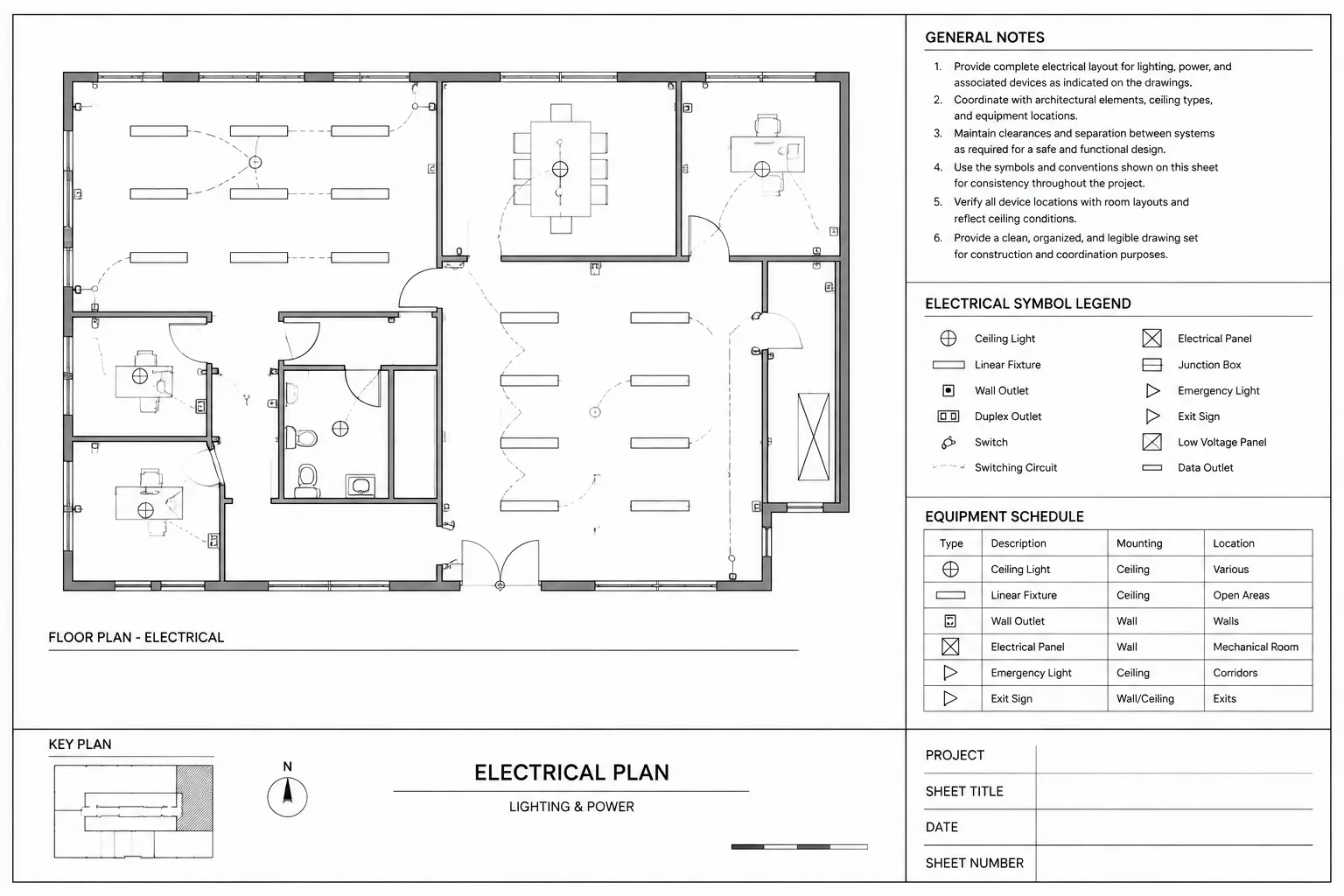
An effective electrical sheet should communicate its purpose before the reader begins tracing circuits, checking tags, or reviewing schedules. Thoughtful layout gives each plan, diagram, legend, note group, and reference a clear role within the overall drawing.
This guide explains how to organize electrical CAD sheets for readability, coordination, and consistent issue review. It focuses on documentation decisions rather than project-specific design requirements, so the final arrangement should always follow the applicable CAD standards and drawing-set conventions.
A technically correct electrical plan can still be difficult to use if its sheet is crowded, fragmented, or visually inconsistent. Electrical CAD sheet layout is the process of arranging views, schedules, legends, notes, and references so readers can understand the drawing without searching across the page.
Good sheet composition does not replace accurate circuiting, equipment data, or coordination. It provides a readable framework for that information. The goal is to make the drawing hierarchy obvious: identify the primary view, present supporting information nearby, and keep secondary material from competing with the work being documented.
Begin with the purpose of the sheet
Before placing viewports or importing schedules, define what the sheet is expected to communicate. A lighting plan, power plan, single-line diagram, enlarged equipment-room plan, and electrical detail sheet each require a different composition.
A useful sheet-purpose statement can be written in plain language, such as:
- Show the lighting layout, fixture identification, circuiting, and control references for one floor.
- Document receptacles, equipment connections, and panel assignments within a defined area.
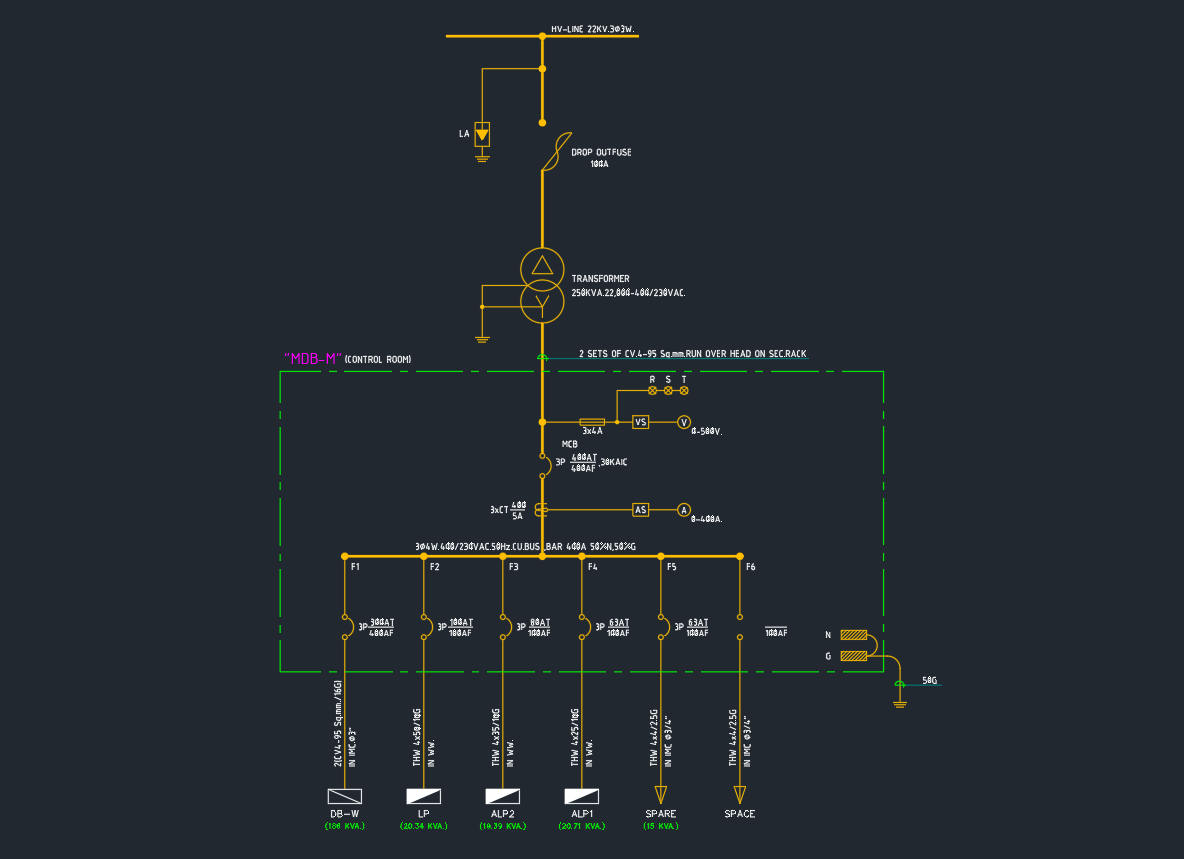
- Present the project distribution path from sources through major equipment and downstream loads.
- Collect installation details that are referenced from several electrical plans.
This statement helps the drafting team decide which information belongs on the sheet and which information should be placed elsewhere. If an item does not support the stated purpose, it may be unnecessary or may require a dedicated sheet.
Establish a clear information hierarchy
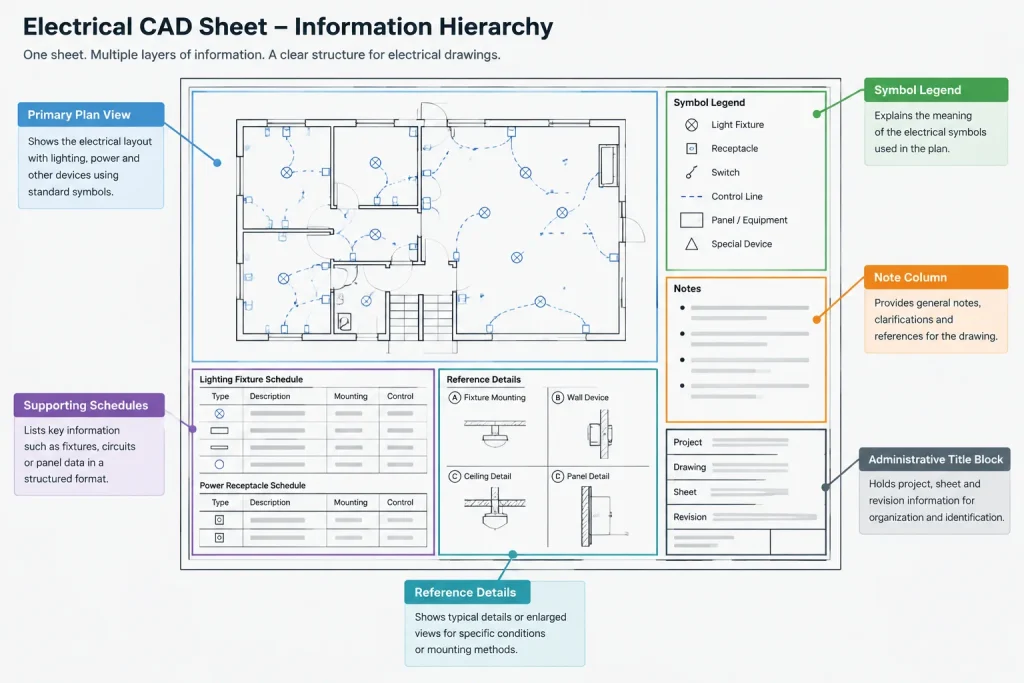
Most electrical sheets contain several levels of information. Readers should be able to distinguish them through placement, scale, lineweight, text hierarchy, and controlled use of white space.
| Information level | Typical content | Layout objective |
|---|---|---|
| Primary | Floor plan, enlarged plan, diagram, or major elevation | Give it the strongest visual position and sufficient drawing area. |
| Supporting | Schedules, legends, keyed notes, or related diagrams | Place it where it can be found without interrupting the primary view. |
| Reference | General notes, abbreviations, continuation references, and detail titles | Keep it readable and consistent while visually subordinate to the main content. |
| Administrative | Sheet title, number, revision information, and issue data | Coordinate it with the project title block and document-control process. |
Hierarchy is not created by making everything larger. It comes from consistent differences. A primary plan may use stronger object linework, while background geometry is screened or assigned lighter plotting characteristics. View titles can be more prominent than local notes, and section or detail references should remain recognizable without overpowering device symbols.
Reserve space before detailing the plan
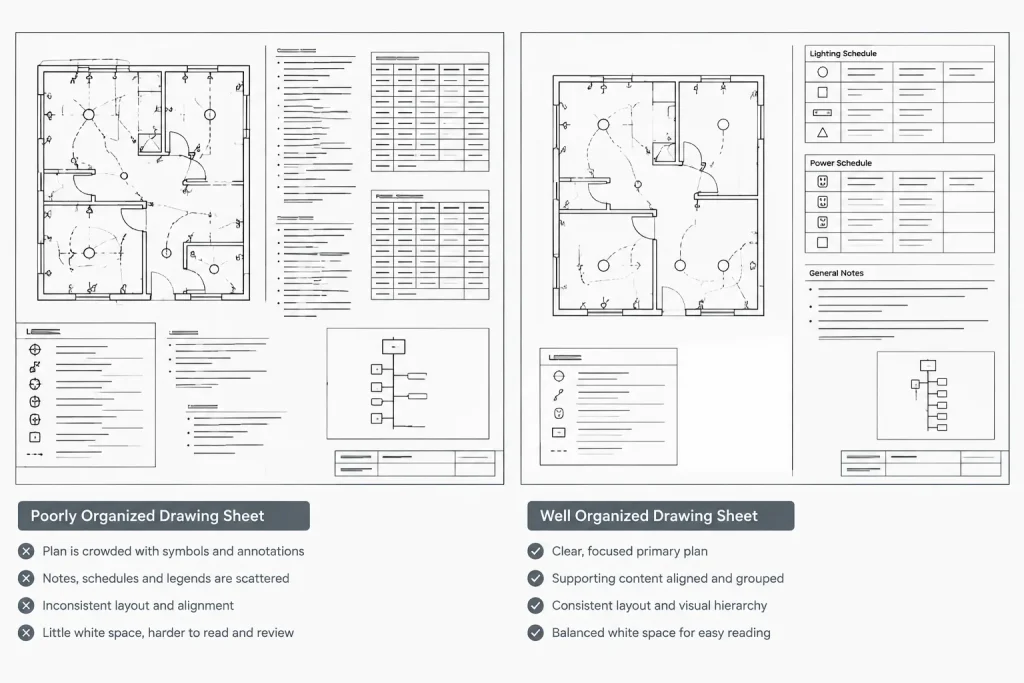
A common drafting problem occurs when the plan is developed first and supporting content is fitted into whatever space remains. This can produce narrow schedules, scattered notes, and legends placed far from the views they explain.
Create an early sheet-layout study using simple rectangles for proposed content. Represent the plan viewport, schedule area, note column, legend, key plan, and any supporting details. These placeholders do not need finished graphics. Their purpose is to test whether the sheet can carry the required information.
During this stage, check:
- Whether the main view can be shown at a readable project-approved scale.
- Whether expected annotation will fit around dense equipment or device areas.
- Whether schedule columns have enough room for their intended fields.
- Whether references and continuation markers can be positioned near relevant boundaries.
- Whether future revisions have reasonable space for added notes or callouts.
Planning the composition early reduces late-stage viewport resizing and annotation movement.
Position the primary plan view
The primary plan should be easy to identify when the sheet opens or is printed. Keep its orientation consistent with related sheets whenever practical. If a plan must be rotated, show the directional reference clearly and apply the same approach to associated views.
Avoid placing critical electrical information directly against viewport edges. Circuit tags, home-run references, device labels, and equipment identifiers need enough surrounding space to remain legible. Where a building area continues onto another sheet, coordinate the crop boundary with match lines, key plans, or off-sheet references rather than allowing the view to end ambiguously.
Do not enlarge a viewport merely to fill unused sheet space. A change in view scale may affect symbol appearance, annotation density, hatch readability, and coordination with companion disciplines. Treat scale as a documentation decision, not a cosmetic adjustment.
Organize legends, notes, and schedules by function
Legends
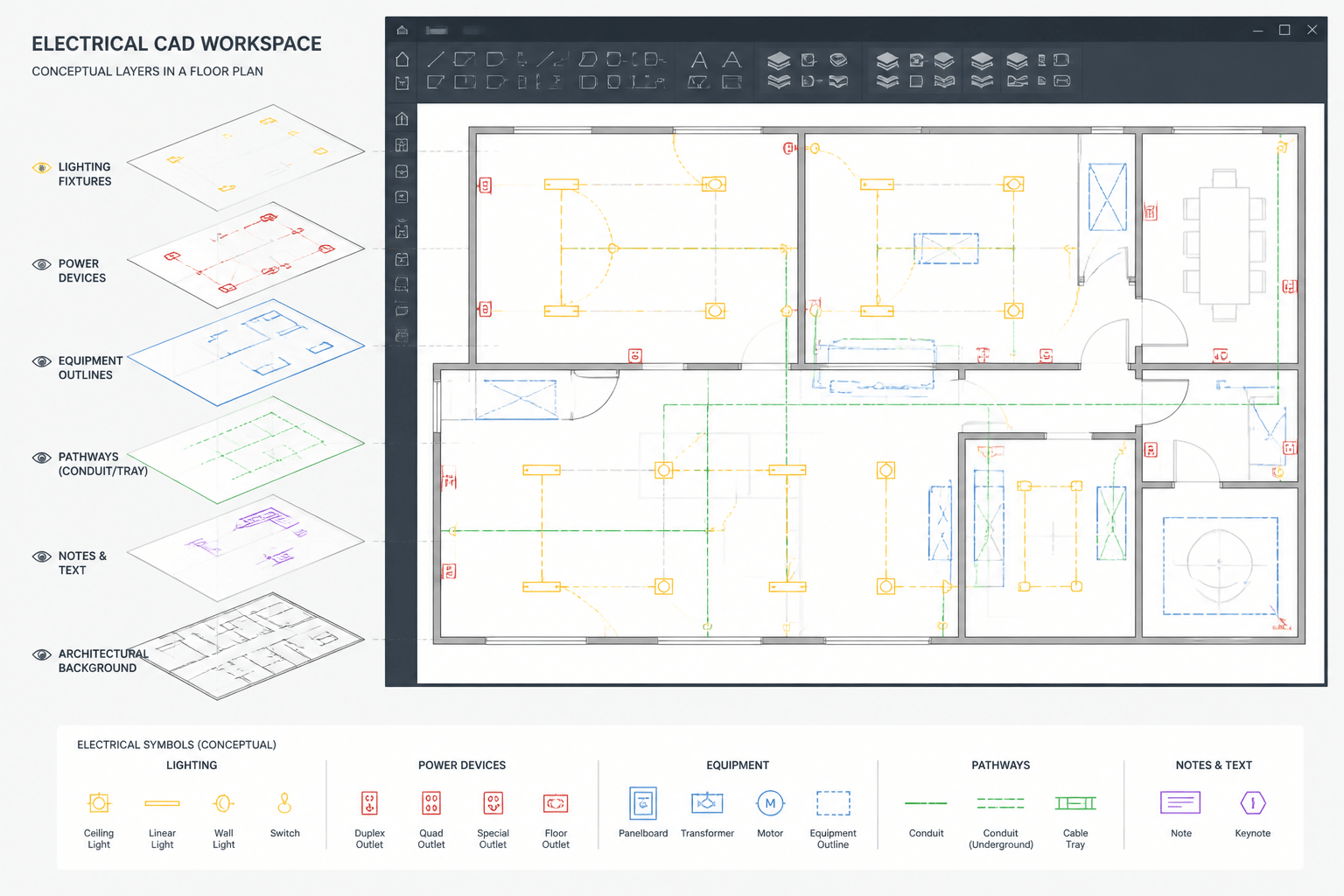
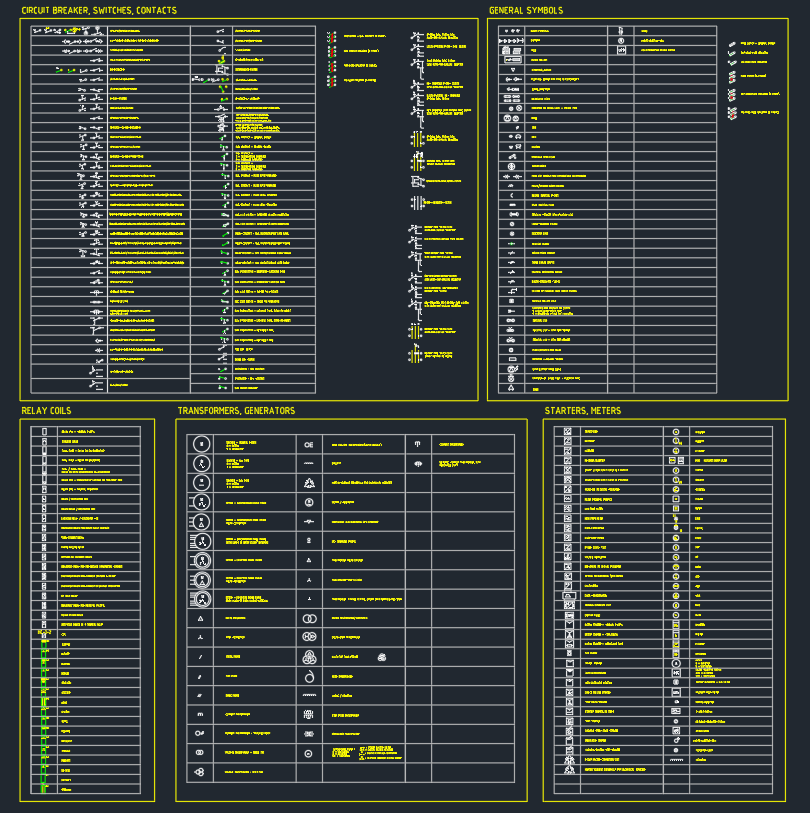
Place a legend where it supports the sheet without being mistaken for project scope. Clearly distinguish symbol examples from actual devices. If the project uses a common legend on another sheet, avoid creating a partial local legend unless it is necessary to explain sheet-specific graphics.
General and sheet notes
Separate notes that apply broadly from notes that apply only to the current sheet. Organize long note groups into logical subjects rather than presenting an undifferentiated text block. Keyed notes should use a controlled numbering system and should be reconciled with the symbols actually placed in the view.
Schedules
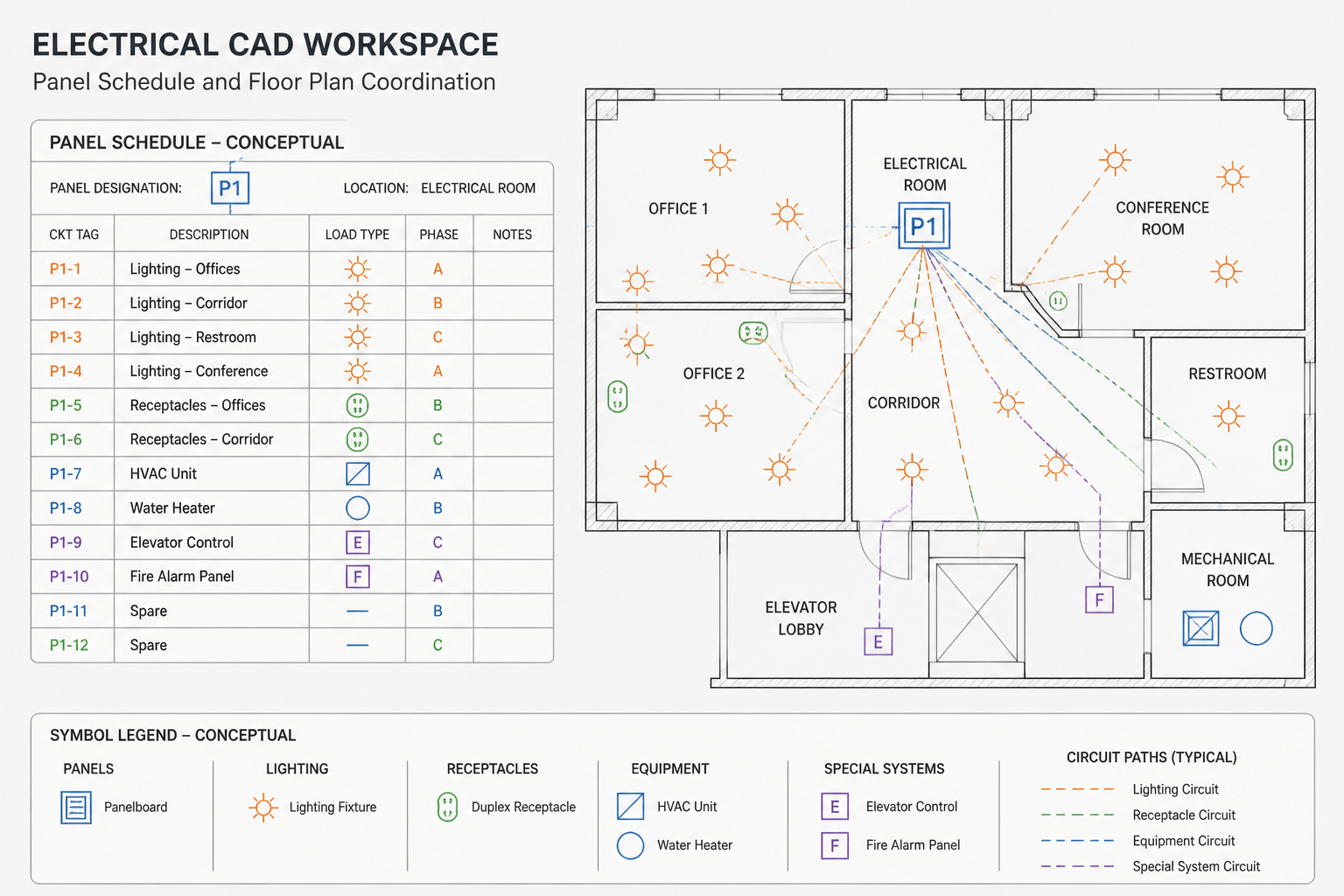
Schedules should be placed on the sheet where they are most useful, not simply where they fit. A fixture schedule may accompany lighting documentation, while an equipment schedule may work better on a dedicated schedule sheet used by several plan types. Verify that schedule tags match plan and diagram identifiers.
When a schedule is generated or linked from project data, preserve a workflow for updating it. Avoid manual edits that create an unexplained difference between the schedule shown on the sheet and its source information.
Use alignment and spacing as drafting tools
Aligned view edges, titles, note columns, and schedule boundaries make a sheet easier to scan. Establish a small number of layout guides in paper space and use them consistently. These guides can define content margins, title positions, columns, or preferred gaps between views.
White space is also functional. It separates unrelated information, leaves room for annotations, and helps readers identify the boundaries of schedules and details. Filling every open area may make the sheet appear complete, but it often weakens the distinction between primary and secondary content.
At the same time, avoid isolated items that appear accidental. A small detail placed alone in a distant corner may be overlooked. Group related details and give each one a clear title and reference identity.
Coordinate view titles and drawing references
Every secondary view should have enough identification to answer three questions: what is shown, where it applies, and how it is referenced. Depending on the drawing type, this may involve a detail number, sheet reference, plan area, elevation direction, or diagram title.
References must work in both directions. If a plan contains a detail callout, the destination detail should identify its subject and location. If a sheet includes a continuation view, the related sheet should provide a corresponding reference. Automated fields can help maintain references, but they still require visual and logical review.
Control paper-space and model-space responsibilities
Project CAD standards should define where different information is created. In many workflows, design geometry remains in model space while title blocks, viewports, and sheet-specific organization are managed in paper space. Notes and titles may be handled differently depending on the office standard.
Whatever method is used, avoid duplicate information with competing sources. For example, do not maintain one schedule in model space and another manually retyped schedule in paper space unless their separate purposes are explicit. Similarly, do not place duplicate view titles in both spaces where they can overlap or diverge.
Lock approved viewport scales and positions according to the project workflow. A viewport that shifts during editing can alter the displayed area, hide coordination notes, or expose unintended background geometry.
Review the sheet at multiple levels
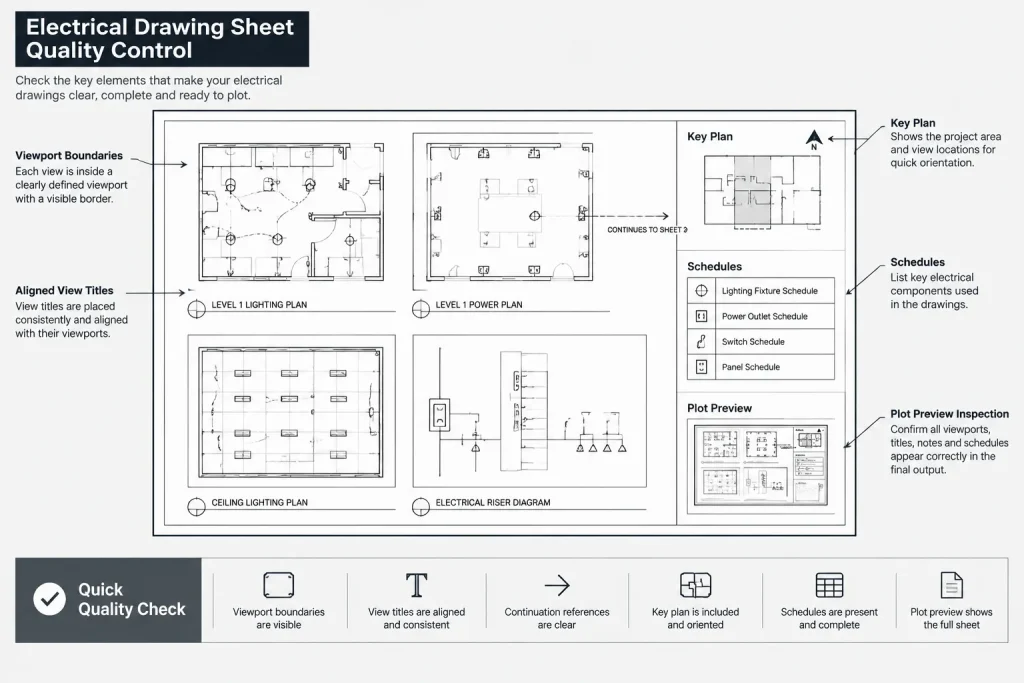
Sheet review should include more than zooming into individual symbols. Use several review levels:
- Thumbnail review: Confirm that the main view and supporting content are visually identifiable.
- Full-sheet review: Check balance, alignment, white space, titles, and information grouping.
- Reading review: Confirm that notes, tags, and schedule entries are legible at the intended output.
- Reference review: Follow callouts, continuation markers, and sheet references to their destinations.
- Technical review: Reconcile plan content with schedules, diagrams, and project data.
A monochrome or project-standard plot preview can reveal problems that are not obvious in the CAD editor. Look for screened backgrounds that disappear, heavy linework that merges symbols, masks that hide required geometry, and text that becomes visually crowded.
A practical sheet-layout checklist
- The sheet has one clearly defined documentation purpose.
- The primary view is visually dominant and shown at a verified scale.
- Orientation and continuation references agree with related sheets.
- Legends explain graphics without implying nonexistent project scope.
- Notes are grouped by function and keyed notes match placed references.
- Schedules use coordinated equipment, fixture, panel, or circuit identifiers.
- View titles and callouts are complete and aligned consistently.
- Viewport boundaries do not clip tags, symbols, or required background context.
- Paper-space content does not duplicate or conflict with model-space information.
- The final plot has been reviewed for hierarchy, legibility, and reference continuity.
Sheet composition is part of technical coordination
Electrical CAD sheet layout is not merely graphic presentation. The way information is divided and arranged affects how effectively plans can be reviewed, compared, issued, and used alongside other project documents.
A successful sheet makes its main subject immediately recognizable, keeps supporting information close at hand, and provides reliable paths to related drawings. By planning the composition before the sheet becomes crowded, CAD teams can reduce rework while producing electrical documentation that is easier to navigate and verify.
Deciding what to move when a sheet becomes crowded
When content no longer fits comfortably, first determine whether the problem is poor arrangement or excessive scope. Repositioning a legend or aligning schedule edges may resolve a local conflict, but compressing every element usually reduces readability without addressing the underlying issue.
Protect the primary view, required annotations, and dependable drawing references before preserving secondary material. Content used across several sheets may belong on a coordinated reference or schedule sheet. A detail serving only one plan may remain nearby if that placement makes the relationship easier to understand.
Avoid solving congestion by making text, symbols, or schedule content inconsistently small. If the intended information cannot remain legible under the project plotting workflow, reconsider the sheet division, view extent, or supporting-content strategy.
Maintain consistency across the drawing set
A well-composed individual sheet can still cause confusion if it behaves differently from related sheets. Comparable plans should use recognizable title locations, orientation cues, note structures, reference conventions, and schedule formatting. Consistency helps readers distinguish meaningful differences from drafting variations.
Use templates and shared CAD standards as controls rather than substitutes for review. A template can establish margins, title positions, and common styles, but each sheet still needs to be checked for clipped annotation, misleading legend content, incomplete references, and conflicts between plan tags and schedules.
Review layout changes as coordination changes
Moving or resizing a viewport may change more than appearance. It can alter the visible plan area, separate a note from its subject, expose unwanted background information, or break a continuation relationship. Review affected callouts, match lines, key plans, and schedule identifiers whenever the composition changes.
The most reliable final check follows the information paths a reader will use: from symbol to legend, tag to schedule, callout to detail, and continuation marker to the related sheet. If those paths remain obvious in the plotted output, the layout is supporting the technical content rather than competing with it.
Frequently asked questions
Should every electrical sheet use the same layout?
No. Sheets should share consistent graphic and reference conventions, but their composition should respond to the information being presented. A plan sheet, diagram sheet, detail sheet, and schedule sheet do not require identical arrangements.
Where should an electrical legend be placed?
Place it where readers can find it without confusing legend examples with installed project devices. If a common project legend already exists elsewhere, use the established reference approach rather than repeating an incomplete version.
How can a drafter tell whether a sheet is too crowded?
Warning signs include annotations competing with symbols, schedules forced into narrow spaces, unclear grouping, clipped references, and little visual separation between unrelated content. Plot review often reveals these problems more clearly than an editable CAD view.
Should schedules be kept with the plan they support?
That depends on how the schedule is used. Sheet-specific information may be most useful near its related plan, while information shared across several plans may be easier to maintain on a dedicated schedule sheet. In either case, identifiers must remain coordinated.
Why should approved viewports be locked?
Locking viewports within the project workflow helps prevent accidental changes to scale, position, and visible extents. The displayed area should still be reviewed after revisions or background updates.
Leave a Reply
You must be logged in to post a comment.