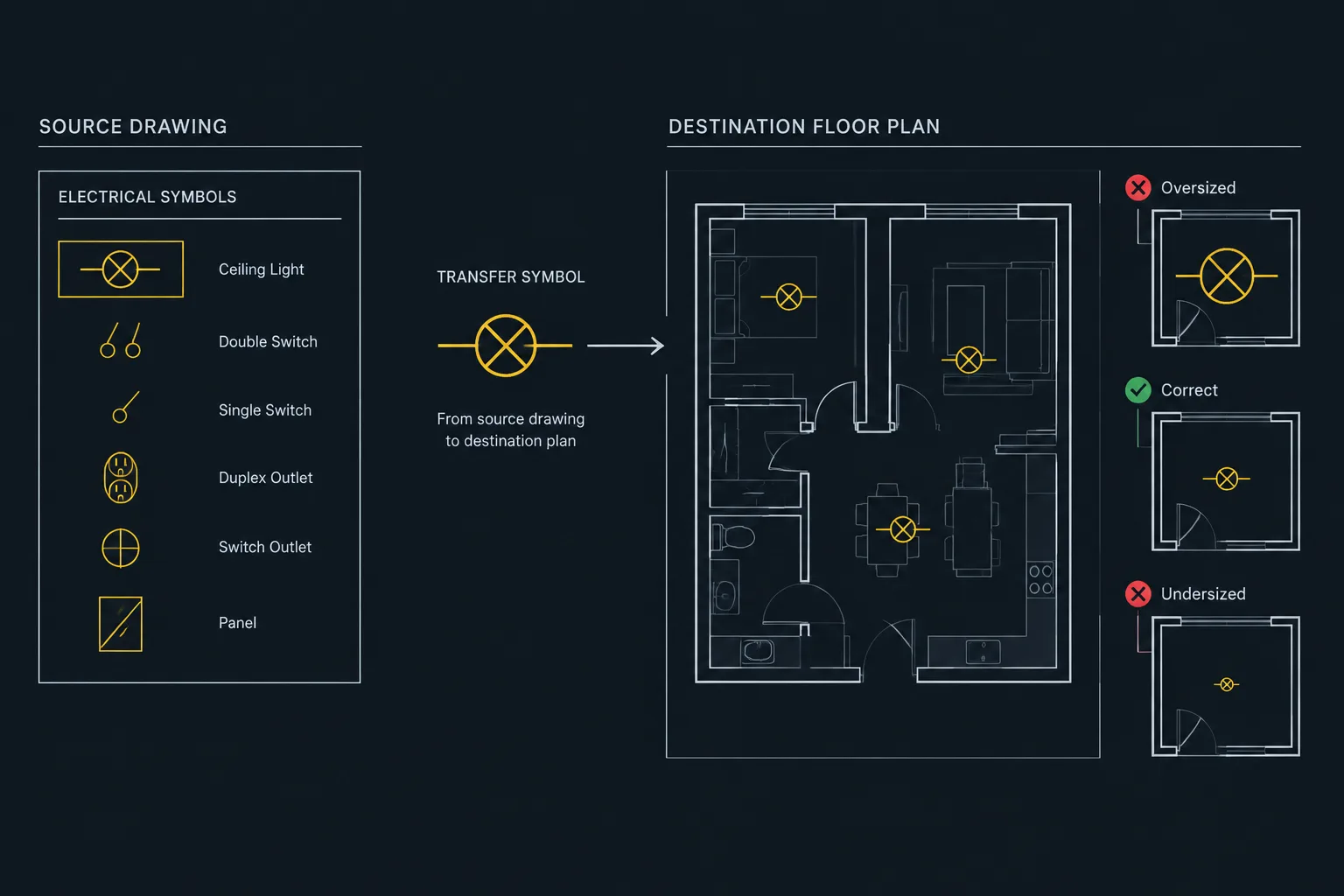
Incorrect block size is not always a simple scaling error. The same visual problem can come from mismatched drawing units, automatic insertion conversion, annotation settings, nested definitions, or confusion between symbolic linework and physical equipment geometry.
This guide presents a controlled way to diagnose electrical CAD block units and scale before modifying project content. The goal is to correct the cause, preserve verified geometry, and keep symbols consistent across plans, diagrams, viewports, and office libraries.
An electrical CAD block can be drawn correctly and still appear at the wrong size when inserted into a project. A receptacle symbol may become larger than the room containing it, an equipment outline may arrive as a tiny mark, or symbols from different libraries may look inconsistent on the same sheet. These problems usually result from a mismatch among source units, destination drawing units, insertion behavior, and the intended use of the block.
Correcting the immediate size problem is only part of the solution. A reliable workflow also preserves symbol consistency, equipment geometry, annotation behavior, and future library usability. The following guide explains how to evaluate electrical CAD block units and scale without assuming that every downloaded file follows the same drafting convention.
Why electrical CAD blocks arrive at the wrong size
A CAD file stores coordinates, but those coordinates do not always communicate their real-world meaning by themselves. A distance recorded in a source file could represent inches, feet, millimeters, or another project unit. If the source and destination drawings interpret that distance differently, the inserted geometry may be scaled unexpectedly.
Common causes include:
- The source block and project drawing use different units.
- The source file is unitless or has incomplete unit information.
- A manual insertion scale was applied in addition to automatic unit conversion.
- A block intended as a diagram symbol was treated as physical equipment geometry.
- A full-size equipment outline was mistaken for a plotted plan symbol.
- Nested blocks were created using different unit assumptions.
- The block definition was previously modified or scaled inside another project.
- Annotation settings affect text or attributes differently from the surrounding geometry.
Because several issues can produce a similar visual result, randomly scaling the block until it “looks right” is risky. The corrected appearance may conceal an incorrect physical size or create a symbol that fails in another viewport.
First identify what the block represents
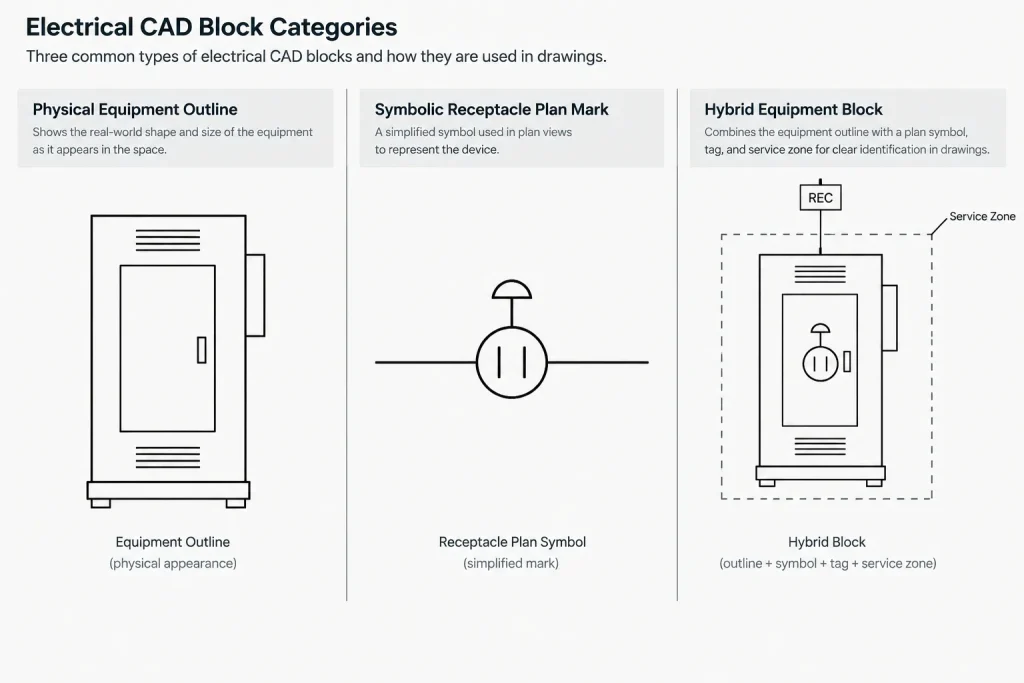
Before checking scale, determine whether the block is supposed to represent a physical object or a symbolic mark. This distinction controls how its size should be evaluated.
Physical equipment geometry
Equipment plans, elevations, and coordination details may use blocks that approximate the physical footprint or outline of an enclosure, panel, transformer, control station, or other component. These blocks generally need to correspond with the project’s model-space units. Their dimensions should be checked against verified project information, manufacturer data, or an approved equipment schedule.
A generic library block should not be assumed to match selected equipment. It may be useful as a drafting placeholder, but its dimensions require confirmation before it is used for layout or clearance coordination.
Plan and diagram symbols
Receptacle marks, switches, junction-box symbols, home-run arrows, and many single-line diagram symbols are primarily communication devices. They are often drawn for legibility rather than as scaled representations of the physical product.
Their model-space size may depend on office convention, viewport scale, or annotation method. The key test is whether the symbol has an appropriate plotted appearance and remains consistent with the project legend—not whether it matches the actual dimensions of the device.
Hybrid blocks
Some blocks combine both purposes. An equipment block might include a physical outline, a device tag, connection points, and a surrounding clearance or service zone. Each component may follow a different display rule. Scaling the entire block to fix the text can accidentally distort the equipment footprint. In such cases, review the block structure rather than applying a global scale adjustment.
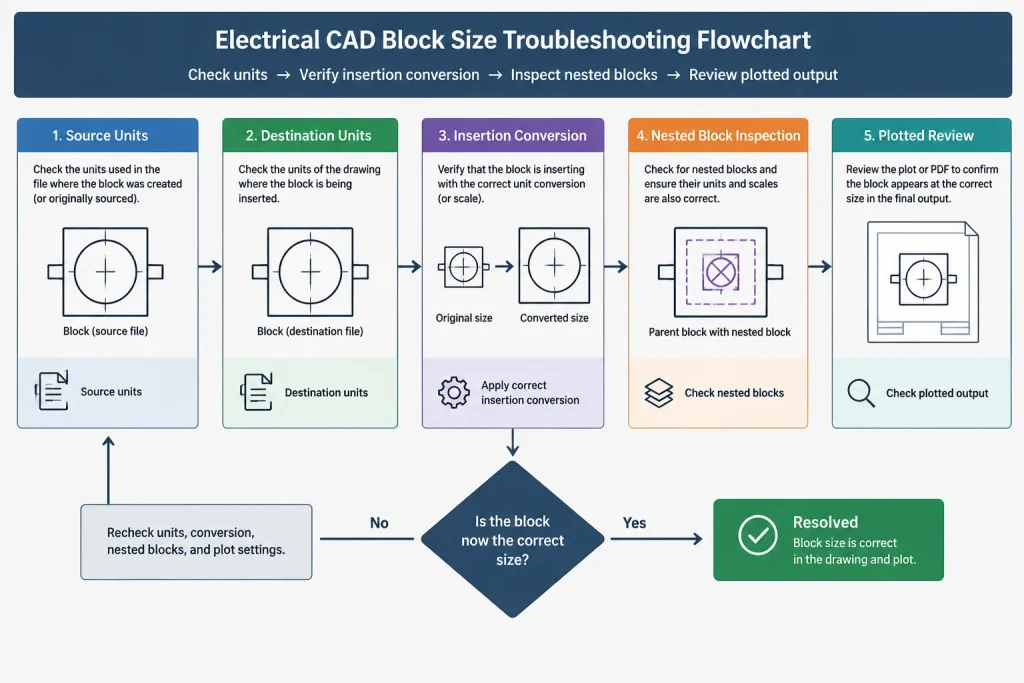
A diagnostic workflow for incorrect block size
1. Inspect the source file independently
Open or reference the source drawing without immediately inserting it into the project. Review its available unit settings, extents, layers, block definitions, and representative dimensions. Look for familiar geometry that helps reveal the intended unit system, but do not rely on visual appearance alone.
If dimensions or notes are present, treat them as clues rather than guaranteed verification. Downloaded files may contain outdated annotations, exploded dimensions, or geometry that has already been rescaled.
2. Check the destination drawing units
Confirm the unit convention used by the project model. Coordinate this with the architectural or engineering background rather than assuming that the displayed unit label tells the entire story. A drawing can be configured one way while its geometry was created according to another convention.
Measure a known, verified feature in the destination file. This helps establish whether the project geometry and declared unit settings agree.
3. Insert a test copy on a temporary layer
Place an unmodified test block on a non-plotting or temporary review layer. Record the insertion scale and avoid rotating, stretching, or editing it during the initial test. This creates a clean baseline for troubleshooting.
If the block is unexpectedly large or small, compare a measurable part of it with verified source information. For a symbolic block, compare its plotted size with similar approved symbols already used in the project.
4. Determine whether conversion happened automatically
Many CAD workflows can use source and destination unit information to calculate an insertion conversion. The exact behavior depends on the software, file settings, and insertion method. If a manual scale is added after an automatic conversion, the block may effectively be converted twice.
Review the resulting object properties and insertion history where available. If the correct conversion is uncertain, repeat the test in a clean file with known units instead of experimenting inside the production drawing.
5. Inspect nested content
A block may contain other blocks, attributes, hatches, or external content. The outer definition can appear correct while nested symbols or text remain incorrectly sized. Edit a working copy and inspect the hierarchy before deciding that the entire block needs to be rebuilt.
6. Test the plotted result
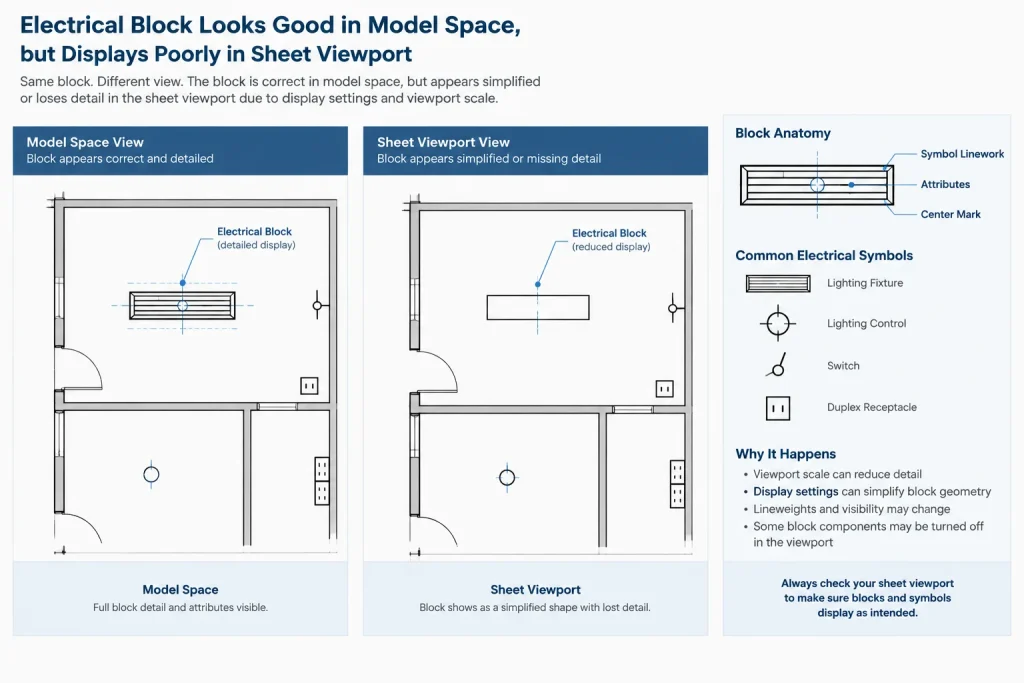
For drawing symbols, model-space appearance is not the final test. Review the symbol through the intended viewport and plot configuration. Check lineweight, text height, attribute readability, masking, and spacing from nearby architectural information.
Test more than one relevant view when the same model content appears at different presentation scales. A symbol that works on an overall plan may be too dominant on an enlarged plan unless the project has a deliberate display strategy.
Quick interpretation table
| Observed problem | Likely issue to investigate | Preferred response |
|---|---|---|
| Entire block is consistently oversized | Source and destination unit mismatch | Verify both unit conventions and apply one controlled conversion |
| Geometry is correct but text is too large | Attribute, text style, or annotation behavior | Correct the annotation component without scaling physical geometry |
| Outer block is correct but internal symbols are wrong | Nested definitions use different assumptions | Audit and normalize nested content in a library copy |
| Symbol looks acceptable in model space but poor on the sheet | Plotted symbol size or viewport presentation issue | Evaluate the block at its intended plotted presentation |
| Equipment outline looks plausible but cannot be verified | Generic or undocumented source geometry | Use it only as a placeholder until dimensions are confirmed |
| Repeated insertions behave differently | Conflicting block definitions or insertion methods | Review the active definition and replace it through a controlled process |
Avoid fixing library problems inside every project
If a block requires the same repair whenever it is used, correct a controlled library copy rather than repeating project-specific edits. The library record should identify the block’s intended use, source unit convention, insertion point, orientation, and whether its geometry is symbolic or physically scaled.
Keep the original downloaded or received file unchanged for traceability. Create a reviewed office version with a distinct name or revision identifier. This makes it easier to compare changes and prevents an uncertain source file from silently replacing established project content.
When normalizing a block, also review:
- Layer assignment and object properties
- Base point and insertion behavior
- Attribute positions and default values
- Text and dimension styles embedded in the file
- Nested blocks and duplicate definitions
- Linework that should plot by layer
- Unnecessary hatches, proxy objects, or distant geometry
- The relationship between the symbol and the project legend
Do not use arbitrary scaling for verified equipment layouts
Freehand visual scaling may be acceptable for evaluating a purely symbolic mark, but it is not a dependable method for equipment coordination. If an outline participates in access planning, room layout, connection coordination, or clash review, its dimensions must come from verified project information.
A generic CAD block can communicate equipment category and approximate location while design information is developing. Mark that status clearly in the documentation workflow, and replace or update the geometry when confirmed information becomes available. Avoid presenting an unverified library outline as an exact product representation.
Recommended block intake checklist
- Classify the content as physical geometry, a drafting symbol, or a hybrid block.
- Identify the source drawing’s unit convention where possible.
- Confirm the destination model’s actual unit convention.
- Test insertion in a controlled area or clean file.
- Measure known geometry instead of judging only by appearance.
- Check whether unit conversion and manual scaling were both applied.
- Inspect nested blocks, text, attributes, and hatches.
- Review symbolic content at its intended plotted presentation.
- Verify equipment dimensions before using them for coordination.
- Save normalized content as a reviewed library copy with documented assumptions.
Building a predictable CAD library
Consistent electrical drafting depends less on finding a block that looks correct at first glance and more on understanding what the block is designed to communicate. Unit settings control how geometry moves between files, while drafting conventions control how symbols read on a sheet. Those are related issues, but they are not interchangeable.
By classifying each block, testing its source units, checking its plotted appearance, and documenting any normalization, a CAD team can prevent recurring scale errors. The result is a library that supports reliable plans and diagrams without treating generic content as verified project design information.
How to confirm that a scale correction is complete
A corrected block should do more than look appropriate in one view. Its geometry, annotations, insertion behavior, and plotted presentation should remain predictable when the block is copied, reinserted, or used by another drafter.
For physical equipment geometry, confirmation means comparing measurable features with approved project information. For diagram and plan symbols, confirmation means checking visual consistency with the drawing legend and the intended sheet presentation. Hybrid blocks require both reviews because their equipment outlines and annotations may follow different display rules.
Record the reason for the correction
Document whether the issue came from source units, destination units, manual insertion scaling, annotation behavior, or nested content. This distinction helps future users avoid applying another conversion to a block that has already been normalized.
A useful library note can identify the block as symbolic, physically scaled, or hybrid; describe its expected insertion behavior; and state which elements still require project-specific verification. This creates a clearer handoff than a filename that merely says the block was resized.
Separate project repair from library approval
A block corrected for an immediate drawing need should not automatically become the office standard. Review the source, remove project-specific overrides, test reinsertion, and confirm the plotted result before promoting the revised definition to a shared library.
This separation reduces the chance that temporary edits, unverified equipment outlines, or drawing-specific annotation settings will be distributed as approved reusable content.
Frequently asked questions about CAD block units and scale
Why is an electrical block extremely large or small after insertion?
The source file and destination drawing may interpret drawing units differently. Automatic conversion, manual insertion scaling, or a previously modified block definition can also produce the same symptom. Check the files independently before applying another scale adjustment.
Should electrical symbols match the physical size of the device?
Not necessarily. Many plan and diagram symbols are communication marks designed for readable plotting rather than physical representation. Equipment footprints and coordination outlines, however, should be checked against verified project information.
Why is the block geometry correct while its text is the wrong size?
The text or attributes may use annotation settings, text styles, or nested definitions that behave independently from the surrounding linework. Correct the annotation component instead of scaling verified physical geometry.
Can a unitless block still be used?
It can be evaluated, but its intended unit convention must be established from reliable evidence. Test it in a controlled file, measure recognizable geometry, classify its purpose, and document the assumptions before adding a normalized copy to a shared library.
Why do repeated insertions of the same block behave differently?
The destination drawing may already contain a block definition with the same name, or different insertion methods may be applying different conversion behavior. Review the active definition, source file, and insertion process rather than assuming each visible instance is identical.
Is visual scaling acceptable for equipment layouts?
Visual adjustment is not a substitute for verified dimensions when geometry affects layout or coordination. An unverified outline may serve as a clearly identified placeholder, but it should not be presented as exact equipment geometry.


Leave a Reply
You must be logged in to post a comment.