
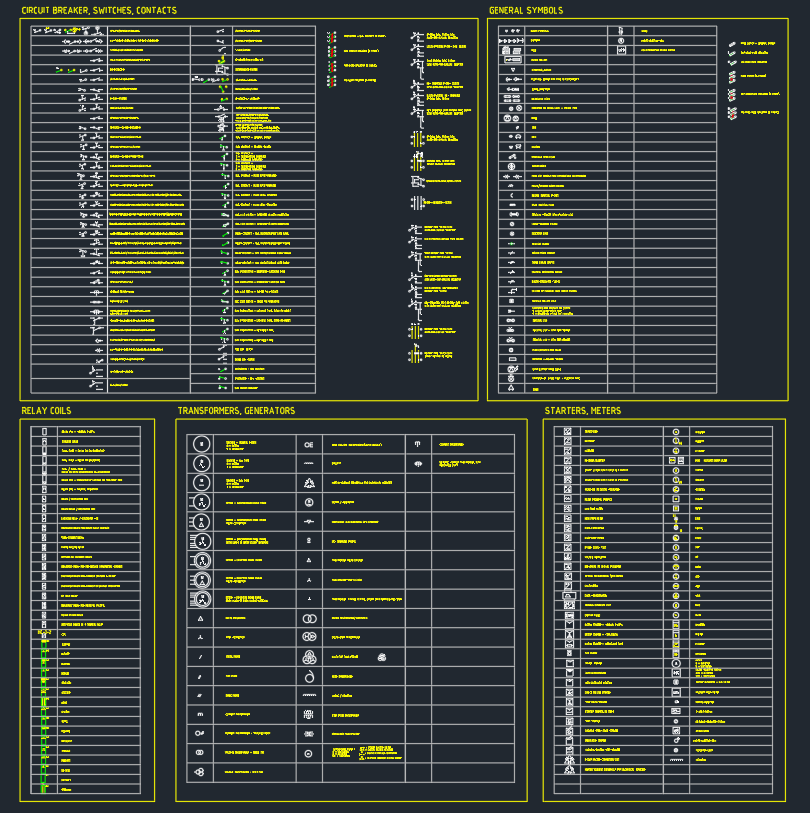
Converter symbols DWG blocks can make electrical and mechanical drawing documentation easier to read, coordinate, and maintain. This resource provides an editable CAD reference for designers who need clear converter representations in schematics, layouts, and technical drawing sets.
Before placing a block, confirm how the converter is defined in the project legend and whether its graphic convention matches the surrounding documentation. Consistent symbols help reviewers distinguish equipment, connections, and functional relationships without relying on assumptions about a particular device.
Discover high-quality Converter symbols in DWG format, perfect for enhancing your electrical and mechanical CAD projects. These CAD Blocks are meticulously designed for clear representation of various converter components, making them ideal for schematic diagrams and technical drawings. Downloadable and fully editable, our Converter symbols ensure seamless integration with AutoCAD and most other major CAD software. Use them to improve the accuracy and efficiency of your engineering designs. Whether you’re working on industrial layouts or educational materials, these Converter symbols provide the compatibility and detail every professional needs.
Please log in or register to download this file.
How to use converter symbols in CAD documentation
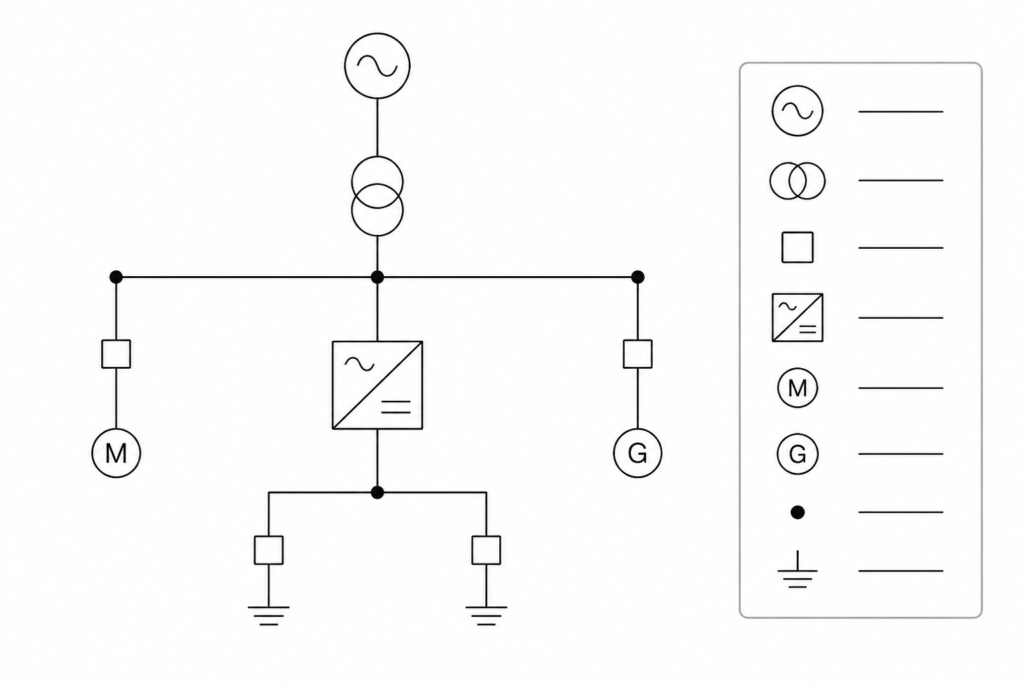
Converter symbols are most useful when they are treated as part of a coordinated drawing language rather than as isolated graphics. Place them with the related equipment, connection paths, and annotation used by the project. The symbol should remain visually legible at the intended drawing scale and should not obscure adjacent notes or linework.
Coordination with electrical drawings
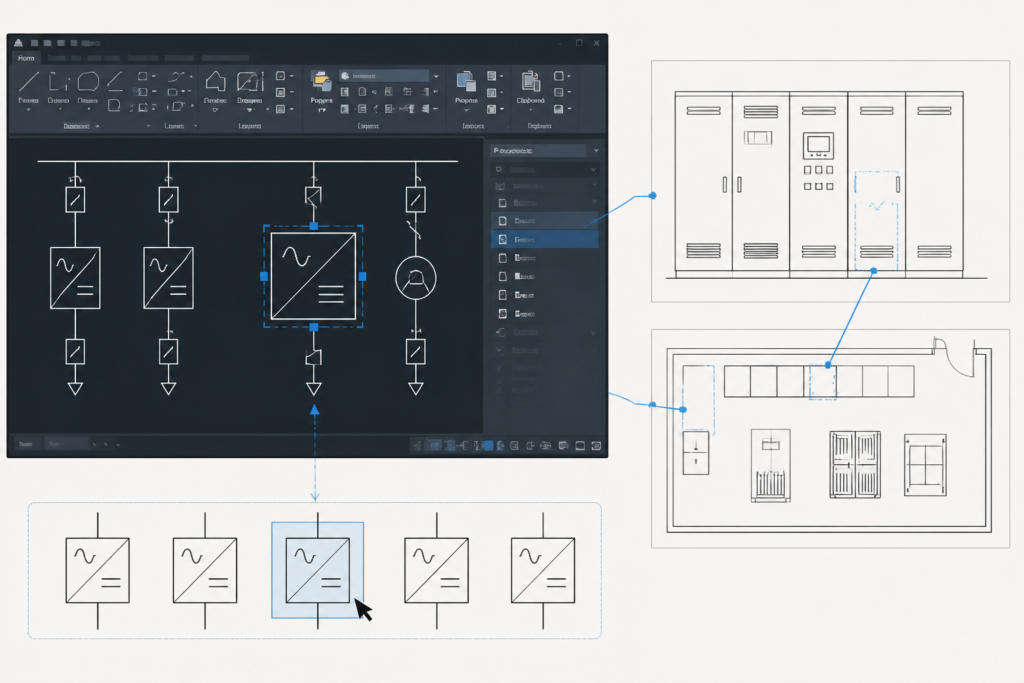
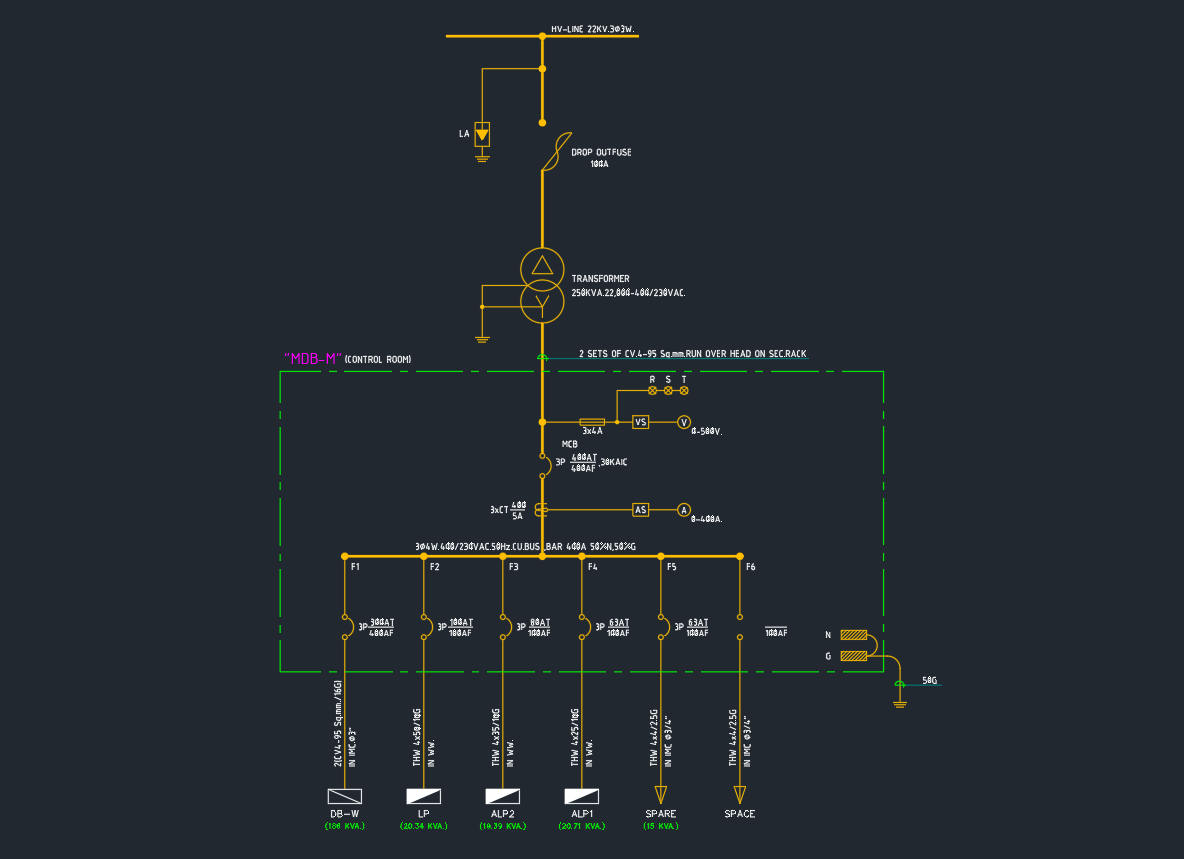
In electrical documentation, converter blocks may appear in schematic diagrams, single-line diagrams, panel documentation, or equipment layouts. Compare the symbol with the drawing legend and surrounding circuit representation before finalizing the arrangement. This helps maintain consistent interpretation across power, control, and equipment documentation.
CAD checks before publishing
- Confirm that the block inserts on the expected layer and uses the project drawing conventions.
- Review the insertion orientation and connection points so adjoining linework remains clear.
- Check block names, attributes, and annotation behavior if the project uses structured CAD data.
- Remove duplicate or unnecessary geometry that could affect editing, plotting, or file performance.
- Review the completed drawing at print or PDF scale to verify readability.
Related drafting topics
Converter blocks often need to be coordinated with electrical legends, single-line diagram symbols, panel and distribution documentation, cable and conduit drafting, and equipment layout graphics. Keeping these elements consistent makes it easier for another designer or reviewer to follow the drawing set.
Frequently asked questions
What are converter symbols DWG blocks used for?
They provide editable CAD graphics for representing converter components in electrical, mechanical, schematic, and technical drawing work.
Can the converter blocks be edited?
The source describes these symbols as downloadable and fully editable. Review the block structure and project standards after insertion so any changes remain consistent with the drawing set.
Where should a converter symbol be placed?
Place it where the related converter function or equipment is represented, then coordinate it with connection lines, adjacent devices, notes, and the project legend.
How can I check whether the symbol is clear?
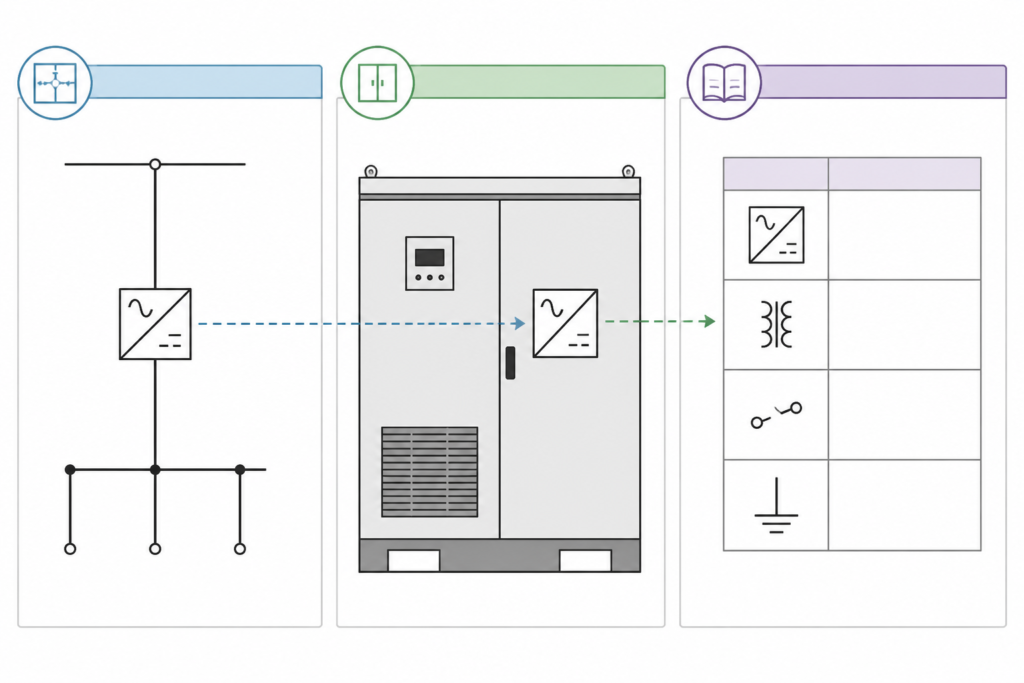
Review its orientation, linework, layer behavior, annotation, and plotted appearance. Also compare it with the symbol conventions already used elsewhere in the project.
Are these blocks suitable for every CAD workflow?
The source identifies them as compatible with AutoCAD and most other major CAD software. Always test the file in the target workflow and confirm that layers, blocks, annotations, and plotting behavior are preserved.
Leave a Reply
You must be logged in to post a comment.