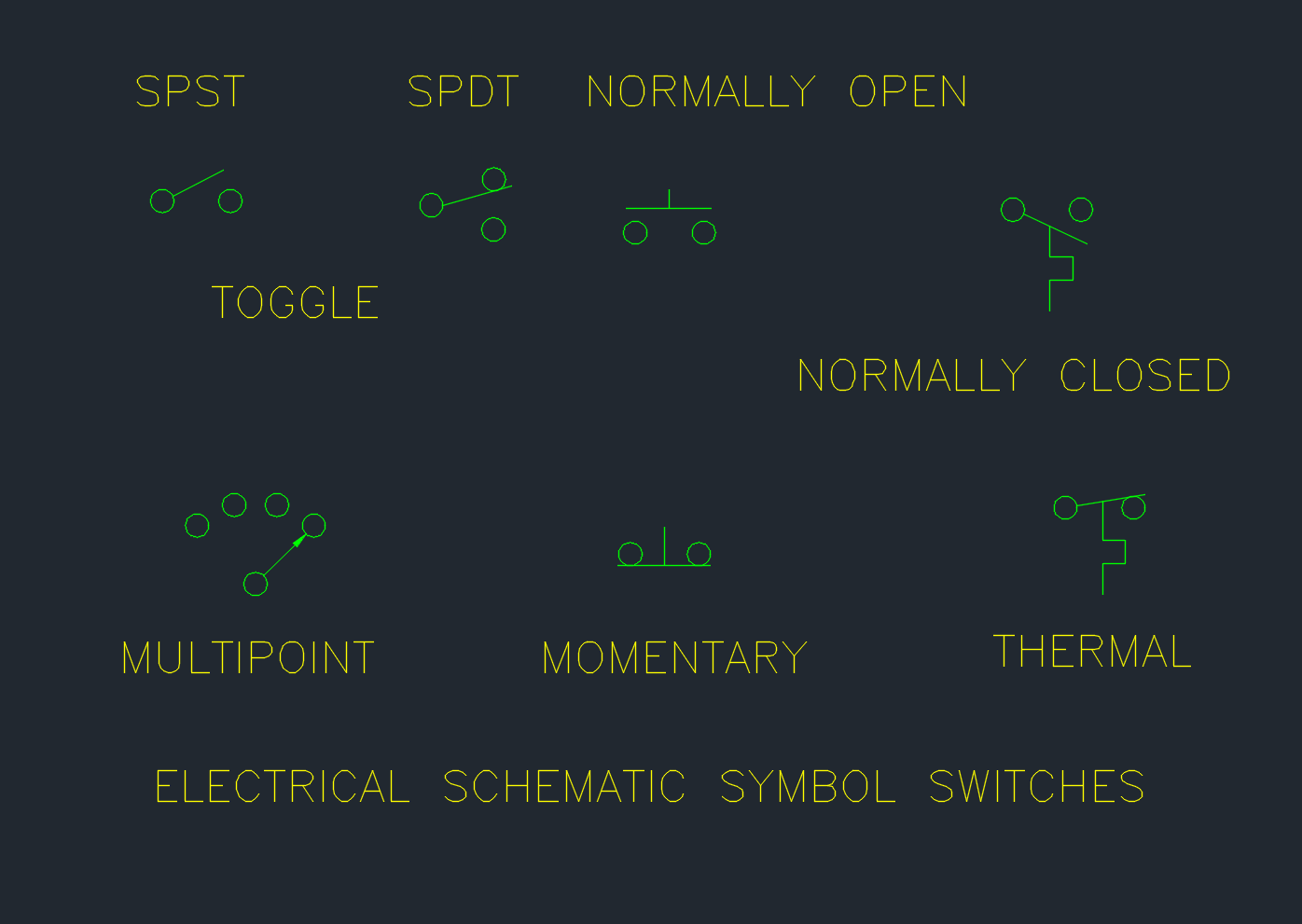
This page provides a downloadable collection of schematic switches symbols DWG for use in AutoCAD and compatible DWG-based drafting workflows. Switch graphics are fundamental to electrical schematics because they communicate contact conditions, control relationships, and circuit behavior through standardized or project-defined visual conventions.
Before adding any symbol library to a drawing, compare its graphics with the project legend, drafting standard, and client requirements. Similar-looking switch symbols may have different meanings across schematic diagrams, wiring diagrams, single-line diagrams, and electrical plan drawings.
Download our comprehensive DWG file featuring a collection of **Schematic Switches Symbols** CAD Blocks, perfect for engineers, architects, and designers working on electrical circuit diagrams. These high-quality schematic symbols are meticulously designed for easy integration into your AutoCAD projects, ensuring accurate and professional wiring layouts. The DWG file includes various types of switch symbols, suitable for residential, commercial, and industrial electrical schematics. Compatible with all major versions of AutoCAD and other CAD software supporting DWG format, this resource saves you time and improves the clarity of your electrical plans.
Please log in or register to download this file.
Understanding Schematic Switch Symbols
A schematic switch symbol represents the electrical function of a switching device rather than its physical appearance. Depending on the drawing type and symbol convention, the graphic may communicate an open or closed contact condition, a manual or automatic operating method, a grouped contact arrangement, or a relationship with another control component.
The reference condition of a contact should be established by the drawing convention and supporting notes. A symbol should not be interpreted from appearance alone when the legend, device tag, or circuit context provides additional meaning.
Schematic Symbols Compared With Plan Symbols
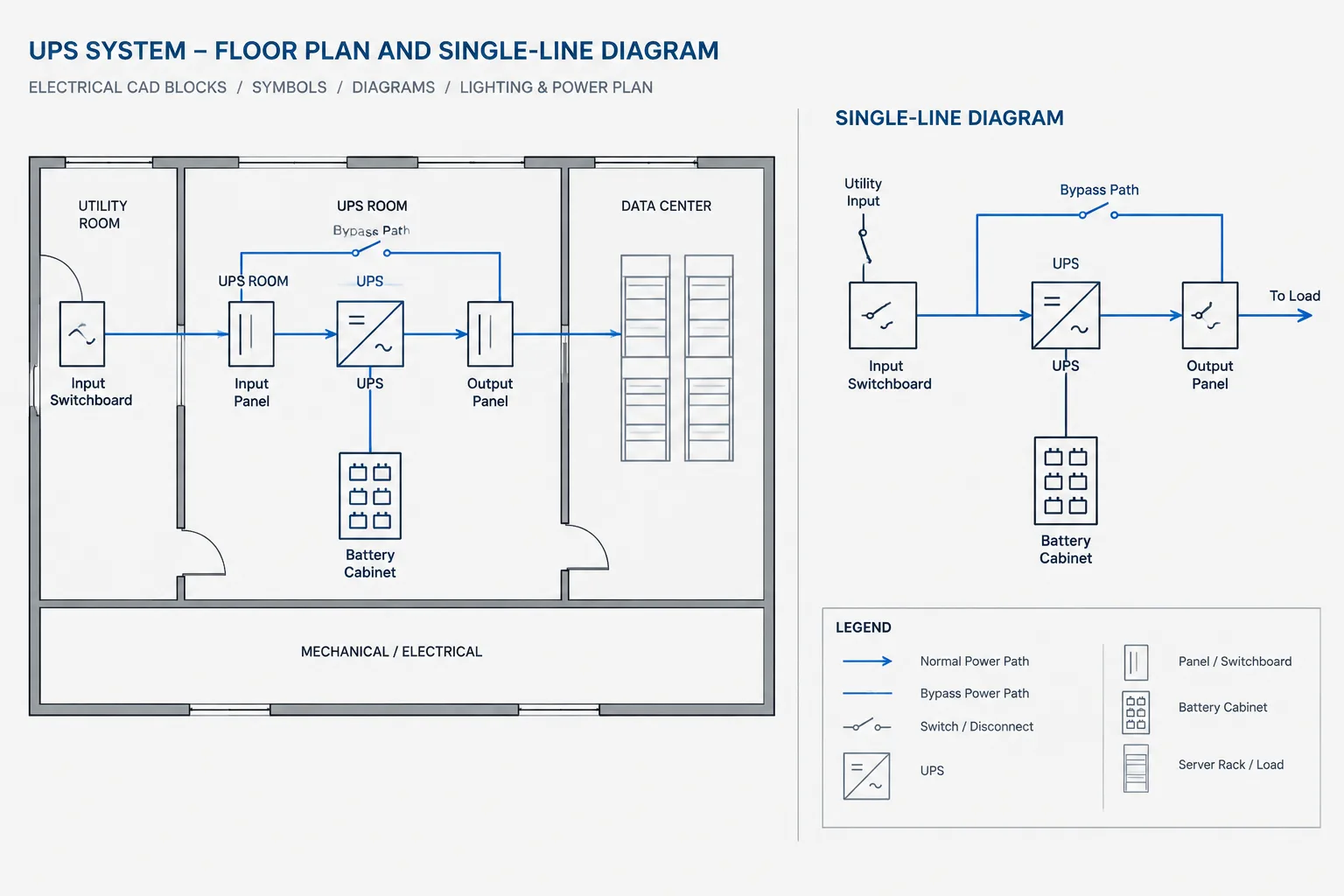
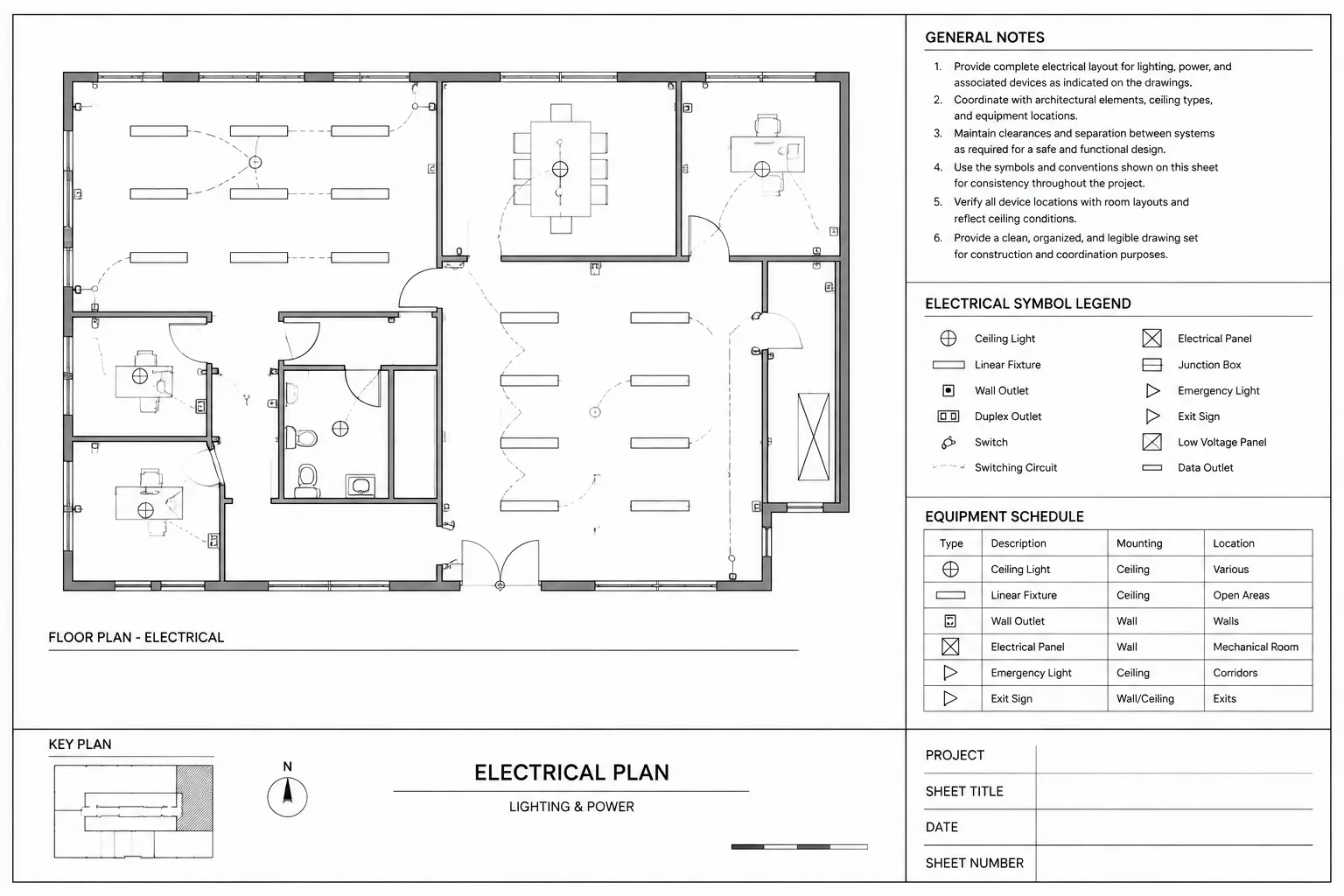
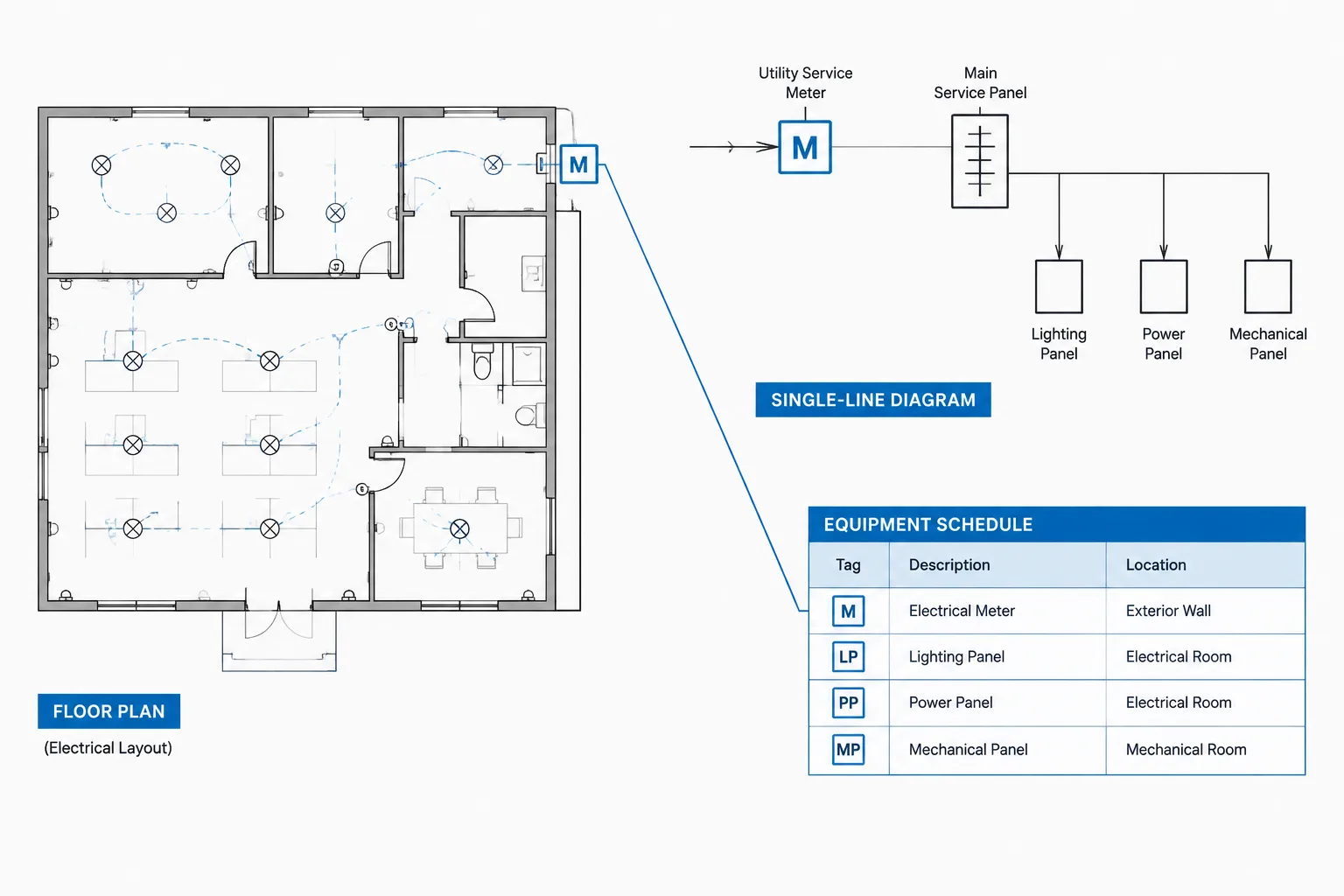
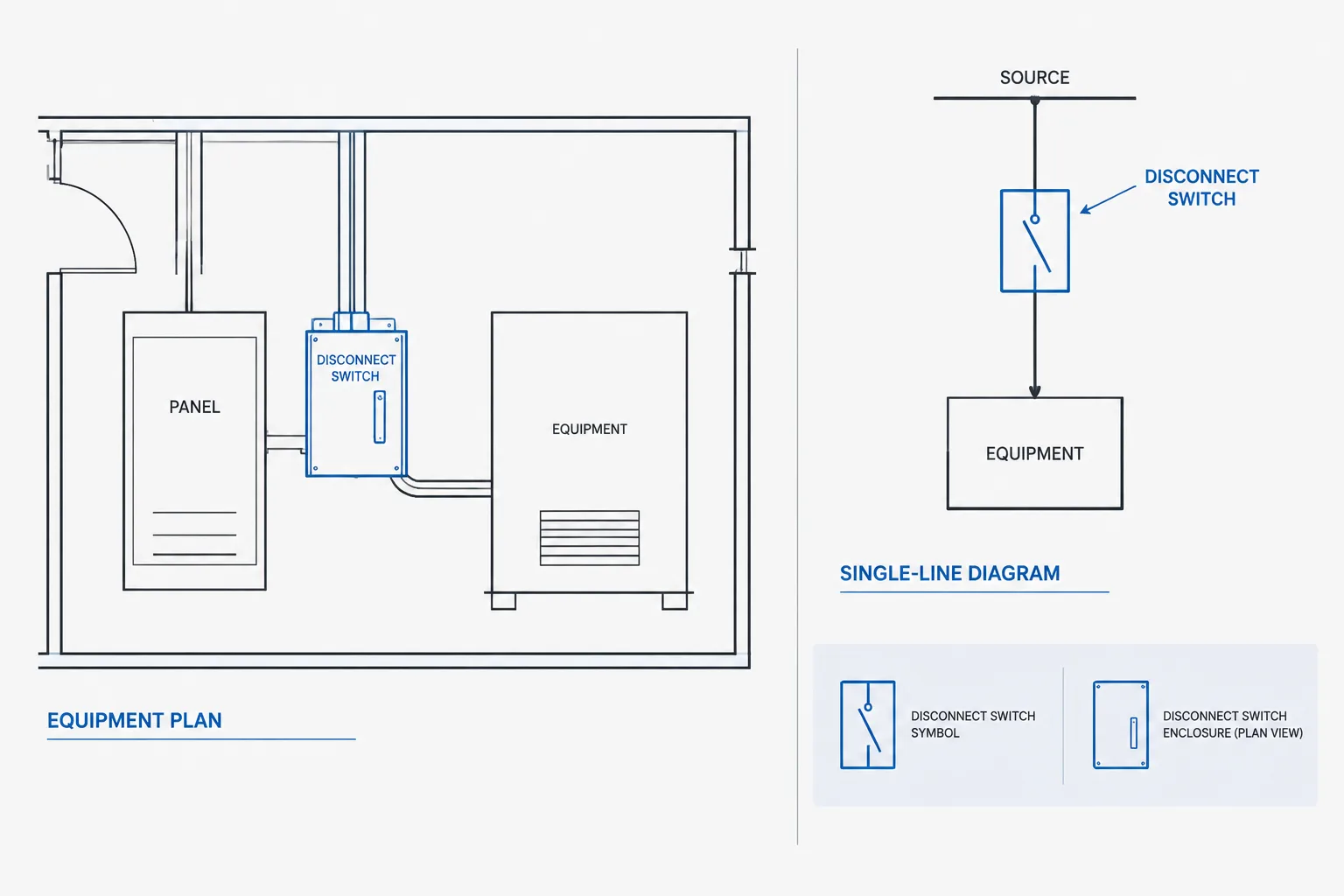
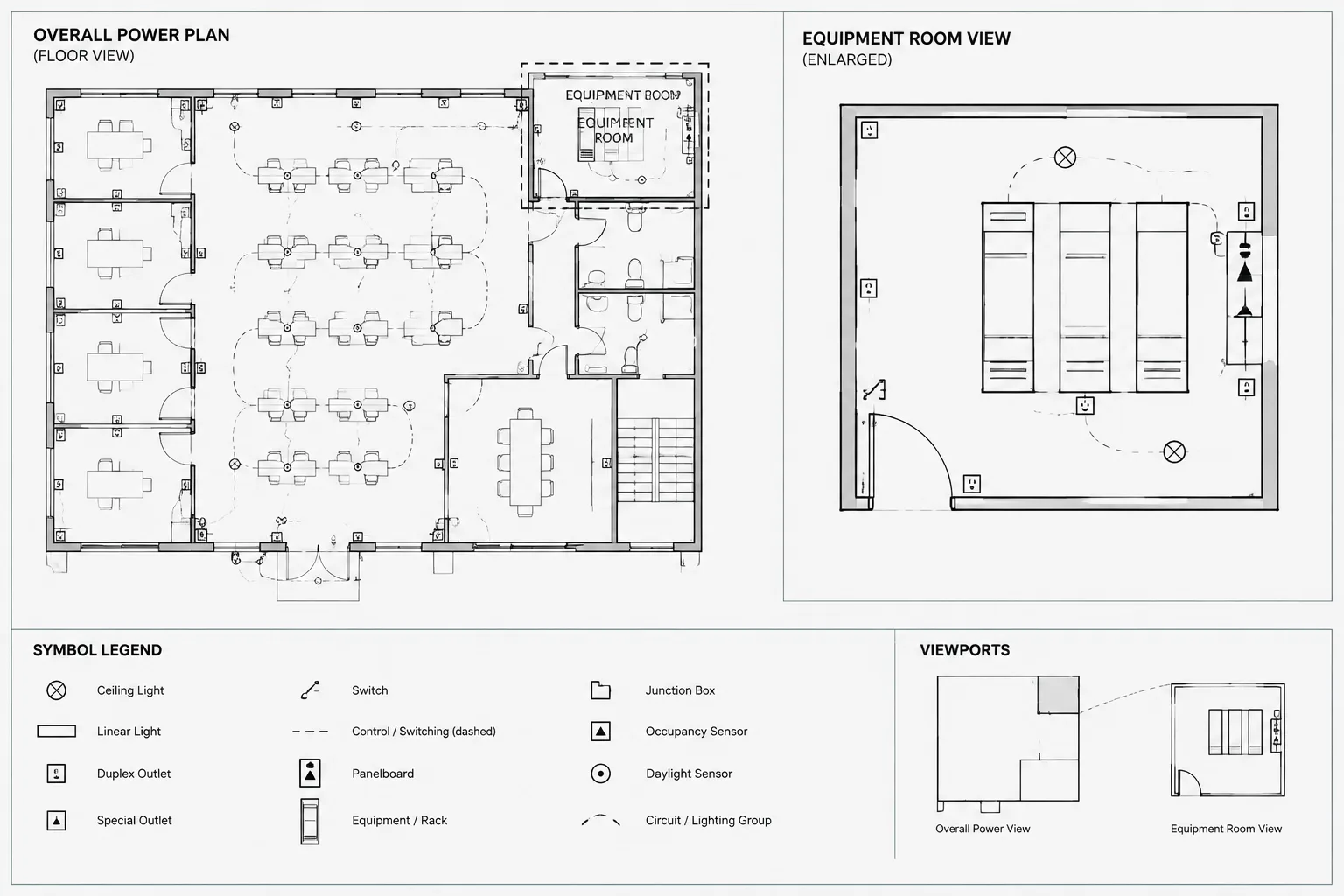
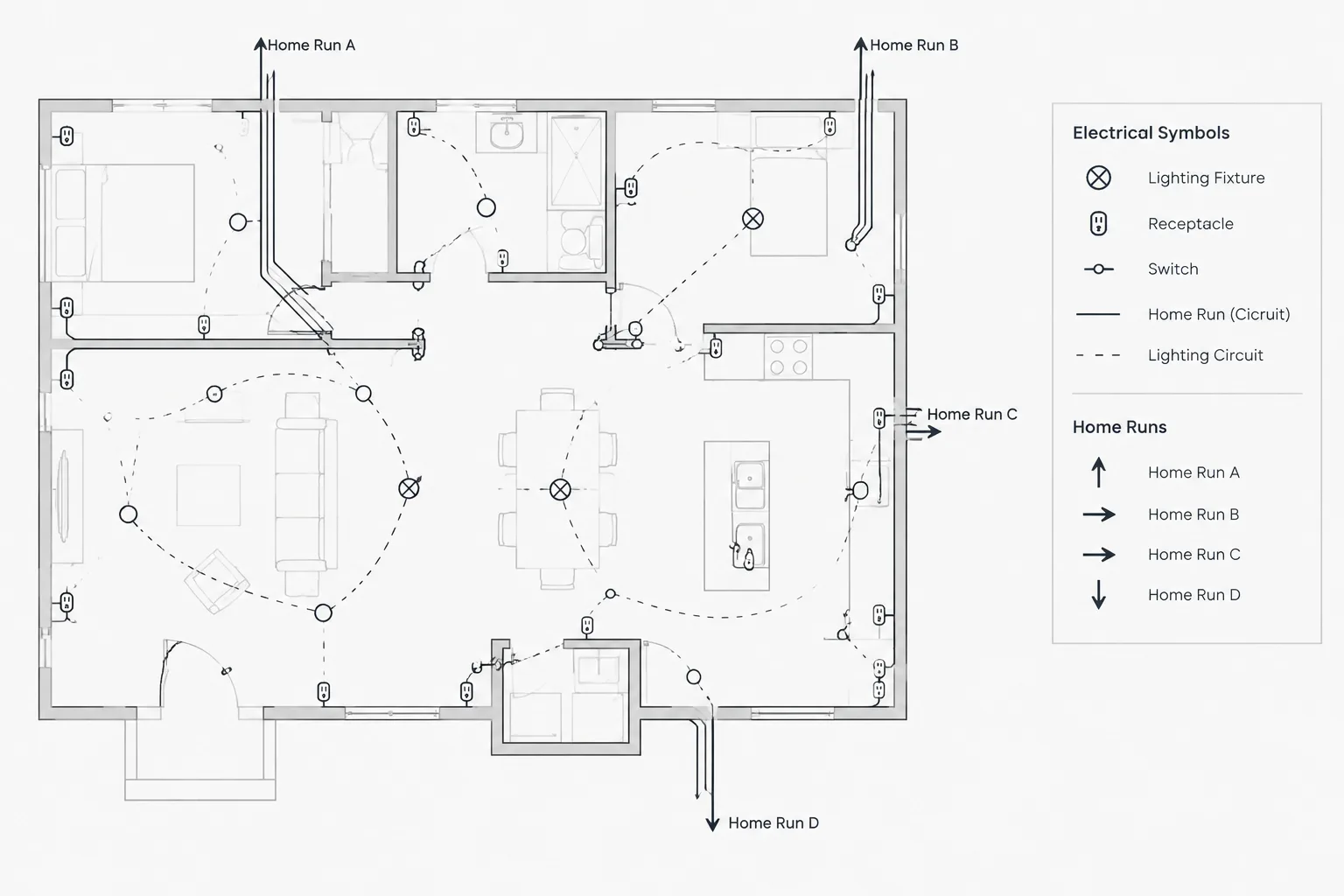
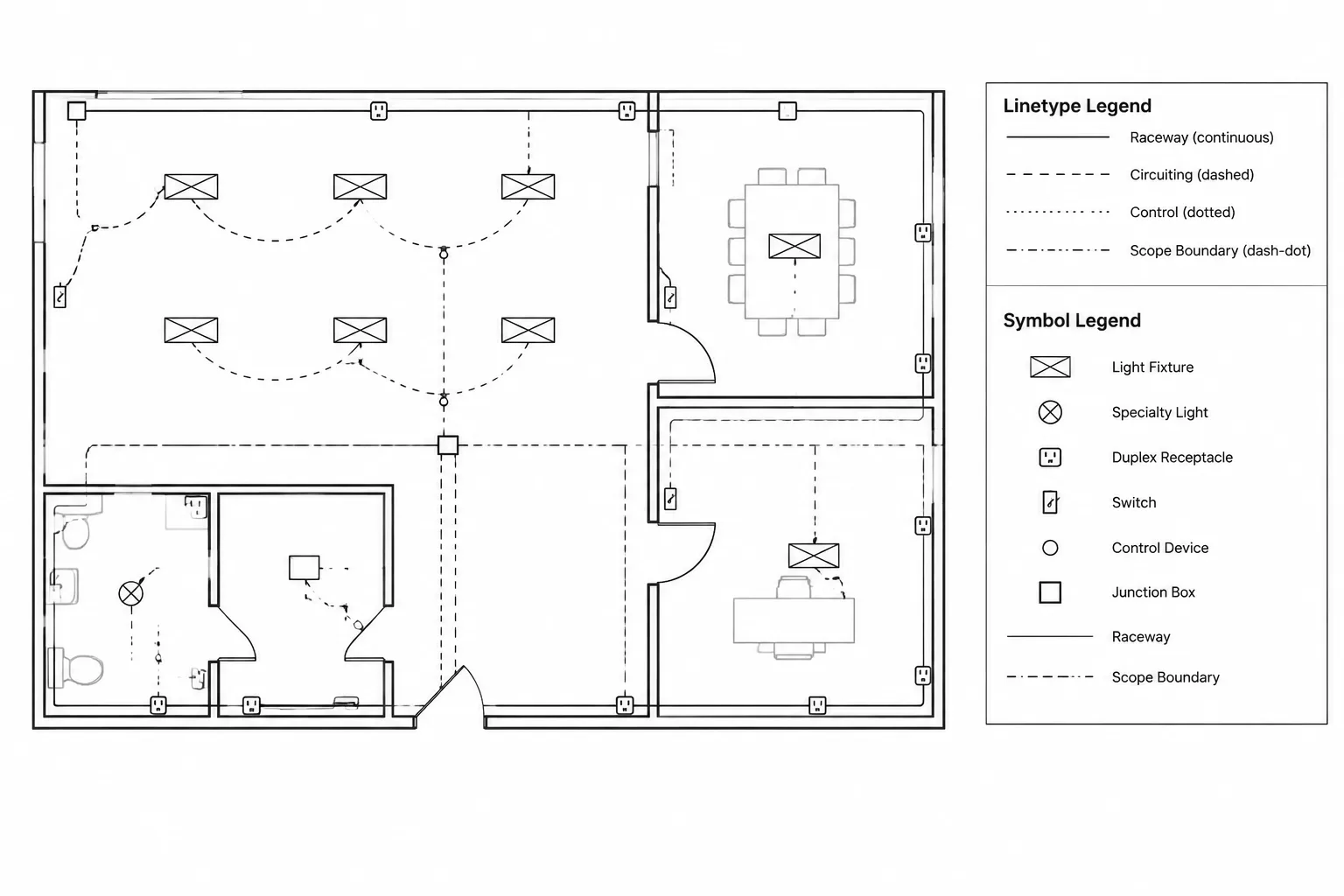
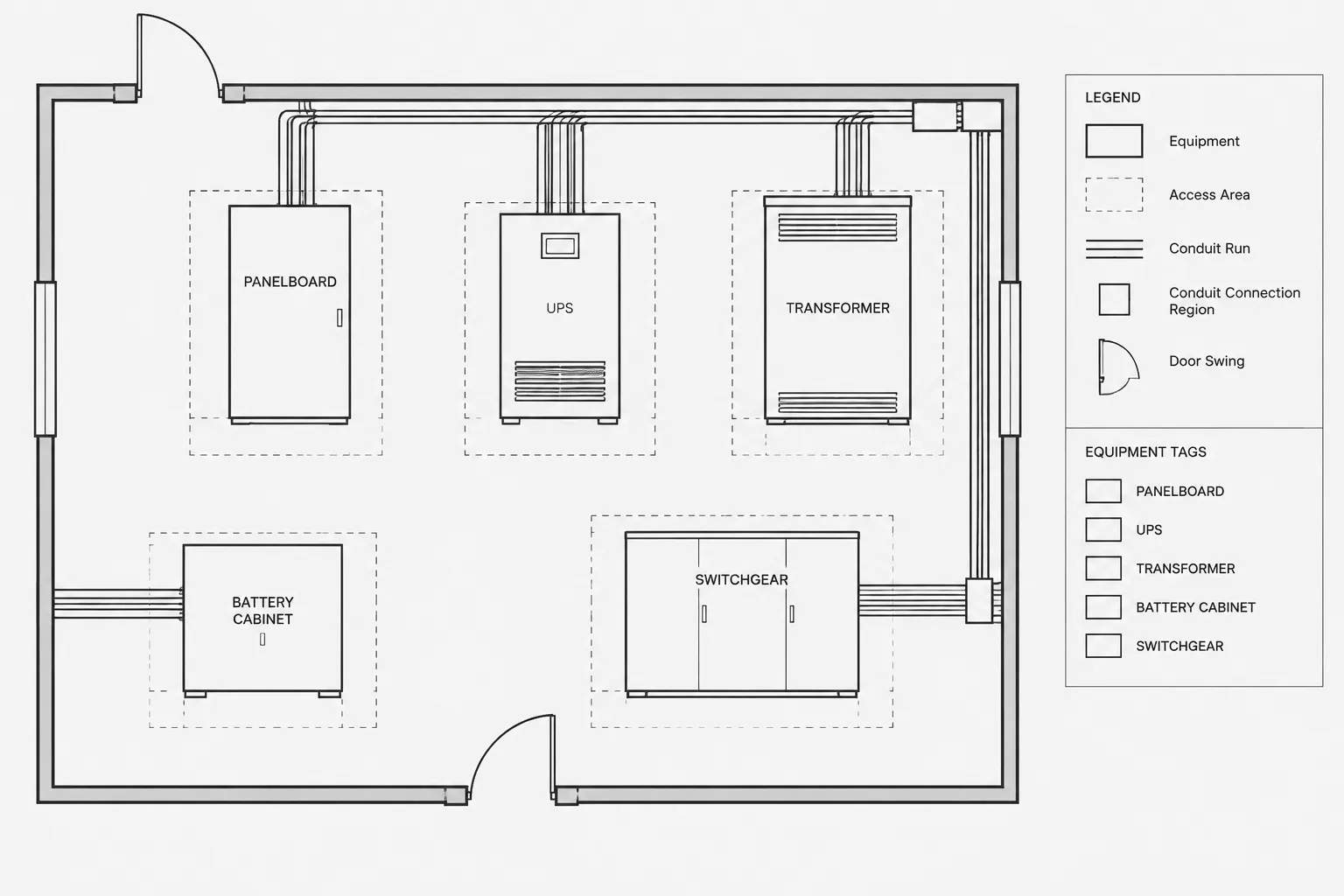
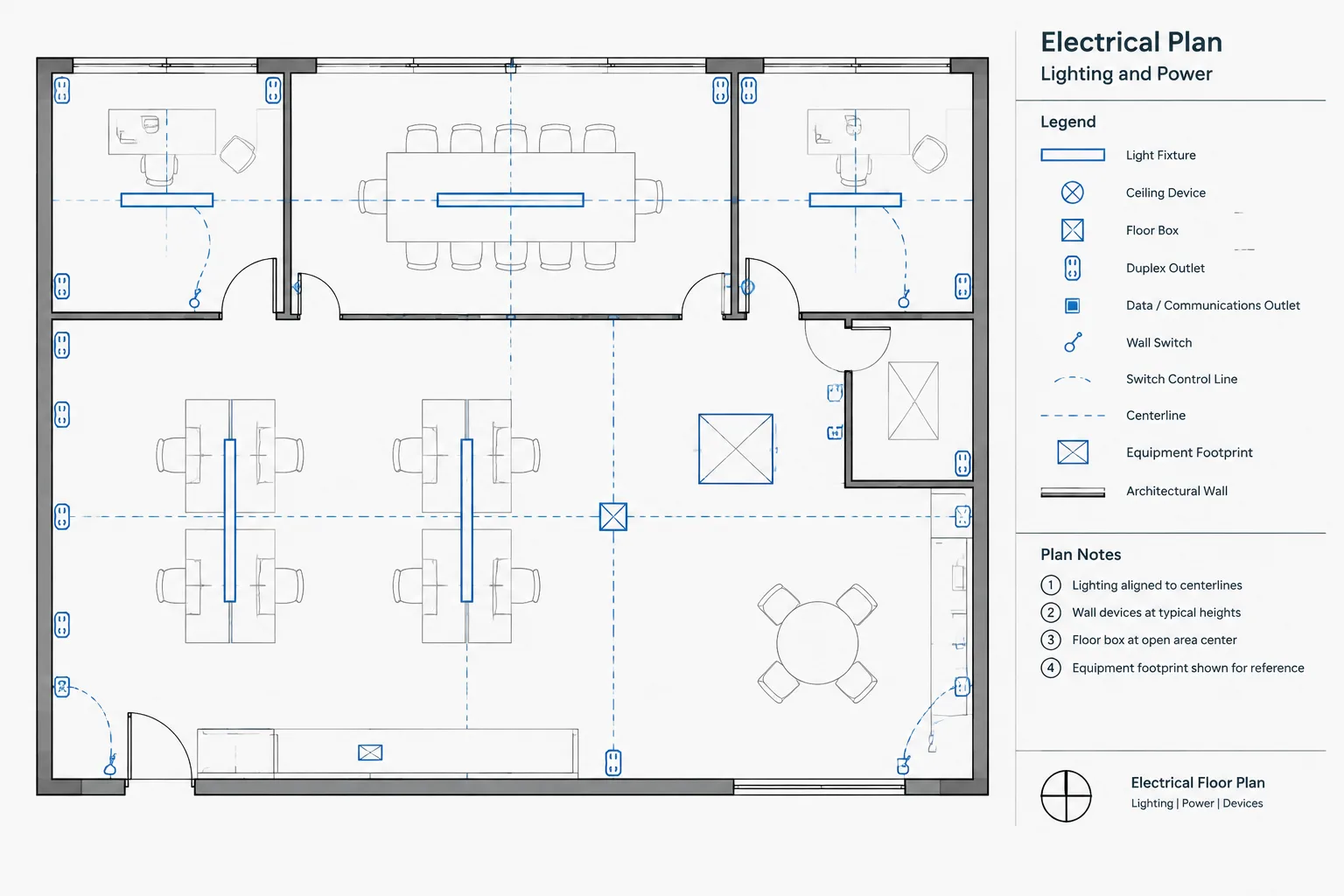
Schematic switch symbols are not necessarily interchangeable with the switch symbols used on lighting or power plans. A floor-plan symbol typically identifies the location and general type of a wall switch or control device. A schematic symbol instead shows how contacts or control functions relate electrically within a circuit.
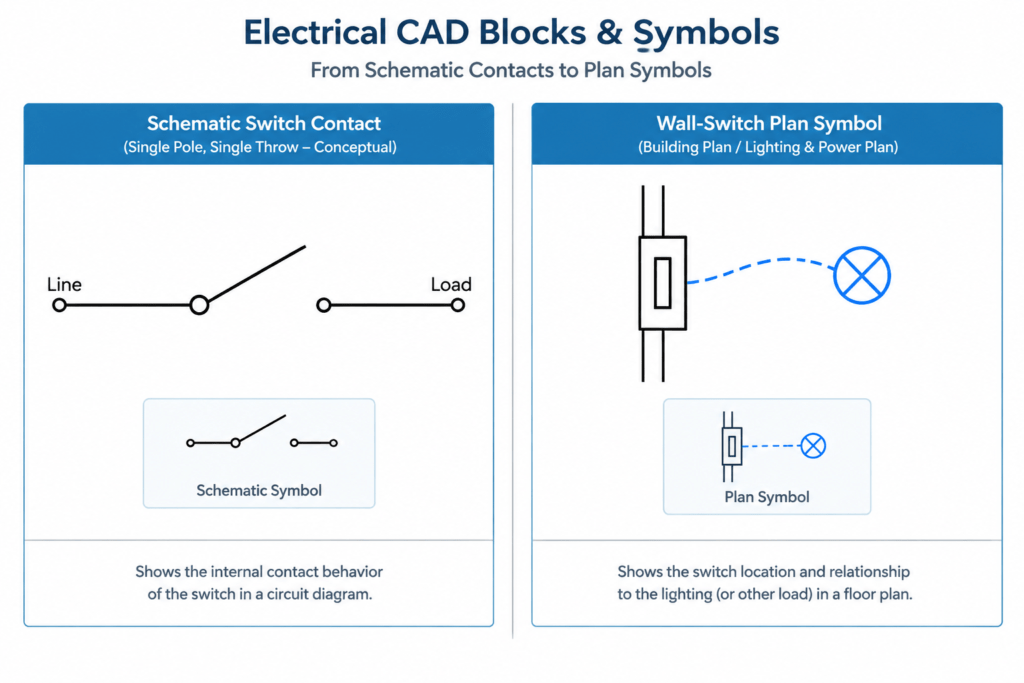
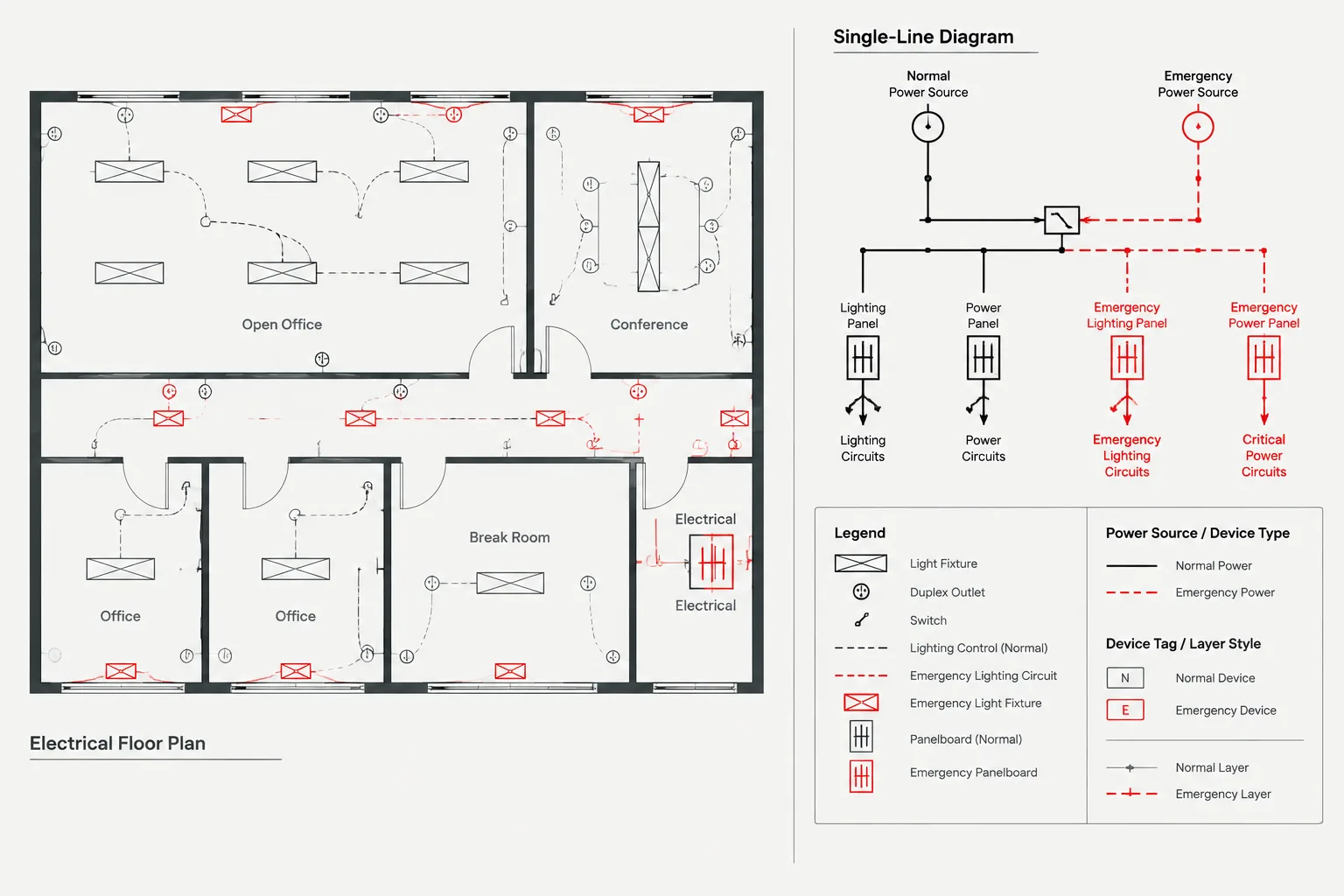
Single-line diagrams may use another level of abstraction, representing a switching device as part of a distribution path without showing every internal contact. Keeping these drawing purposes separate helps prevent a plan symbol from being mistaken for a circuit-function symbol.
DWG Review Checklist
After opening the downloaded file, review the following items before incorporating blocks into a working drawing:
- Symbol convention: Confirm that each graphic agrees with the project legend and documentation practice.
- Block names: Replace vague or duplicate names with consistent, searchable identifiers where project procedures permit.
- Insertion points: Check that base points support clean placement and alignment with conductors or connection lines.
- Layer behavior: Verify that geometry follows the intended CAD layer, color, linetype, and lineweight controls.
- Text and attributes: Review tags, descriptions, and attribute fields for consistency with the device schedule or circuit documentation.
- Graphic cleanup: Look for overlapping entities, unnecessary fragments, or geometry that may interfere with plotting and editing.
- Drawing context: Confirm that contact state, operating method, and related devices are explained where the symbol alone is insufficient.
Organizing Switch Blocks in a CAD Library
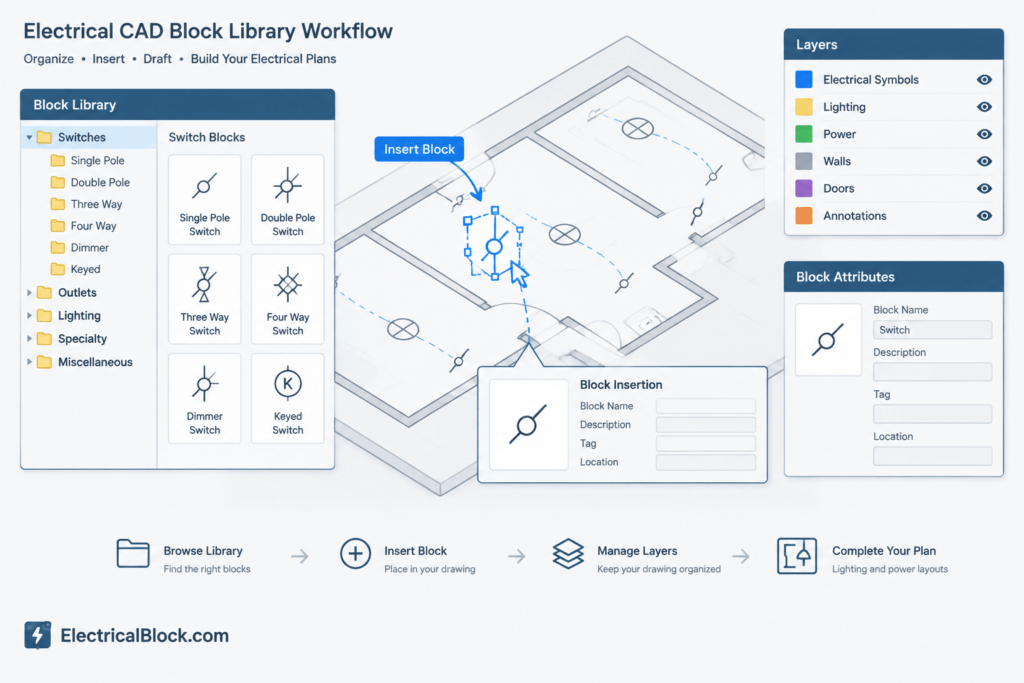
A practical block library groups symbols by function rather than placing every graphic in an unstructured folder. Categories might distinguish contact symbols, selector functions, control actions, and related annotation graphics. Descriptive block names and preview images make symbols easier to locate without relying on memory.
Where office standards allow, keep the source library separate from project drawings. Insert a reviewed copy into the project environment, then apply the approved layers, attributes, and naming rules. This approach protects the original resource while allowing project-specific documentation changes.
Using Symbols Clearly in Electrical Documentation
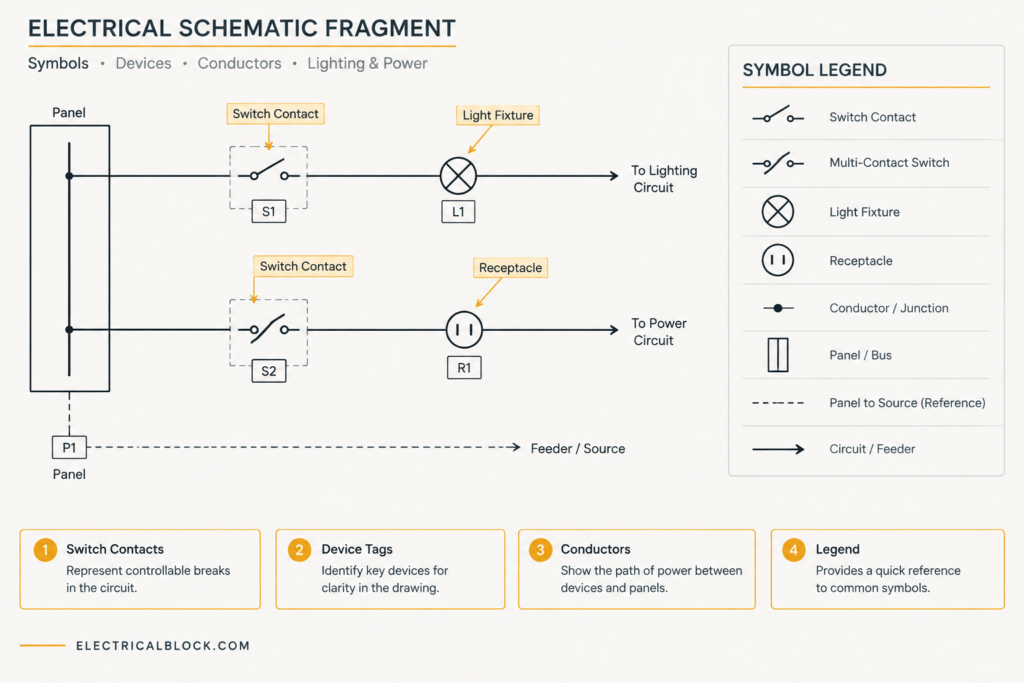
Switch graphics are most useful when supported by consistent device tags, wire or circuit references, notes, and legends. If contacts are mechanically linked or controlled by another component, that relationship should be shown using the project’s established drafting method. Avoid changing a familiar symbol merely to improve appearance, because even a minor graphic edit can alter its interpreted function.
Related drawing references include electrical symbol legends, control schematic concepts, single-line diagrams, wiring diagrams, CAD layer organization, and equipment annotation workflows. Reviewing these topics together helps maintain consistent terminology and graphical meaning across a drawing set.
Verification Before Project Use
A downloadable CAD block is a drafting resource, not an engineering specification or automatic confirmation of design compliance. The designer or responsible reviewer should verify symbol meaning, device identification, drawing conventions, and coordination with the rest of the electrical documents before issuing a drawing.
Frequently Asked Questions
What is a schematic switch symbol?
It is a graphical representation of a switching function or contact relationship in an electrical schematic. It generally describes circuit behavior rather than the device’s physical shape or installation location.
Are schematic switch symbols the same as lighting-plan switch symbols?
Not always. Lighting-plan symbols commonly communicate device location and general control intent, while schematic symbols show electrical contacts and functional relationships. The applicable drawing legend should determine how each symbol is interpreted.
Can these DWG blocks be edited after download?
DWG block geometry can generally be reviewed and adapted within software that supports the format. Before editing, check whether the block contains attributes, nested content, or project-specific layer behavior. Any revision should preserve the intended electrical meaning.
How should a switch symbol be selected for a drawing?
Choose the symbol that matches the required electrical function, project legend, and drafting convention. Do not select a symbol solely because its appearance resembles the desired device.
Why are block names and insertion points important?
Clear names make library searches and drawing audits easier. A logical insertion point supports alignment with conductors, reference lines, and nearby schematic elements without repeated manual adjustment.
Does a CAD symbol confirm that an electrical design is correct?
No. A symbol communicates documented intent, but it does not validate equipment selection, circuit operation, or compliance. Those matters require review within the complete project design.
Leave a Reply
You must be logged in to post a comment.