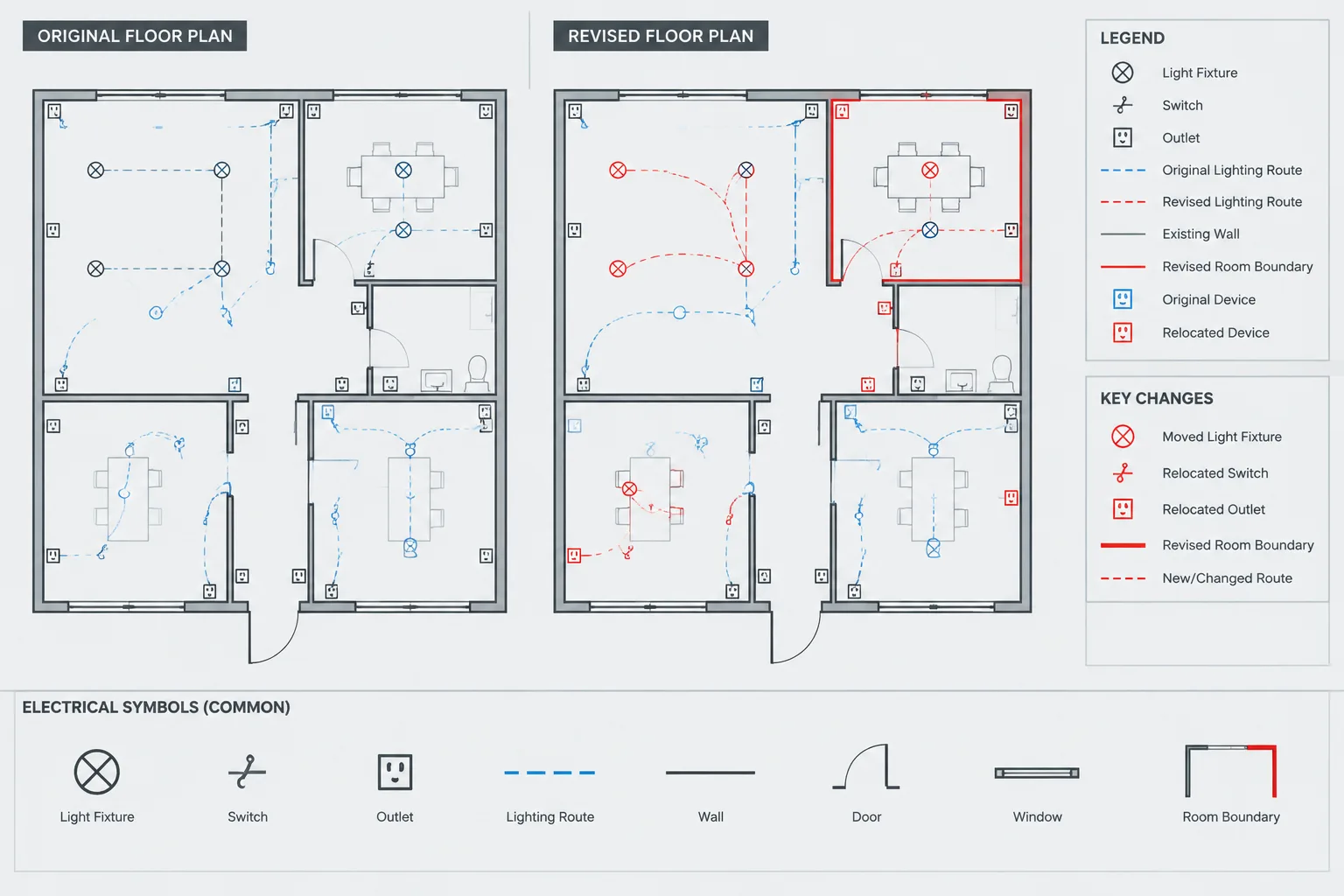
Electrical drawing comparison in CAD is a quality-control process that connects visible drawing differences with their effect on the wider document set. A useful review separates intentional electrical revisions from background movement, annotation cleanup, reference changes, and file-conversion noise.
The guidance below explains how to establish a dependable comparison basis, investigate changes by system, and document findings so that designers, drafters, and reviewers can follow each issue through resolution.
Electrical drawing comparison in CAD is more than placing two files on top of each other and looking for different lines. A dependable review must distinguish actual design revisions from background updates, plotting differences, moved annotations, revised references, and routine file cleanup.
This process is useful when receiving a new architectural background, checking a consultant resubmission, reviewing an updated electrical sheet, or confirming that redlines were incorporated. The goal is not merely to find changed geometry. It is to understand what changed, determine which electrical documents are affected, and create a traceable review record.
What an Electrical Drawing Comparison Should Find
A comparison should reveal changes that affect design intent, coordination, or documentation. Depending on the drawing type, meaningful differences may include:
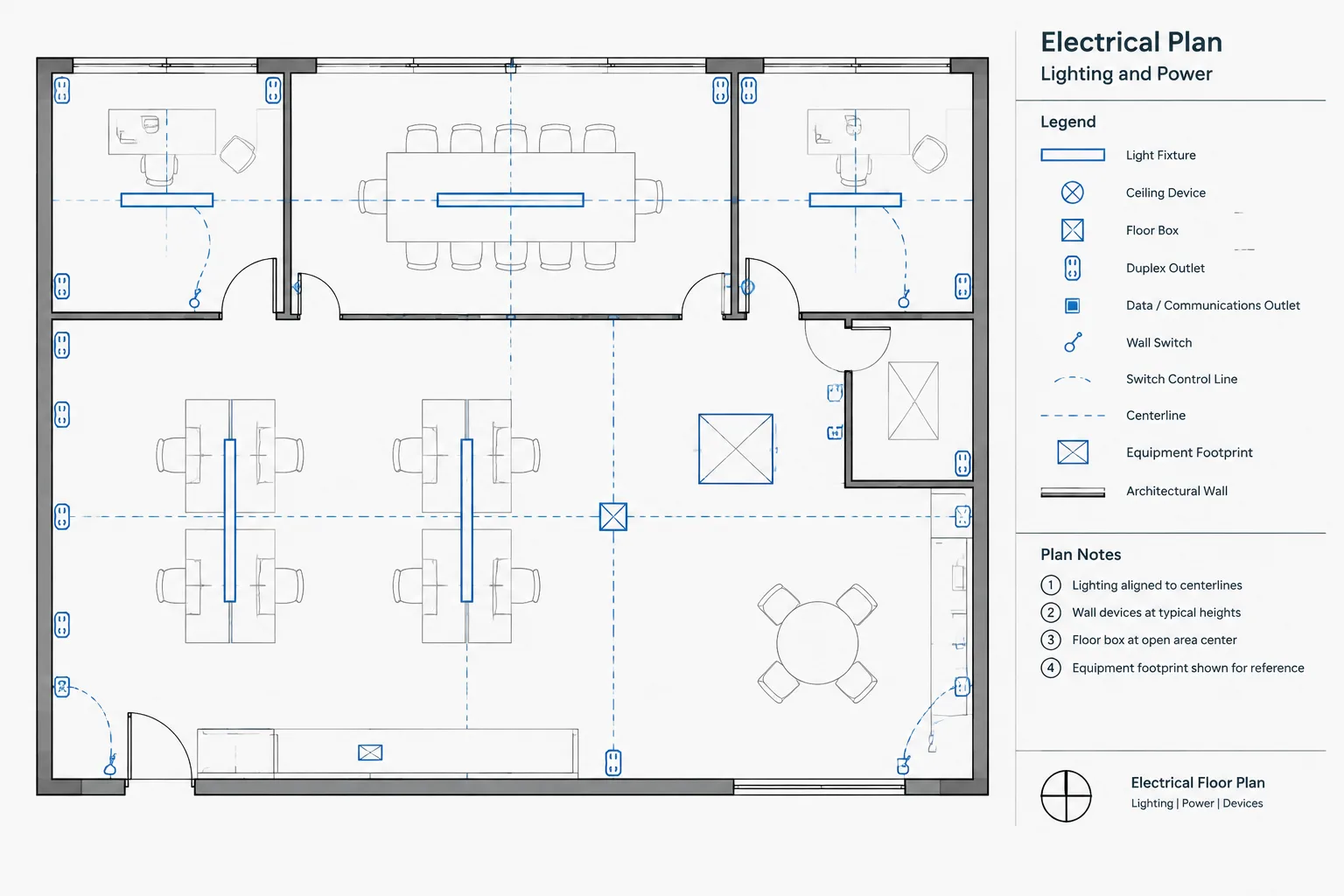
- Added, removed, or relocated electrical devices
- Changed equipment tags, circuit numbers, or feeder references
- Revised conduit, cable tray, or underground routing
- Modified room boundaries, doors, ceilings, or equipment footprints
- Changes to panel schedules, fixture schedules, or equipment schedules
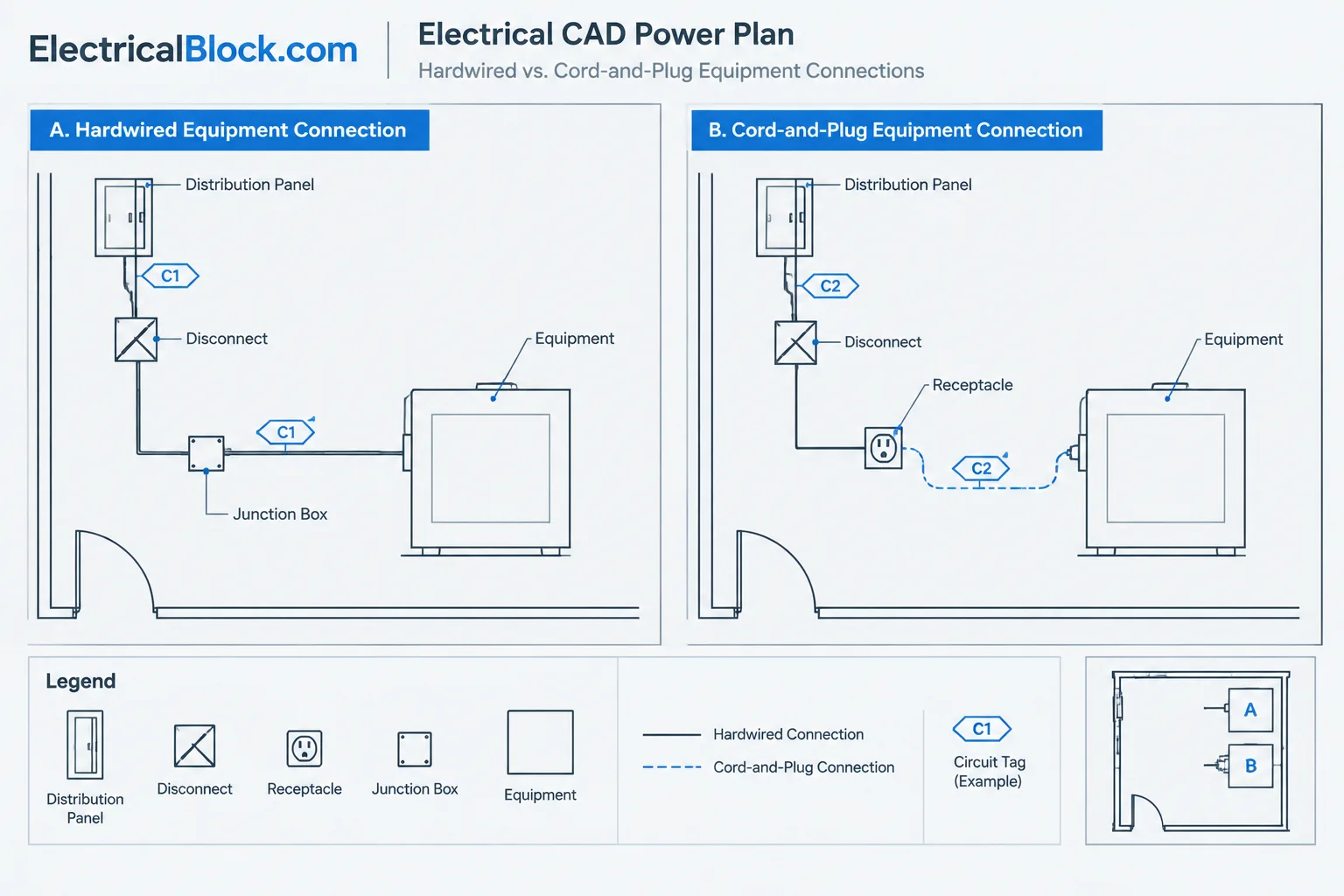
- Revised single-line diagram connections or distribution relationships
- Added notes, deleted notes, or altered detail references
- Changes to demolition, existing-work, or future-work status
A line-by-line graphical difference may not always represent a meaningful electrical revision. For example, a room label moved for clarity is different from a room being renumbered. The first may be cosmetic; the second can affect device schedules, panel descriptions, control sequences, and sheet references.
Begin with a Controlled File Pair
Before comparing drawings, identify exactly which files represent the old and new conditions. Avoid comparing an issued sheet against an unidentified working file. Record the drawing number, file name, issue designation, and available revision information for each file.
Confirm that both drawings represent the same sheet or model area. Similar file names do not guarantee equivalent content. One file may contain the full model while another contains only a plotted sheet, an exported background, or a detached coordination area.
Preserve the Source Files
Keep the original files unchanged. Perform the review in a separate comparison file or controlled review folder. This prevents accidental editing and preserves the evidence needed to resolve later questions.
If external references are involved, preserve or document the reference set used by each revision. A drawing can appear unchanged while displaying a newer referenced background, or it can appear heavily revised because an external reference path was replaced.
Normalize the Drawings Before Comparing Them
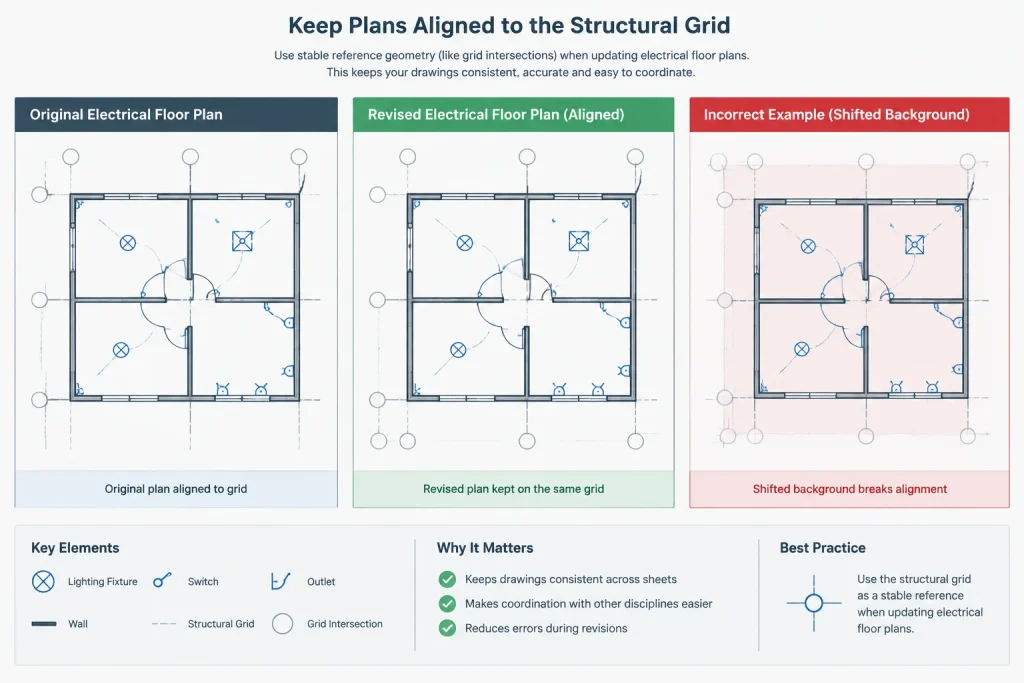
Two drawings must share a reliable coordinate relationship before an overlay can be trusted. Check their insertion basis, units, orientation, and model position. Do not align them by eye using an arbitrary corner unless no dependable reference point exists.
Useful alignment references may include structural grids, established project coordinates, column intersections, or other stable geometry. Temporary objects, furniture, room labels, and movable equipment are poor alignment references because they may have changed between revisions.
Also check whether one drawing contains:
- A shifted or rotated external reference
- Different unit interpretation
- Geometry drawn in paper space instead of model space
- Clipped references or view-dependent content
- Different layer visibility or layer states
- Unresolved fonts, linetypes, or proxy objects
These conditions can create apparent differences that are unrelated to design revisions.
Choose a Comparison Method
The best method depends on the file format, project workflow, and purpose of the review. Software-assisted comparison tools can be helpful, but their results still require technical interpretation.
| Method | Useful For | Common Limitation |
|---|---|---|
| CAD geometry comparison | Finding added, deleted, or modified drawing objects | May report cleanup and object-property changes as major differences |
| Color overlay | Quick visual review of aligned plans | Dense drawings can become difficult to read |
| PDF overlay | Comparing issued sheets as they were plotted | Does not expose CAD layers or object data |
| Side-by-side review | Checking notes, schedules, diagrams, and sheet organization | Small positional changes are easy to miss |
| Layer-isolated comparison | Reviewing one discipline or system at a time | Depends on consistent layer organization |
A combined approach is often most effective. An overlay can reveal positional changes, while a side-by-side check can clarify revised text, schedules, and diagram relationships.
Use Layer and System Filters to Reduce Noise
Comparing every visible object at once can produce an unreadable result. Separate the review into logical categories, such as lighting, receptacles, distribution equipment, raceways, controls, low-voltage systems, notes, and backgrounds.
Start with the electrical content most likely to affect other documents. For example, a relocated panel may affect feeder routing, equipment schedules, circuit references, room coordination, and the single-line diagram. Reviewing that change by system is more useful than treating it as one moved rectangle.
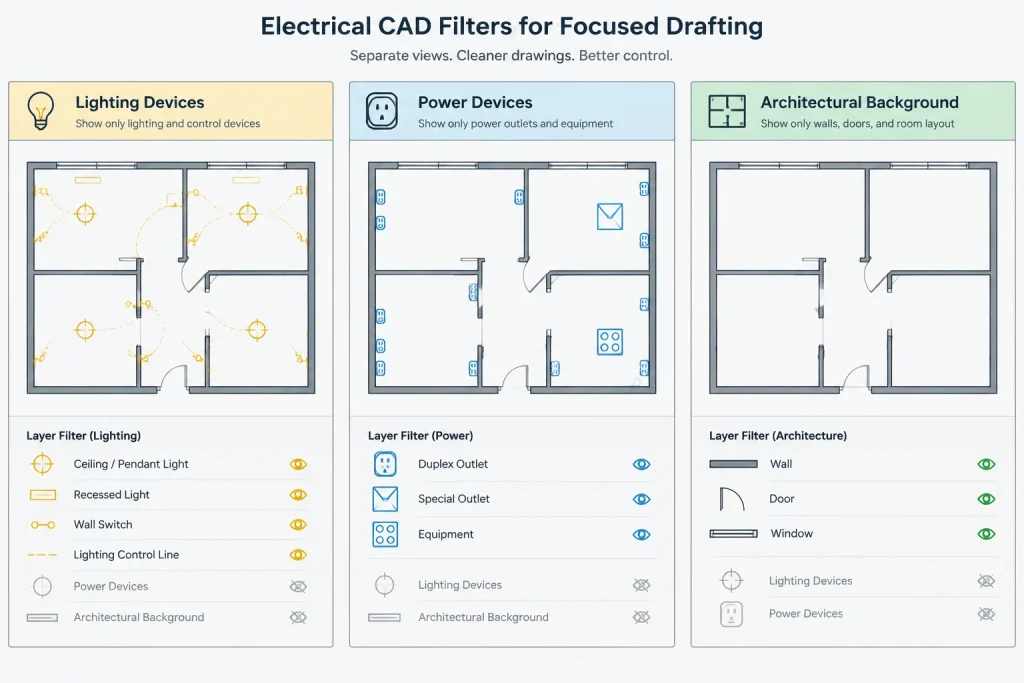
Background changes should usually be reviewed separately from electrical changes. Architectural wall revisions, ceiling changes, and mechanical equipment relocations may not directly modify an electrical object, but they can create a coordination issue that requires an electrical response.
Classify Differences Instead of Simply Marking Them
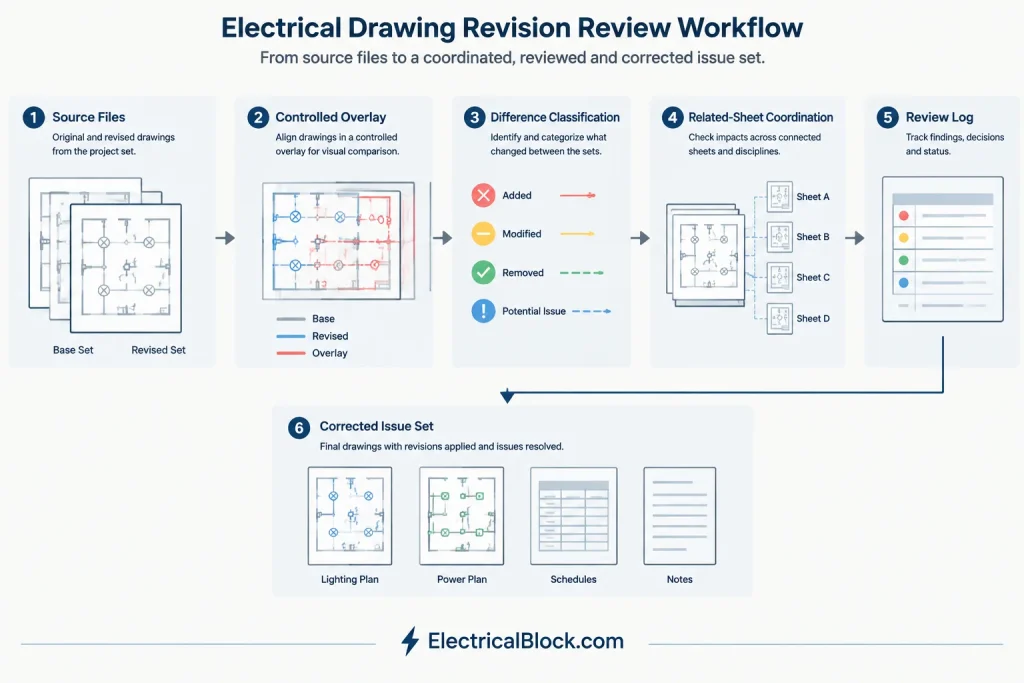
A practical comparison log should classify findings so reviewers can determine the appropriate action. Useful categories include:
- Design change: The electrical design intent has changed.
- Coordination change: Another discipline changed, requiring electrical review.
- Documentation change: A tag, note, title, reference, or schedule entry changed.
- Graphic change: Geometry or annotation was adjusted without changing intent.
- Unexplained difference: The reason or effect cannot yet be determined.
- No action: The difference was reviewed and found not to affect the electrical documents.
This classification prevents minor graphic edits from receiving the same attention as changed circuits, relocated equipment, or revised distribution connections.
Check Relationships Beyond the Changed Sheet
Electrical information is repeated across plans, schedules, diagrams, details, and specifications. A change found on one sheet should trigger a review of related documents.
For each meaningful revision, consider whether it affects:
- Panel and equipment schedules
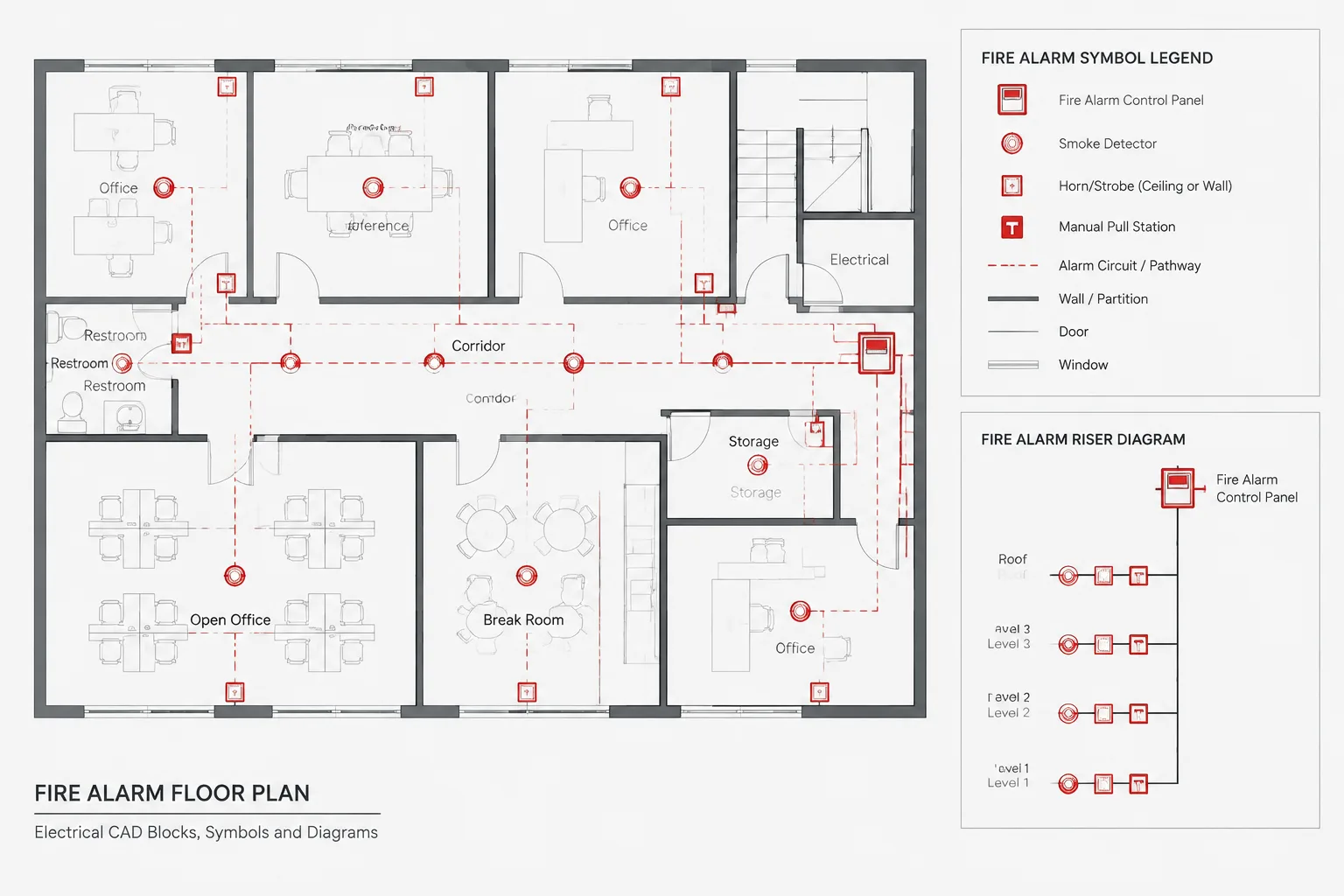
- Single-line or riser diagrams
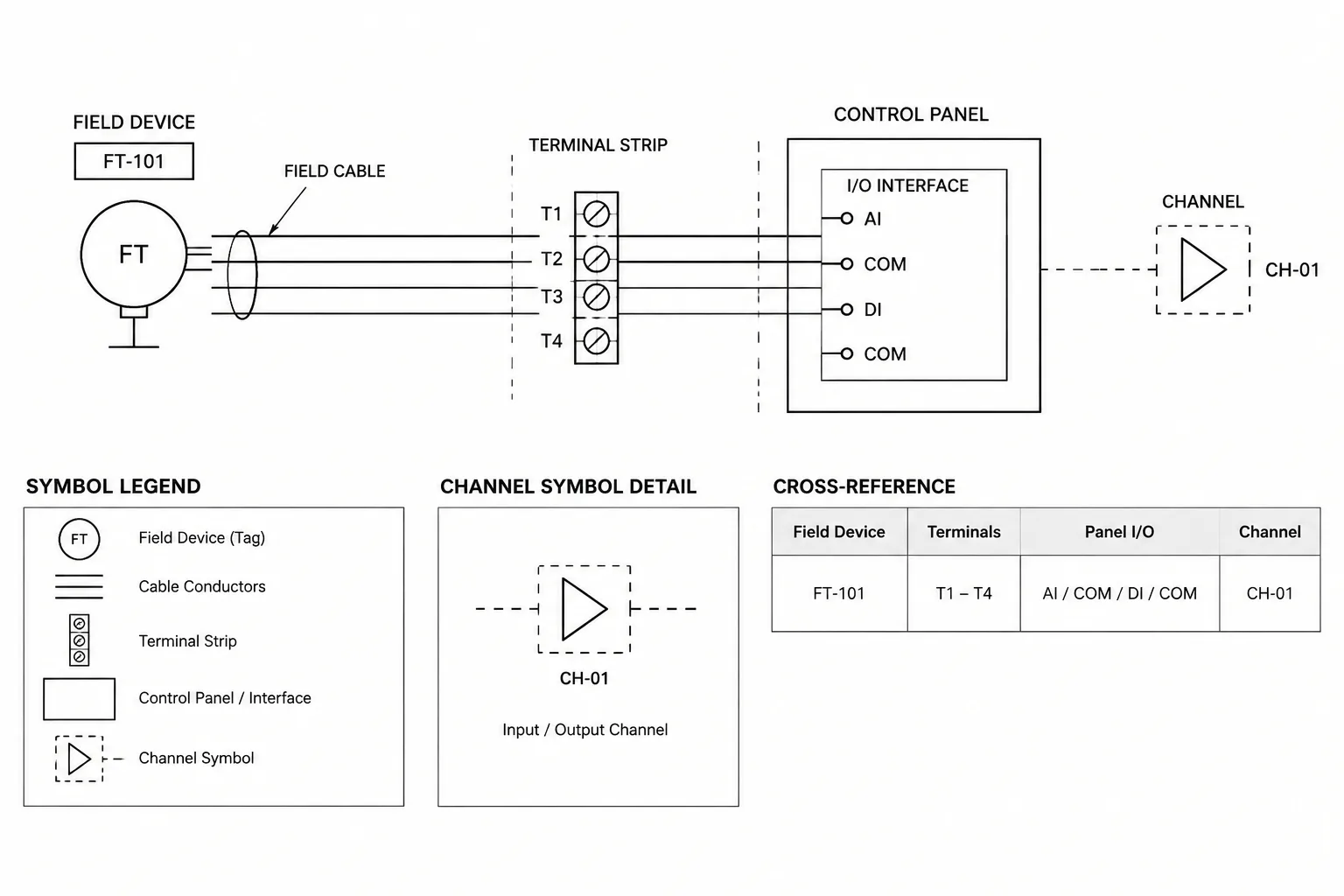
- Feeder and cable schedules
- Lighting fixture or control schedules
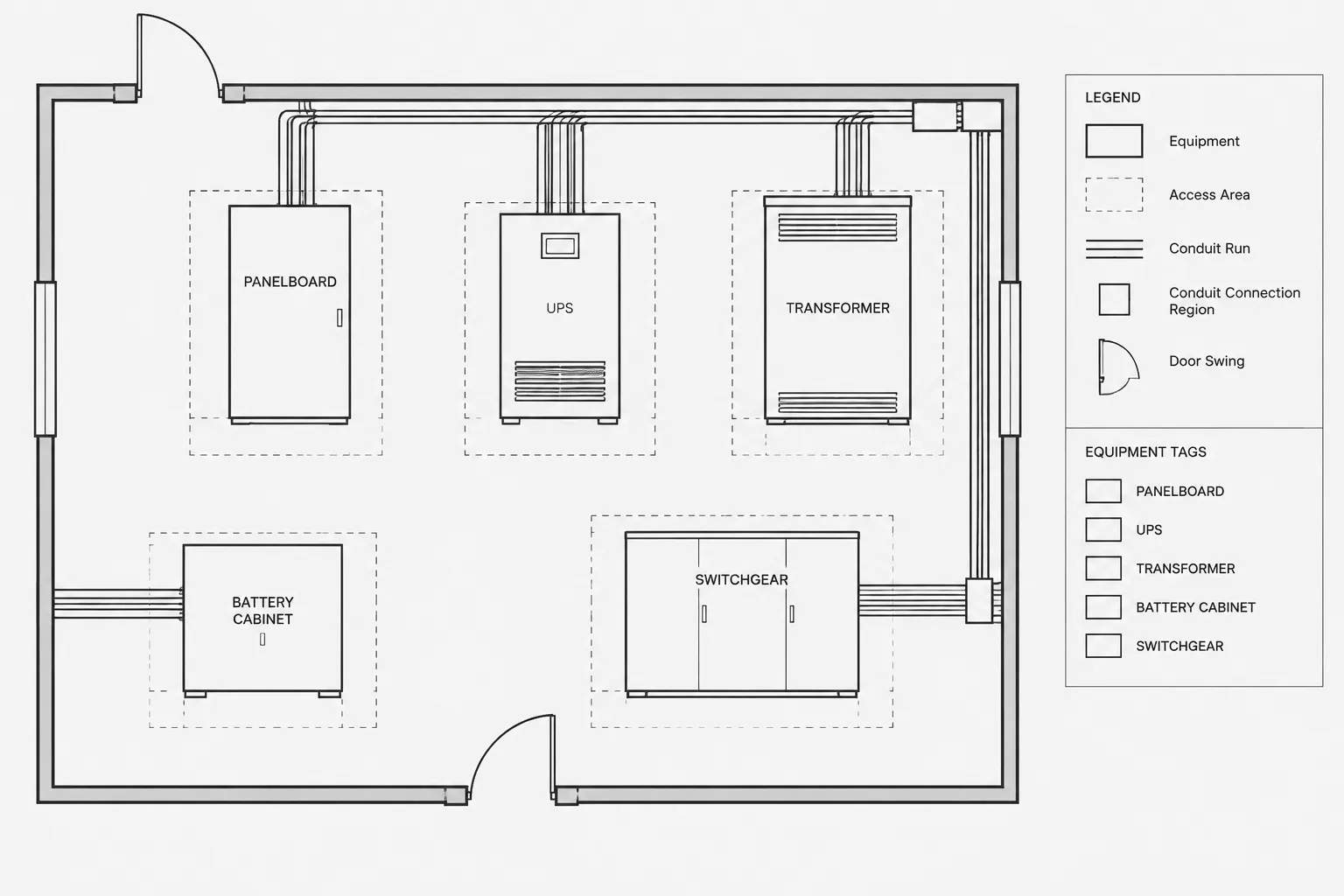
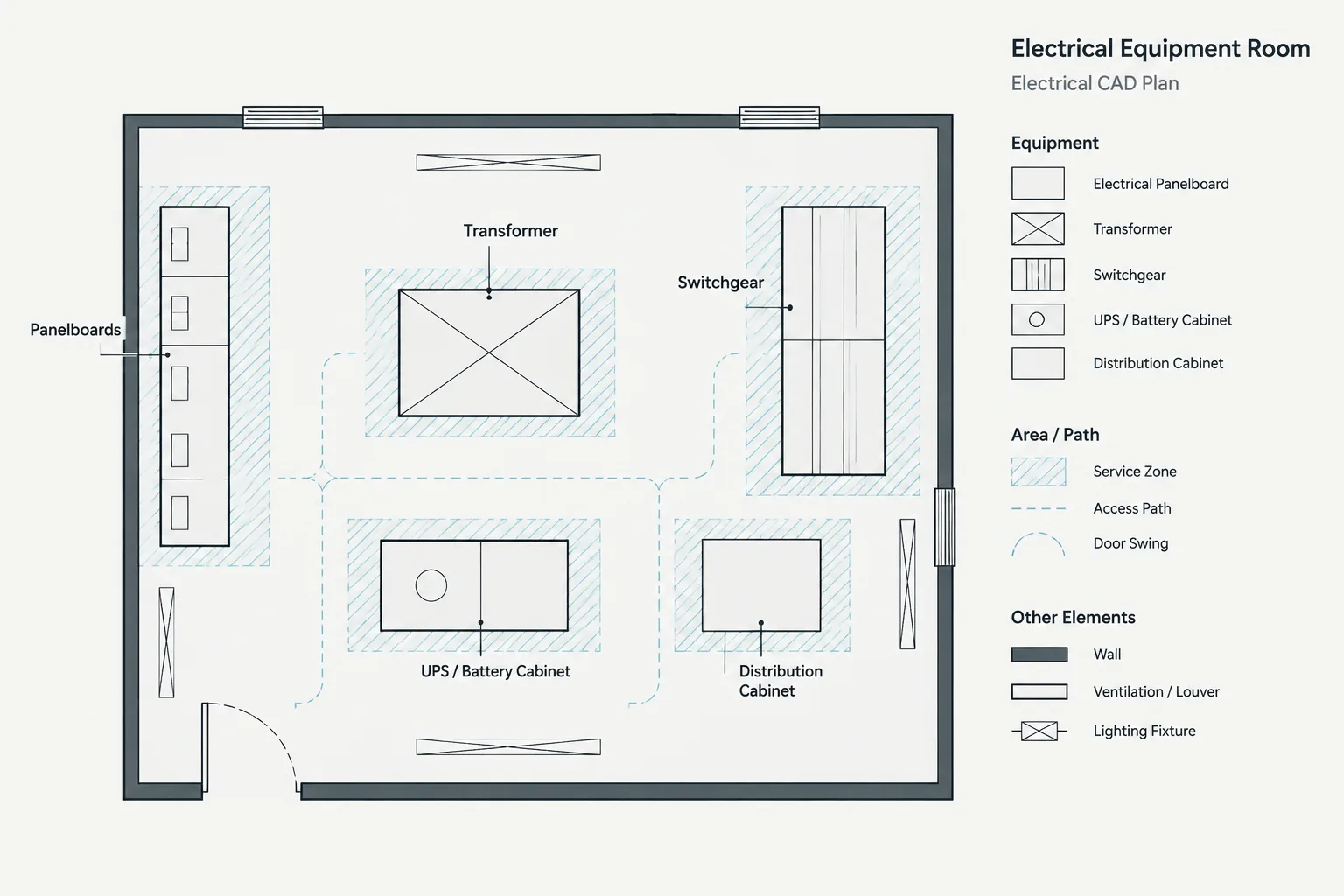
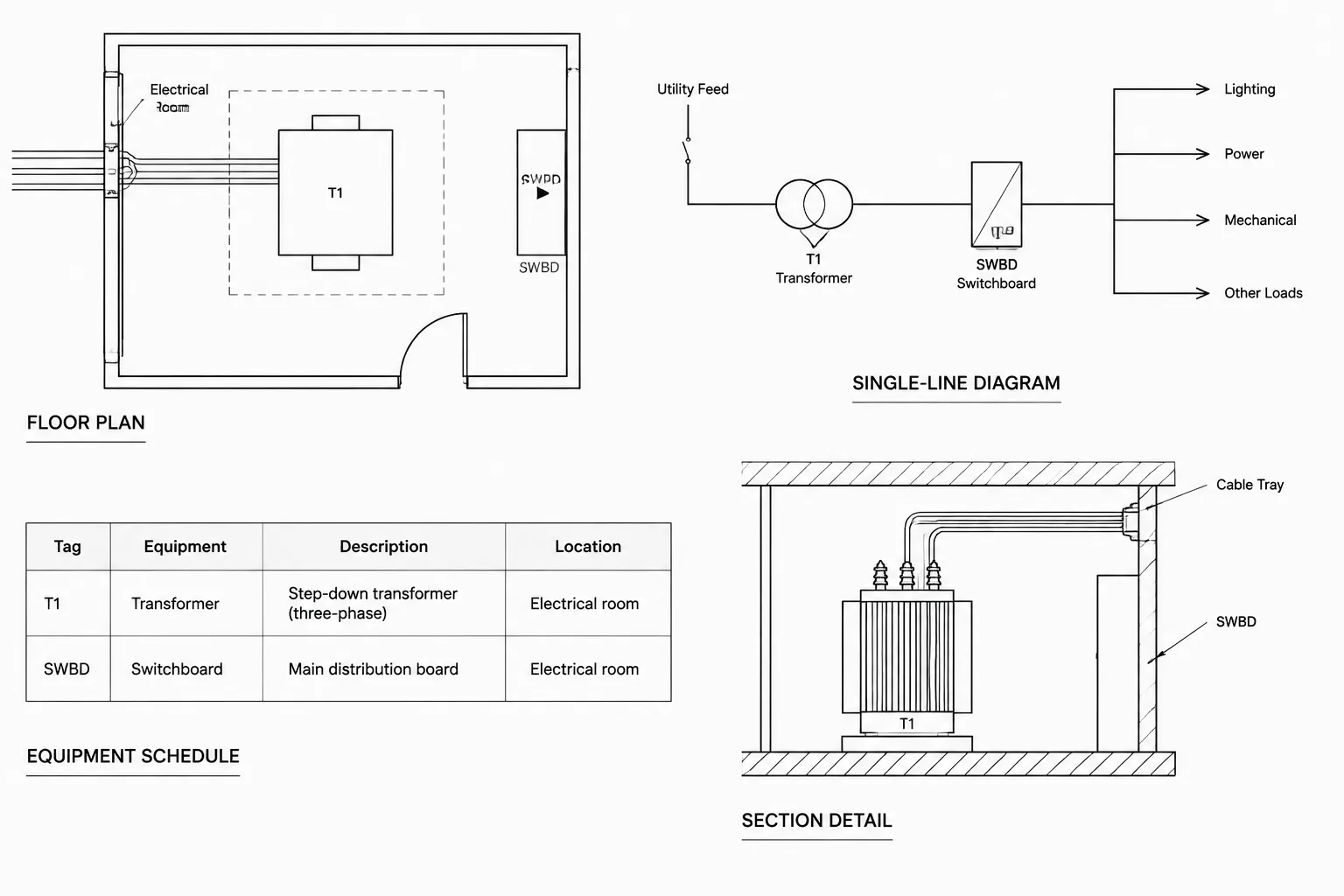
- Electrical room layouts and equipment elevations
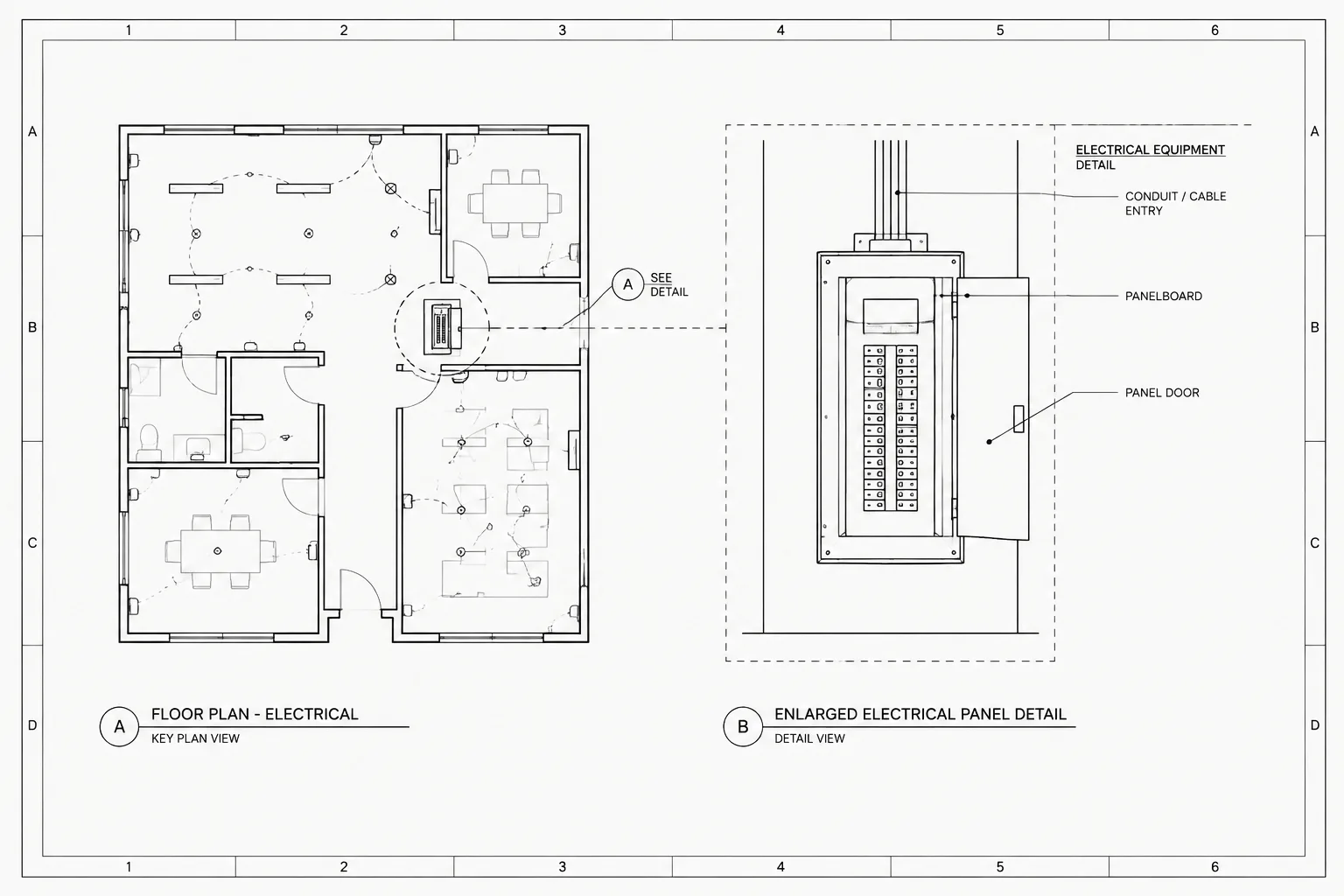
- Enlarged plans, sections, and installation details
- Legends, abbreviations, and general notes
- Demolition and phasing drawings
- Sheet references and continuation callouts
For example, moving a distribution panel on a floor plan may require more than relocating its symbol. The equipment tag, feeder route, room label, schedule reference, elevation, and diagram representation may all need review.
Recognize Common False Positives
Comparison results frequently contain differences that do not represent design changes. Common causes include:
- Objects redrawn as different entity types
- Blocks replaced with updated library definitions
- Text reflow caused by font substitution
- Changed hatch origins or boundary definitions
- Layer, color, or linetype property cleanup
- External references reloaded from a different path
- Minor coordinate shifts caused by export or conversion
- Viewport, clipping, or plotting changes
Do not ignore these automatically. A block replacement, for example, may be a harmless library update, or it may remove attributes used for schedules. The reviewer should determine whether data, appearance, or design meaning was lost.
Create a Review Record
A comparison becomes more useful when findings are documented consistently. A review log can include the sheet or model area, affected system, description of the difference, classification, related documents, responsible party, and disposition.
Use revision clouds, markers, or review comments as temporary communication tools rather than permanent substitutes for corrected documentation. Once an issue is resolved, update the source drawing and retain the review record according to the project workflow.
Close the Comparison Loop
After corrections are made, compare the updated drawing against the intended revision—not merely against the reviewer’s marked-up copy. Confirm that requested changes were incorporated without introducing unrelated edits.
A final spot check should focus on high-impact relationships: device tags to schedules, circuit references to panels, feeders to diagrams, equipment locations to backgrounds, and callouts to their destination details.
Practical Comparison Checklist
- Verify the identity and issue status of both files.
- Preserve the original source files.
- Confirm units, coordinates, orientation, and reference alignment.
- Compare electrical content separately from background content.
- Filter the review by layer, system, or drawing function.
- Distinguish design changes from graphic cleanup.
- Investigate added, removed, moved, and retagged objects.
- Review notes, schedules, diagrams, and cross-references.
- Record findings and assign a disposition.
- Perform a follow-up comparison after corrections.
A Comparison Is a Coordination Task
The value of electrical drawing comparison in CAD lies in interpretation, not simply visual detection. A software result can identify objects that differ, but it cannot reliably determine whether a relocated wall conflicts with a receptacle, whether a renamed room requires schedule updates, or whether a revised feeder reference is coordinated across the drawing set.
By controlling the file pair, aligning drawings accurately, filtering review content, classifying differences, and tracing each meaningful change through related documents, teams can turn drawing comparison into a focused quality-control and coordination workflow.
Turn Detected Differences Into Review Decisions
A comparison result is evidence of a difference, not proof of a design change. Each finding should be checked in context before the drawing is revised. Reviewers should identify what changed, why it matters, which related documents may be affected, and what action closes the issue.
Capture Enough Context for the Next Reviewer
A useful comment should be understandable without relying on memory or an informal conversation. It should identify the affected sheet or model area, the relevant electrical system, the observed difference, and the documents that may require coordination.
- Describe the previous and revised condition in neutral terms.
- Separate confirmed changes from questions requiring clarification.
- Note whether the difference originated in electrical content or a referenced background.
- Identify related schedules, diagrams, details, or callouts that were checked.
- Record whether the finding was corrected, accepted, deferred, or determined to require no action.
Review Change Patterns, Not Only Individual Objects
Related differences may reveal a larger revision. Several moved devices could indicate a changed room layout, while repeated text changes could result from a substituted font rather than deliberate editing. Grouping findings by area, system, or probable cause helps the reviewer distinguish coordinated design development from isolated drafting noise.
Use the Comparison as a Handoff Tool
The final review package should make the decision trail clear to the person updating or approving the drawings. Temporary overlays and markups can support that process, but the controlled drawing set remains the primary documentation. Any unresolved difference should remain visible in the review record until its effect has been evaluated and its disposition recorded.
Frequently Asked Questions
What is the purpose of comparing electrical CAD drawings?
The purpose is to identify meaningful changes between revisions and determine their effect on plans, schedules, diagrams, details, references, and coordination backgrounds. It is not limited to finding geometry that looks different.
Why can an overlay show changes that were never intentionally made?
Apparent changes can result from shifted references, different layer states, font substitution, altered block definitions, export behavior, clipping, plotting settings, or small coordinate differences. The source of each difference should be investigated before it is classified as a design revision.
Should electrical content and architectural backgrounds be compared together?
They can be viewed together for coordination, but reviewing them separately usually makes the results easier to interpret. A background revision may create an electrical coordination issue even when no electrical object has changed.
What should be checked after an electrical symbol moves?
Check its tag, circuit or system association, nearby routing, schedule entry, related notes, diagram representation, and coordination with the revised background. The relevant checks depend on what the symbol represents and how information is repeated across the drawing set.
Is a CAD comparison tool enough for revision control?
No. Comparison software can detect object or graphic differences, but technical review is still needed to determine meaning, impact, responsibility, and required follow-up. Revision control also depends on preserving source files and maintaining a traceable review record.
How should unresolved differences be documented?
Record the affected drawing area, system, observed condition, possible document relationships, responsible reviewer, and current disposition. Avoid presenting an assumption as a confirmed design change.
Leave a Reply
You must be logged in to post a comment.