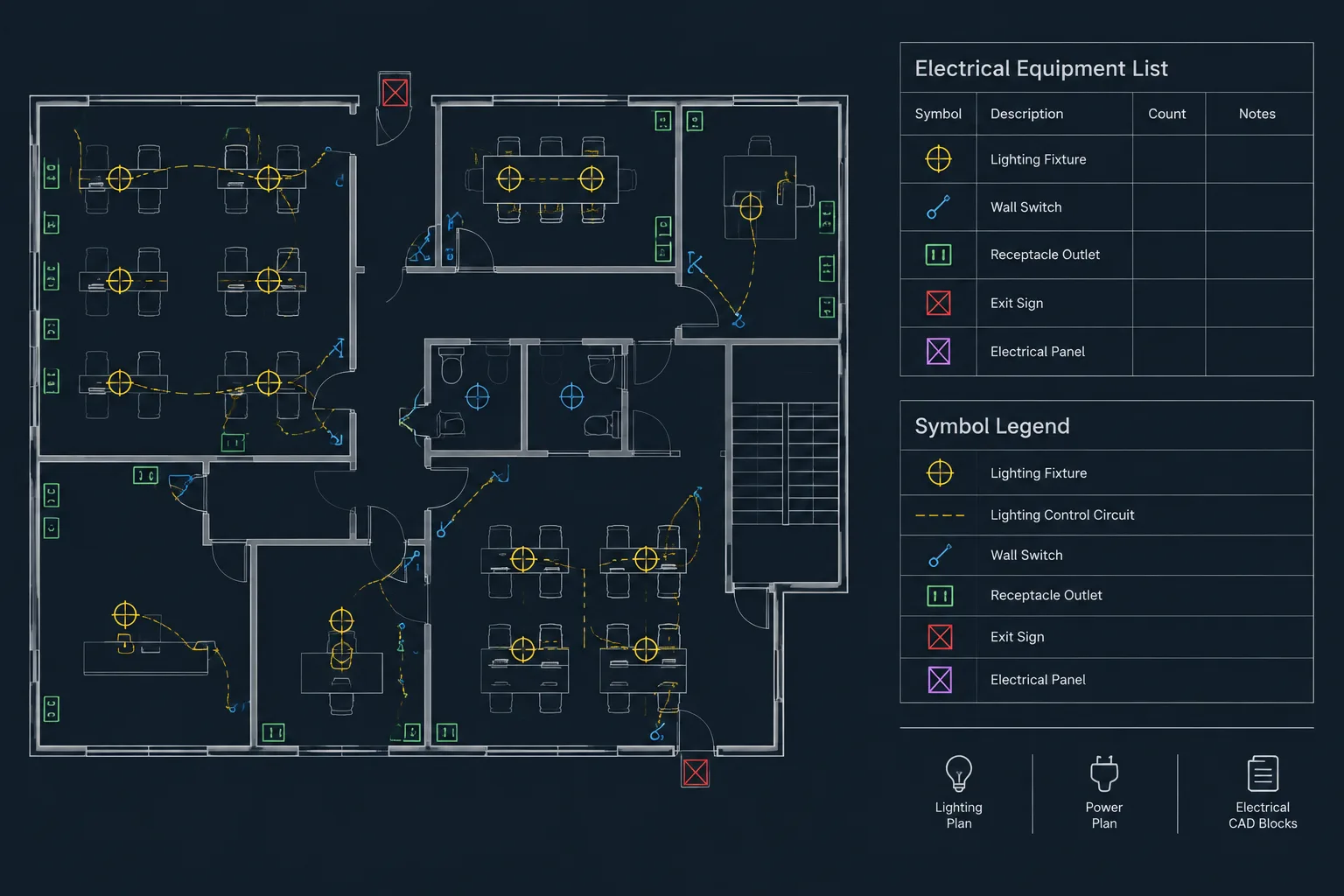
An electrical CAD data extraction workflow turns selected block properties and attributes into structured documentation. The result can support equipment lists, symbol counts, coordination reviews, and drawing quality control, but only when the extracted records remain traceable to the objects shown in the drawing set.
This guide explains how to define reportable blocks, organize attribute fields, control extraction scope, reconcile output with plans, and prevent common counting errors. It is intended as a drafting and documentation reference rather than a substitute for engineering review or project-specific approval.
Electrical CAD blocks can carry more than geometry. When symbols include consistent attributes, they can support equipment lists, device counts, circuit reports, coordination logs, and drawing quality checks. The difficult part is not exporting rows from CAD; it is making sure those rows accurately represent the drawings.
An effective electrical CAD data extraction workflow connects three things: the visible symbol, its stored information, and the published documentation. If any of these disagree, the resulting list may look organized while still being incomplete or misleading. The following workflow focuses on preparing, extracting, checking, and maintaining block data without treating an automated report as a substitute for design review.
What Electrical CAD Data Extraction Can Produce
Data extraction converts selected drawing objects and their properties into a structured list. Depending on how a project is documented, useful outputs may include:
- Electrical equipment inventories
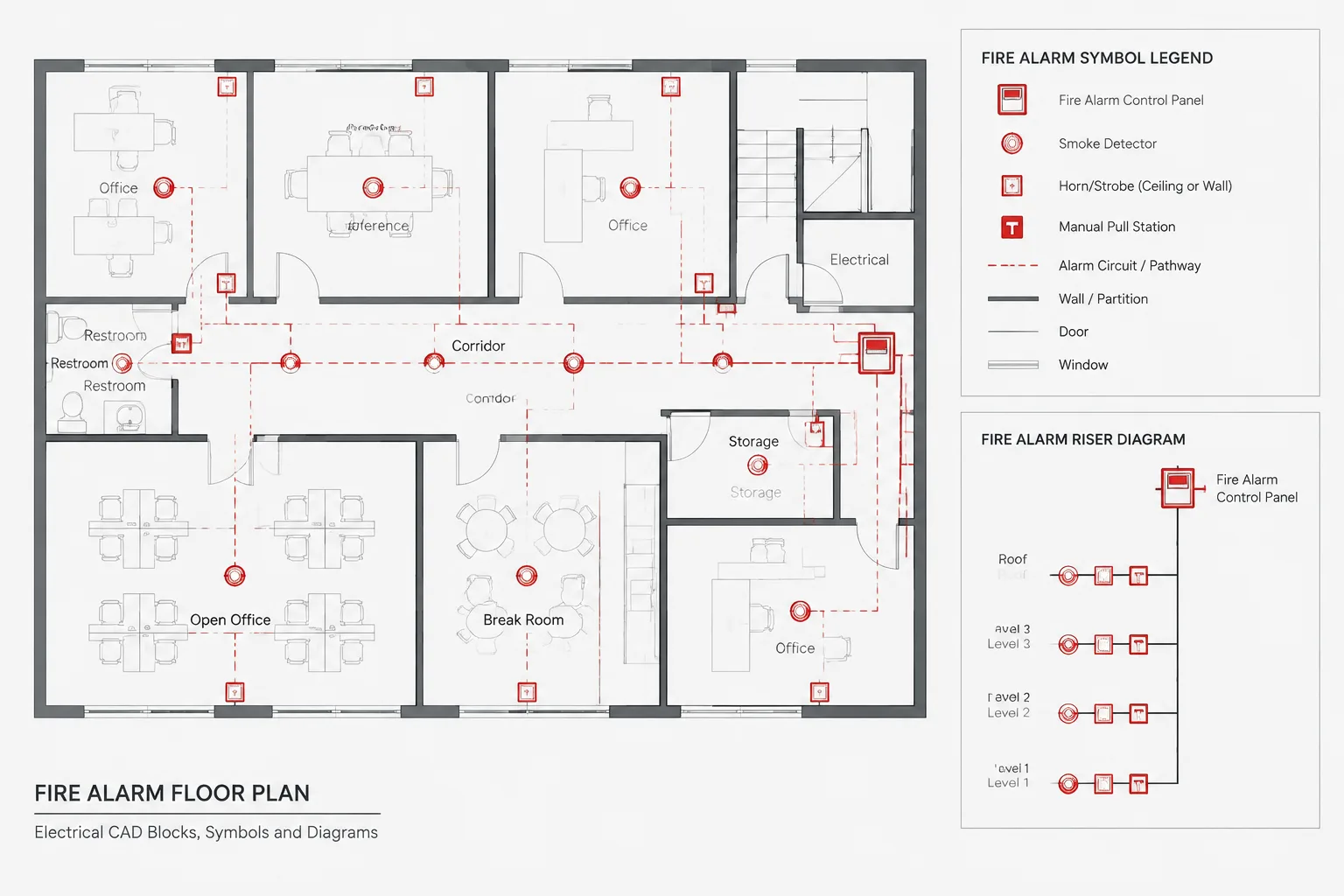
- Lighting fixture counts by type
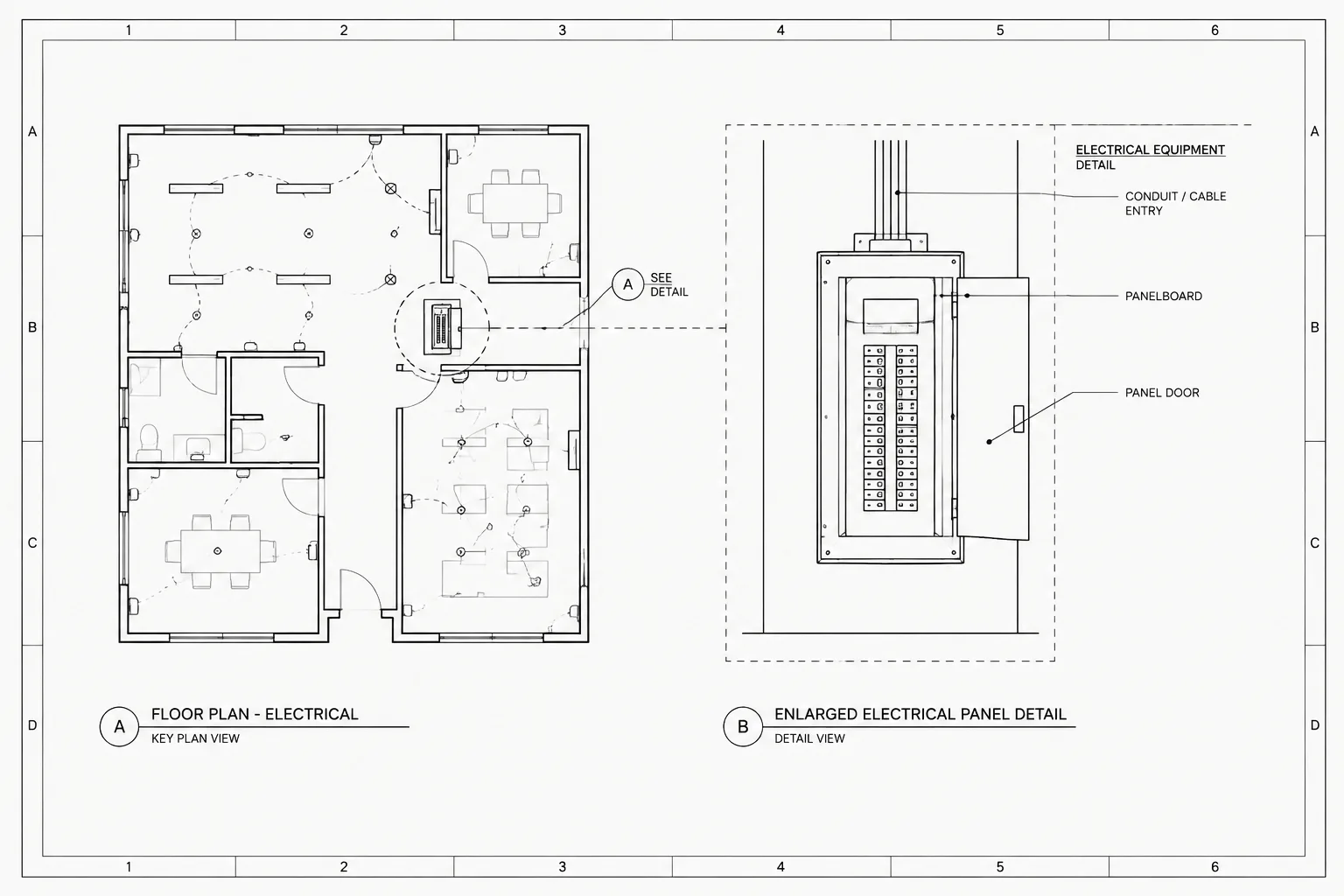
- Device counts by floor, room, or drawing area
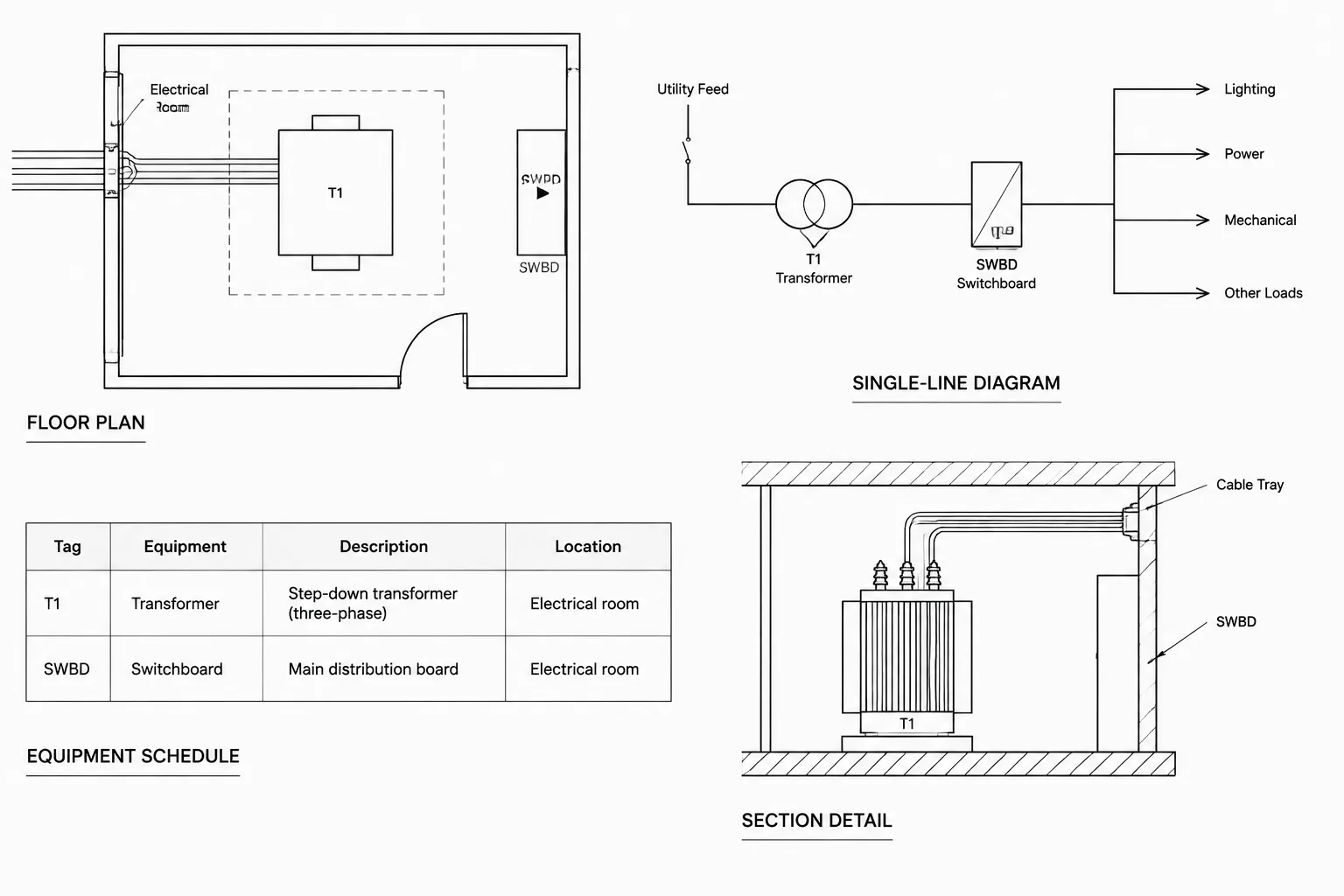
- Panel, transformer, disconnect, and equipment tag lists
- Lists of blocks with missing or duplicate identifiers
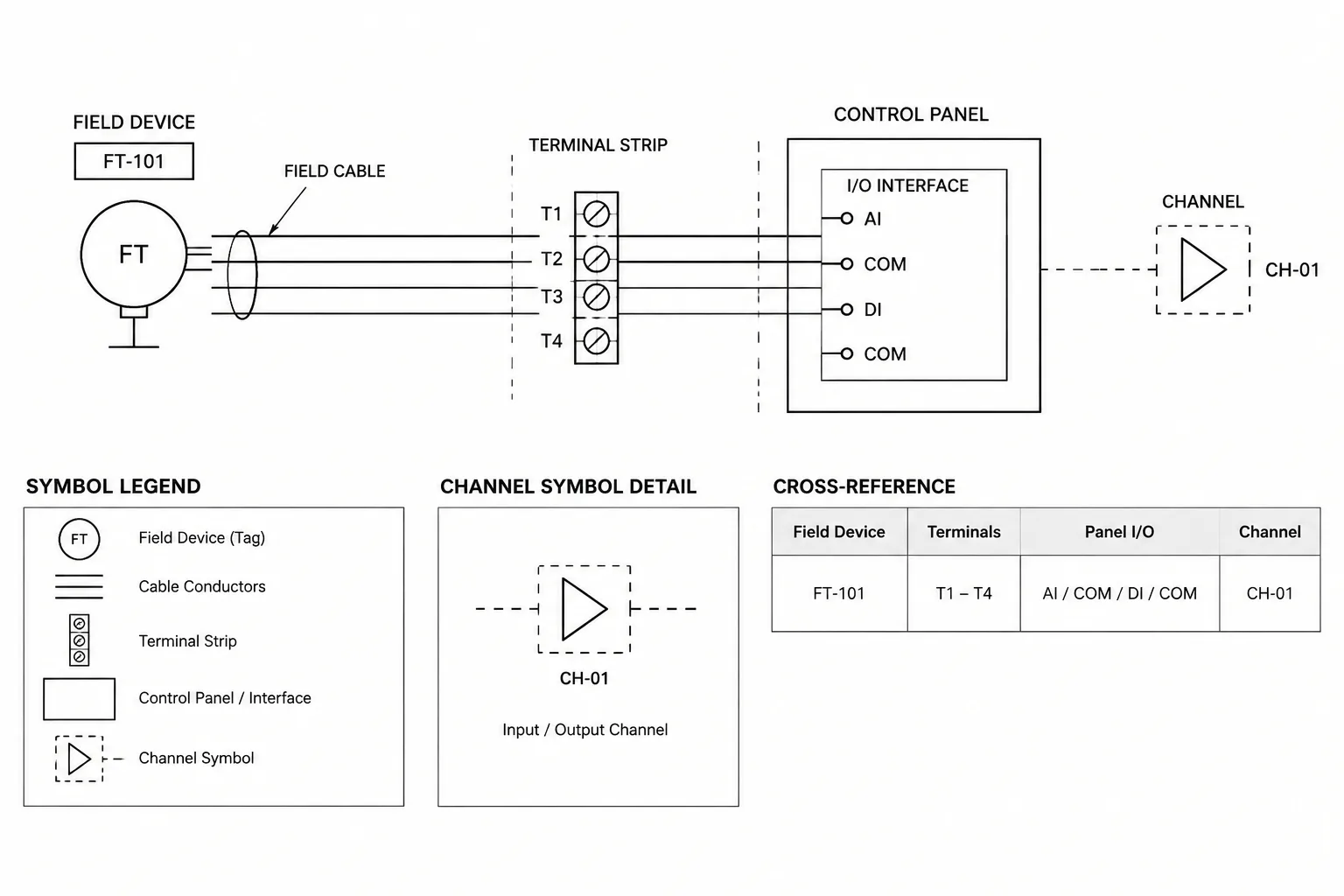
- Coordination reports containing circuit, source, or connection fields
- Procurement or estimating support lists that remain subject to project verification
The process works best when the requested output is defined before blocks are built or edited. A fixture count may need only a type and location, while an equipment coordination list could require a tag, description, source, drawing reference, status, and remarks. Collecting every available property usually creates noise rather than a better report.
Geometry Is Not the Same as Data
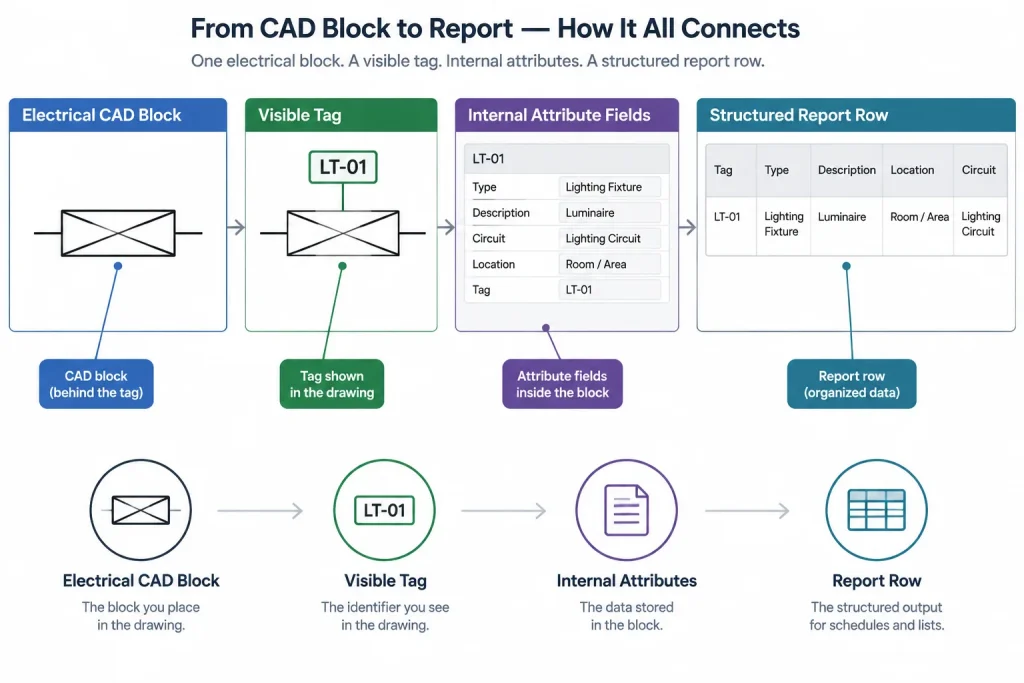
A symbol can look correct on a plan and still fail during extraction. For example, a visible equipment tag may be ordinary text placed beside a block rather than an attribute stored inside it. Two blocks may display identical labels while using different internal field names. A copied block may also retain an old hidden value that is not obvious at the plotted scale.
Before relying on an output, determine where each piece of information lives:
- Block identity: the block definition or approved classification used to recognize the object.
- Attributes: editable values such as tag, type, circuit, source, status, or notes.
- Object properties: layer, insertion point, rotation, and other CAD properties that may help classify or locate the object.
- Nearby annotations: text, leaders, or callouts that appear related but may not be linked to the block.
- External records: schedules or databases maintained outside the drawing.
Only information that has a reliable relationship to the selected object should be treated as extractable block data. Proximity alone does not prove that a text label belongs to a symbol.
Build a Small, Controlled Field Schema
A field schema defines what each attribute means and how it should be formatted. Keep the schema focused on information that has a clear documentation purpose. The exact fields will vary by project and discipline.
| Field role | Typical purpose | Drafting control |
|---|---|---|
| Unique identifier | Distinguishes one documented item from another | Check for blanks and unintended duplicates |
| Type or classification | Groups similar symbols or equipment | Use controlled terms rather than spelling variations |
| Description | Provides a readable summary | Avoid placing critical distinctions only in free-form text |
| Source reference | Connects an item to a panel, system, or upstream reference | Coordinate terminology with diagrams and schedules |
| Location | Associates the record with a room, level, area, or sheet | Define whether the value is entered or derived |
| Status | Identifies new, existing, relocated, future, or other project states | Use the project’s approved status vocabulary |
| Remarks | Captures limited coordination notes | Do not use remarks as a substitute for structured fields |
Attribute tags should remain stable even if the displayed prompt or label changes. If one library uses DEVICE_TYPE, another uses TYPE, and a third uses DEV-TYP, the extraction process must map those variants or normalize the blocks. Renaming fields casually can break reports, scripts, or downstream templates.
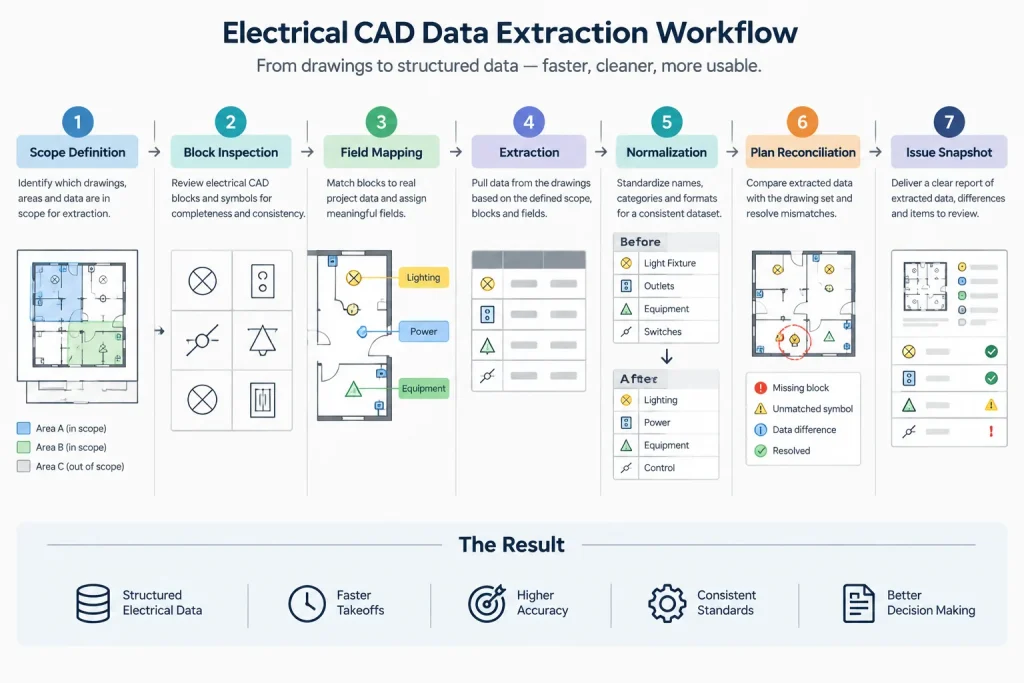
A Practical Extraction Workflow
1. Define the report scope
State which drawings, plan areas, block families, and project statuses belong in the report. Decide whether repeated references, details, legends, and xrefs should be included. A common error is extracting symbols from a legend along with installed-device symbols, which inflates counts.
2. Identify qualifying blocks
Prepare a controlled list of block definitions or classifications that represent reportable objects. Do not select blocks merely because their names contain a familiar word. Legacy names, anonymous definitions, nested blocks, and project-specific variants require review.
3. Inspect attributes before exporting
Sample blocks from different sheets or drawing areas. Check for missing tags, inconsistent capitalization, leftover default text, obsolete fields, and values stored in the wrong attribute. Confirm that visible labels correspond to stored values.
4. Establish field mappings
If several block families use different attribute names for the same concept, create a mapping table. For example, multiple source-related fields may need to feed one report column. Document the mapping instead of silently merging values, especially when similar fields have different meanings.
5. Run the extraction on a working copy
Use the CAD platform’s available reporting, attribute extraction, scheduling, or approved custom workflow. Work from a controlled project copy and record the drawing revision or issue state. Extraction options differ among CAD applications, so verify how the selected tool handles xrefs, nested blocks, dynamic states, and duplicate references.
6. Normalize the output carefully
Clean obvious formatting inconsistencies without changing engineering meaning. Trimming extra spaces or standardizing an agreed status term may be appropriate. Automatically rewriting equipment tags, circuit references, or source information is riskier and should be reviewed by the responsible project team.
7. Reconcile the list with the drawings
Check both directions. Select records from the list and find their symbols on the plans. Then select representative symbols on the plans and confirm that they appear in the list. This catches both false inclusions and missing objects.
8. Publish a traceable snapshot
Label the output with its source drawing set, extraction scope, and revision state. Unless the project has a managed live-data process, treat the list as a snapshot. Later drawing edits will not automatically make an older exported file current.
Common Problems That Distort Results
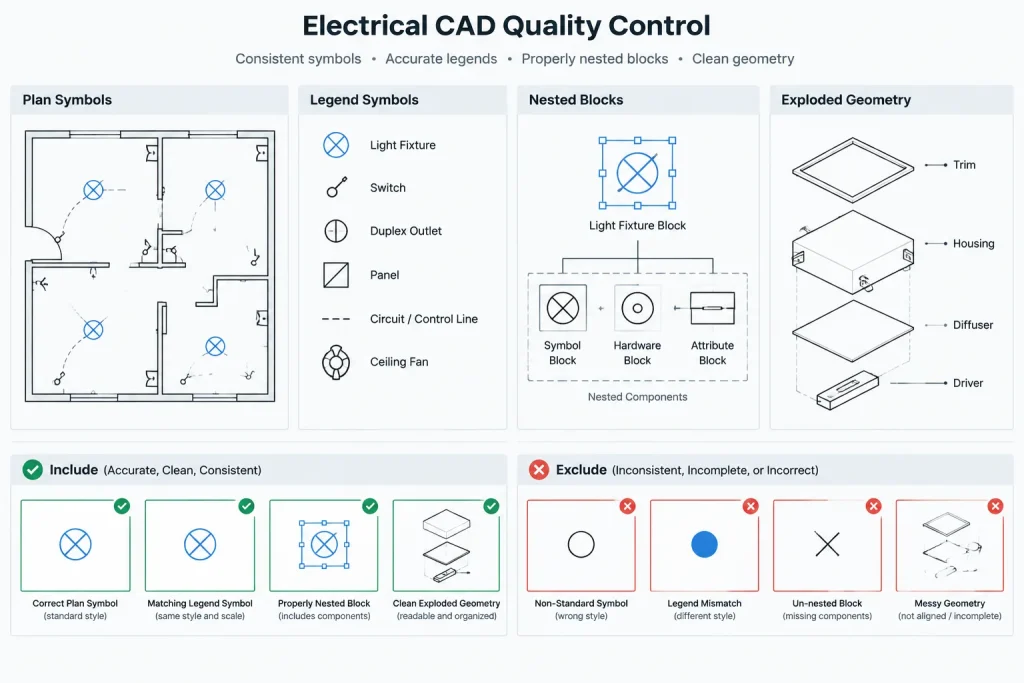
Legend and detail symbols
Blocks placed in legends, typical details, or explanatory diagrams may be counted as project devices. Separate them by drawing scope, layer purpose, block classification, or another deliberate method.
Nested blocks
An equipment assembly may contain smaller symbols. Extracting both the assembly and its nested components can create duplicate or misleading records. Decide which level represents the reportable item.
Copied identifiers
Copying an attributed block can reproduce its identifier. Duplicate tags are not always wrong, but they should be tested against the project’s identification rules rather than accepted automatically.
Exploded or substituted symbols
Exploded graphics may look like library blocks but have no extractable identity. Likewise, a generic placeholder may not contain the fields required for a final equipment list. Visual review remains necessary.
External references
Symbols inside xrefs can be overlooked or counted more than once, depending on the file structure and extraction method. Confirm whether referenced drawings are processed directly, through a host drawing, or excluded.
Blank values with different meanings
A blank may mean not applicable, not yet assigned, unknown, or accidentally omitted. If those conditions matter, represent them with controlled status logic rather than assuming every empty cell has the same meaning.
Quality Checks for an Extracted Equipment List
A useful review combines automated tests with visual sampling. Consider checking for:
- Blank required identifiers or classifications
- Duplicate identifiers where uniqueness is expected
- Unexpected block definitions
- Values outside the approved project vocabulary
- Symbols located on inappropriate layers
- Records from legends, details, or inactive alternatives
- Plan symbols that do not appear in the extraction
- Extracted rows that cannot be located on the drawings
- Conflicts between plan attributes, schedules, and single-line diagrams
- Changes made after the report’s recorded drawing revision
Counts can be a useful warning signal, but matching totals do not prove that the correct objects were captured. One missing symbol and one incorrectly included legend symbol can cancel each other numerically.
Design the Block Library for Reporting
A shared block library becomes easier to report from when it uses stable attribute tags, controlled classifications, documented default values, and a clear distinction between graphical-only symbols and data-bearing assets. Provide a short data dictionary that explains each field, whether it is required, and where its value should be coordinated.
Avoid adding attributes simply because they might be useful later. Excessive fields increase editing time and encourage stale information. Store a value in a block only when there is a defined owner, a review method, and a reason for that value to travel with the symbol.
Finally, remember that a CAD block is a documentation tool, not evidence that an item is approved, correctly rated, or suitable for a particular installation. Extracted information must still be checked against project criteria, current schedules, diagrams, specifications, and responsible design decisions.
Make the Report Part of Drawing Quality Control
The strongest electrical CAD data extraction workflow is not a one-time export at the end of drafting. It is a repeatable quality-control process used at appropriate project milestones. Early reports reveal inconsistent library use and missing attributes. Later reports help reconcile plans with schedules and diagrams. Final reports can support handoff when their scope and revision state are clearly documented.
By defining the output first, controlling attribute names, excluding non-project symbols, and verifying records against the plans, a CAD team can turn block data into a useful documentation resource rather than an unverified spreadsheet.
Turning an Extraction into a Controlled Deliverable
An exported list should include enough context for another reviewer to understand where the information came from. Useful context includes the drawing set or working files used, the included block families, relevant exclusions, the revision state, and any field mappings applied during processing. Without that context, an apparently complete table may be difficult to reproduce or audit.
Assign Ownership to the Data
Each maintained field should have a recognized source and review path. Library-related fields may be governed through block standards, while project values may be coordinated through plans, schedules, diagrams, or another approved record. When ownership is unclear, different drawing files can begin carrying conflicting values for the same documented item.
Correct the Source, Not Only the Export
When a review finds a missing identifier, incorrect classification, or obsolete source reference, editing only the extracted list creates a temporary correction. Where the project workflow permits, the responsible team should correct the authoritative drawing object or managed record and then regenerate the report. Any exception that cannot be corrected at its source should be documented so the difference remains visible.
Use an Acceptance Checklist
- Can every included row be traced to a qualifying drawing object?
- Can representative plan symbols be found in the report?
- Are legends, details, alternatives, and non-project examples handled deliberately?
- Are shared concepts mapped consistently across different block families?
- Are blank, duplicate, and unexpected values identified for review?
- Does the report state its drawing scope and revision condition?
- Were meaningful corrections returned to the source documentation?
These checks help distinguish a controlled documentation output from a simple data dump. They do not confirm equipment selection, code compliance, ratings, quantities for purchase, or installation suitability; those conclusions require the appropriate project review.
Electrical CAD Data Extraction FAQ
Can nearby text be treated as part of a CAD block record?
Not automatically. Text placed beside a symbol may appear related without having a stored relationship to that block. If the information is required in a report, the workflow should establish a reliable link, attribute, mapping rule, or other controlled association.
Do matching totals prove that an equipment list is correct?
No. A missing plan symbol and an incorrectly included legend symbol can offset each other. Reviewers should test both directions by locating extracted records on the drawings and confirming that representative drawing objects appear in the output.
How should externally referenced drawings be handled?
Define whether referenced content is included through the host drawing, processed from its source files, or excluded. Then test the chosen CAD tool or reporting method because referenced and nested content may be handled differently across workflows.
Should every electrical block contain the same attributes?
Not necessarily. Attributes should serve a defined documentation purpose. Different object classes may require different fields, while shared concepts should use stable names or documented mappings wherever practical.
When should an extracted list be refreshed?
Refresh it after relevant controlled drawing changes and before relying on it for a documented issue or review. A previously exported list should be treated as a snapshot unless the project uses a verified managed-data process.
Can an extracted equipment list be used for estimating or procurement?
It can provide supporting information, but the output must be checked against the current project scope, schedules, diagrams, specifications, and responsible design decisions before it is used for downstream purposes.
Leave a Reply
You must be logged in to post a comment.