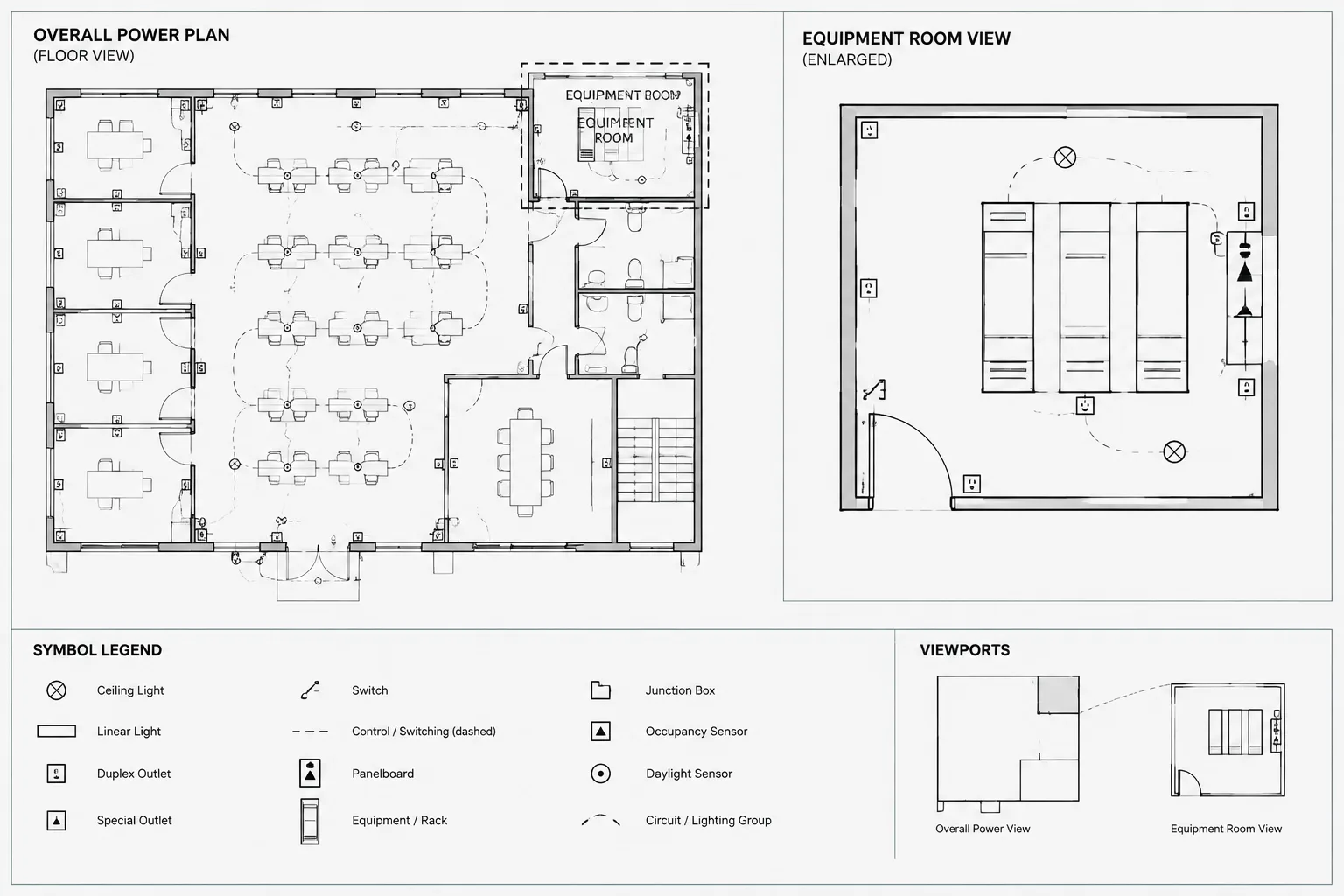
Readable electrical documentation depends on more than selecting a text style or resizing a symbol. Every annotation must work within a coordinated system of model geometry, view scales, viewport visibility, block behavior, and sheet output.
This reference explains how to evaluate electrical CAD annotation scaling without treating every object the same way. Use it when developing templates, reviewing imported blocks, coordinating overall and enlarged plans, or troubleshooting annotations that disappear, overlap, or plot inconsistently.
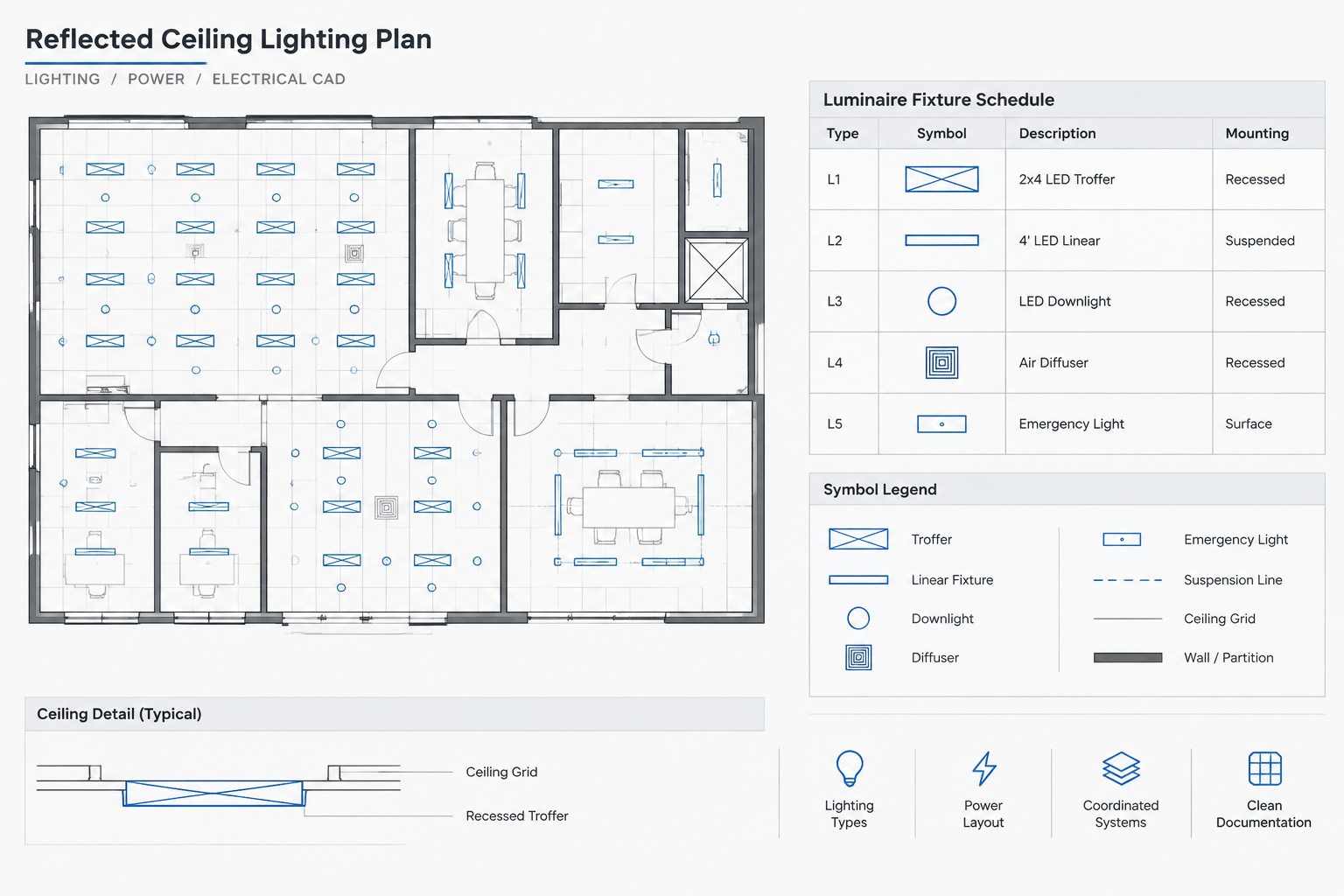
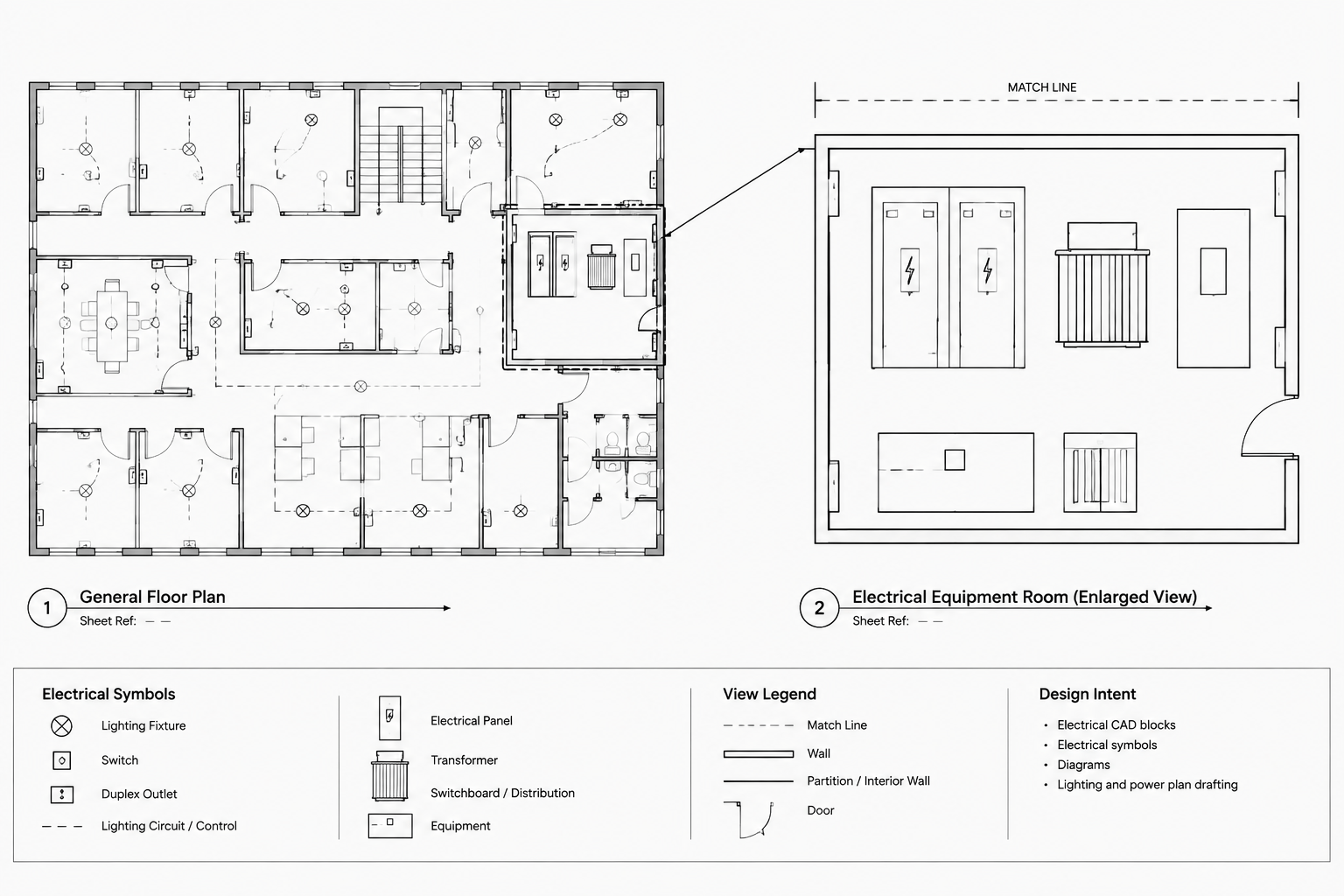
Electrical drawings often present the same project at several view scales. A floor plan may show broad circuiting intent, while an enlarged room plan, equipment elevation, or installation detail shows a smaller area with more information. Without a controlled annotation strategy, text and symbols can become oversized, unreadably small, duplicated, or inconsistent from sheet to sheet.
Electrical CAD annotation scaling is the process of making notes, tags, leaders, dimensions, and symbolic graphics appear at an intentional plotted size regardless of the drawing view. It is not simply a text-height setting. It requires coordination among model geometry, viewports, object types, CAD layers, block definitions, and the project plotting workflow.
Geometry scale and annotation scale are different
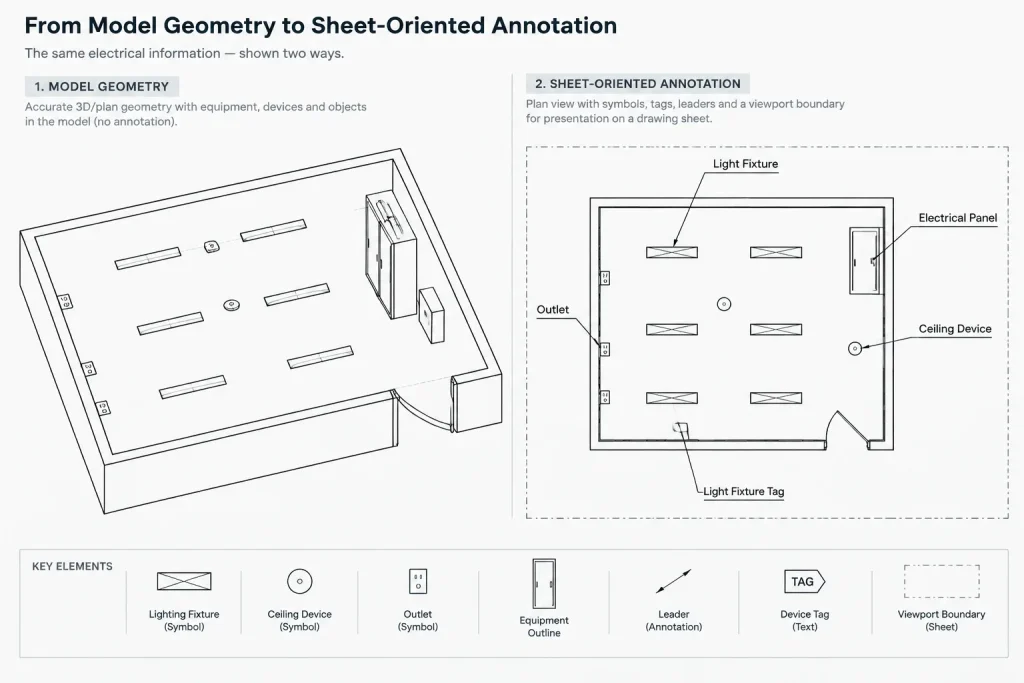
Most project geometry should represent its real-world size in model space. Walls, equipment footprints, cable tray routes, and room boundaries are examples of model geometry. Their apparent size on a sheet changes according to the viewport or drawing scale.
Annotations serve a different purpose. Their main job is communication at the printed or published sheet size. A panel tag should remain legible whether it appears on an overall power plan or an enlarged electrical room plan. The same principle applies to circuit labels, keynote bubbles, section references, room-specific notes, and leader text.
Electrical symbols can occupy either category:
- Physical symbols represent an approximate or verified footprint, such as equipment outlines and device boxes shown in elevations.
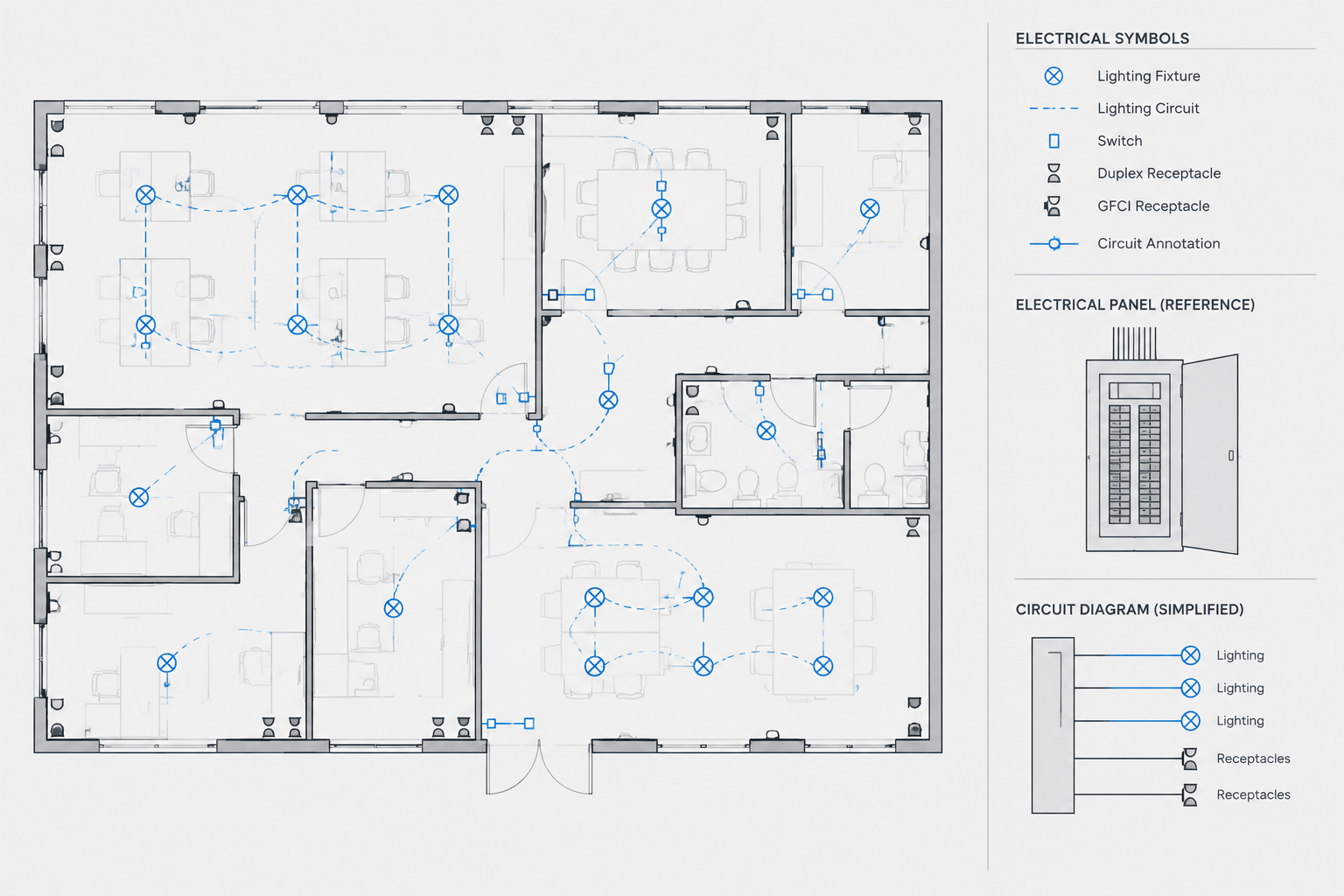
- Diagrammatic symbols communicate device type or function rather than physical dimensions, such as receptacle, switch, or junction-box symbols on a plan.
- Hybrid blocks combine model geometry with annotation, such as an equipment footprint containing a tag, identification attribute, or connection marker.
Before changing scale settings, determine which parts of an object should scale with the model and which should retain a consistent plotted appearance.
Common annotation scaling approaches
Electrical CAD teams generally use one approach or a controlled combination of approaches. Mixing methods without clear rules is a frequent source of drawing errors.
| Approach | How it works | Best use | Main risk |
|---|---|---|---|
| Model-space annotation sized for a known view | Text and symbols are created at a model-space size calculated for the intended plotted view. | Projects with stable, predictable plan scales | Annotations may be incorrect if reused in another viewport scale. |
| Annotative objects | Supported objects display at selected annotation scales while targeting a consistent sheet appearance. | Plans containing several view scales or repeated references | Unmanaged scale assignments can produce missing or duplicate-looking objects. |
| Paper-space annotation | Notes and callouts are placed directly on the sheet layout. | Sheet-specific notes, viewport titles, and publication graphics | Annotations may lose their direct spatial relationship to model geometry. |
| Separate blocks by view type | Distinct symbol or tag blocks are maintained for plans, enlargements, and diagrams. | Objects whose graphic complexity must change between views | Multiple definitions can become inconsistent without library control. |
No single method is automatically correct for every office. The important requirement is that the drawing set uses a documented and testable system.
Classify annotation before building the workflow
A useful first step is to classify each annotation type by its relationship to the model and sheet.
Model-dependent annotation
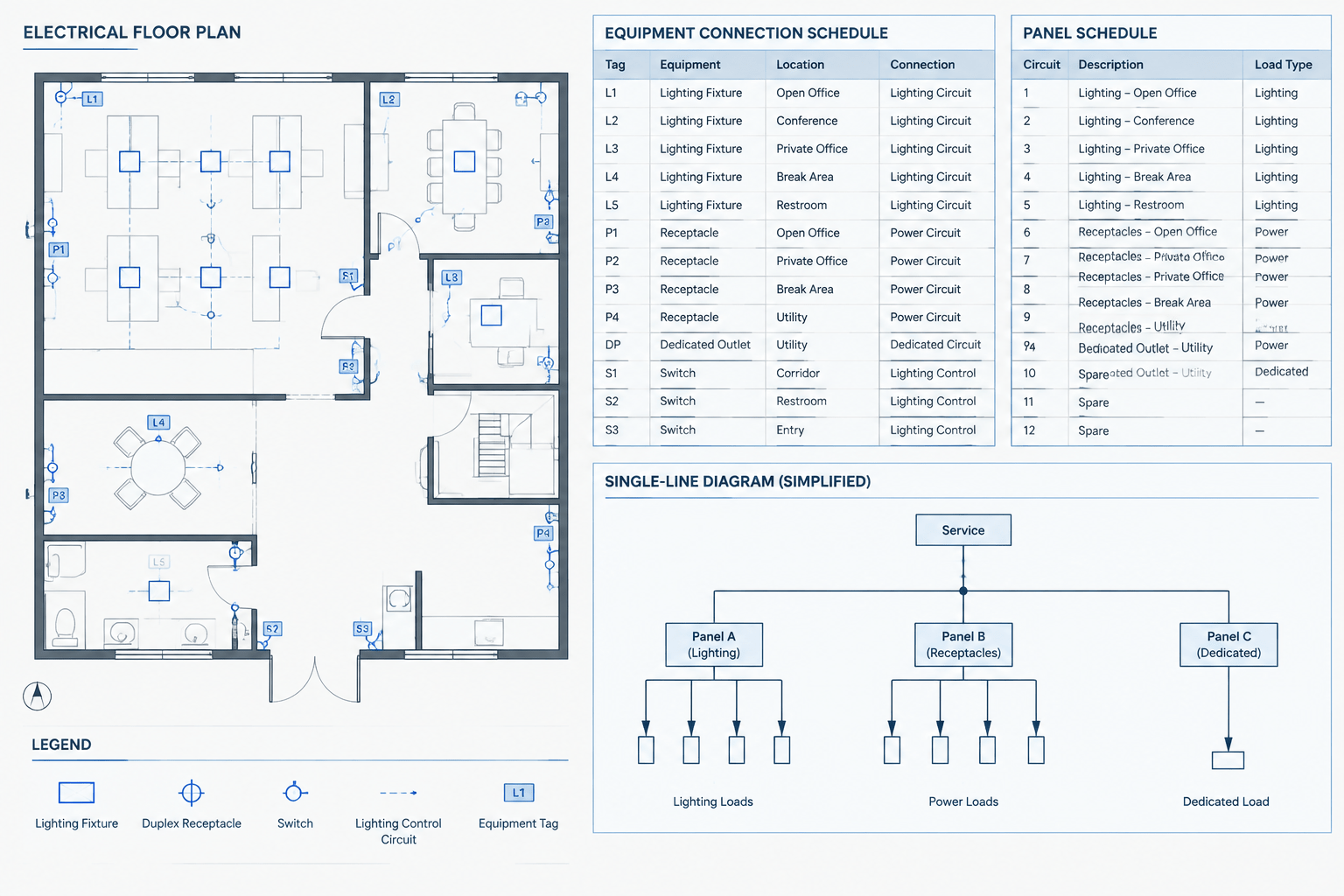
This information points to or identifies a location in model space. Examples include device tags, circuit labels, equipment identifiers, home-run labels, dimensions, and local notes. These objects usually need to remain aligned with the electrical item even if an architectural background is updated.
Sheet-dependent annotation
This information belongs to a particular published view or sheet. Examples include viewport titles, sheet-level general notes, graphic scales, issue notes, and some detail references. Paper space is often a practical location for these items because they are tied to sheet composition rather than building coordinates.
View-dependent annotation
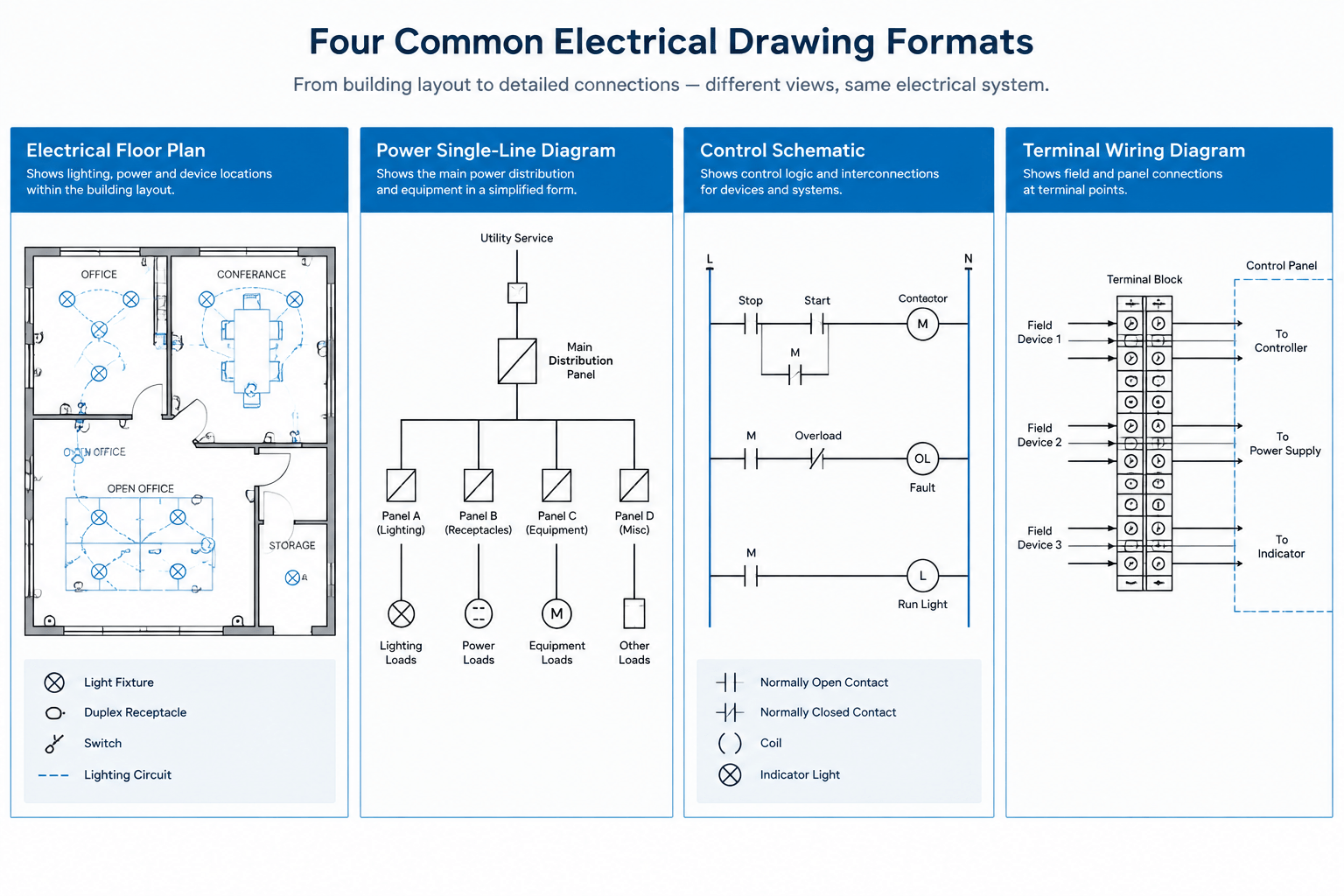
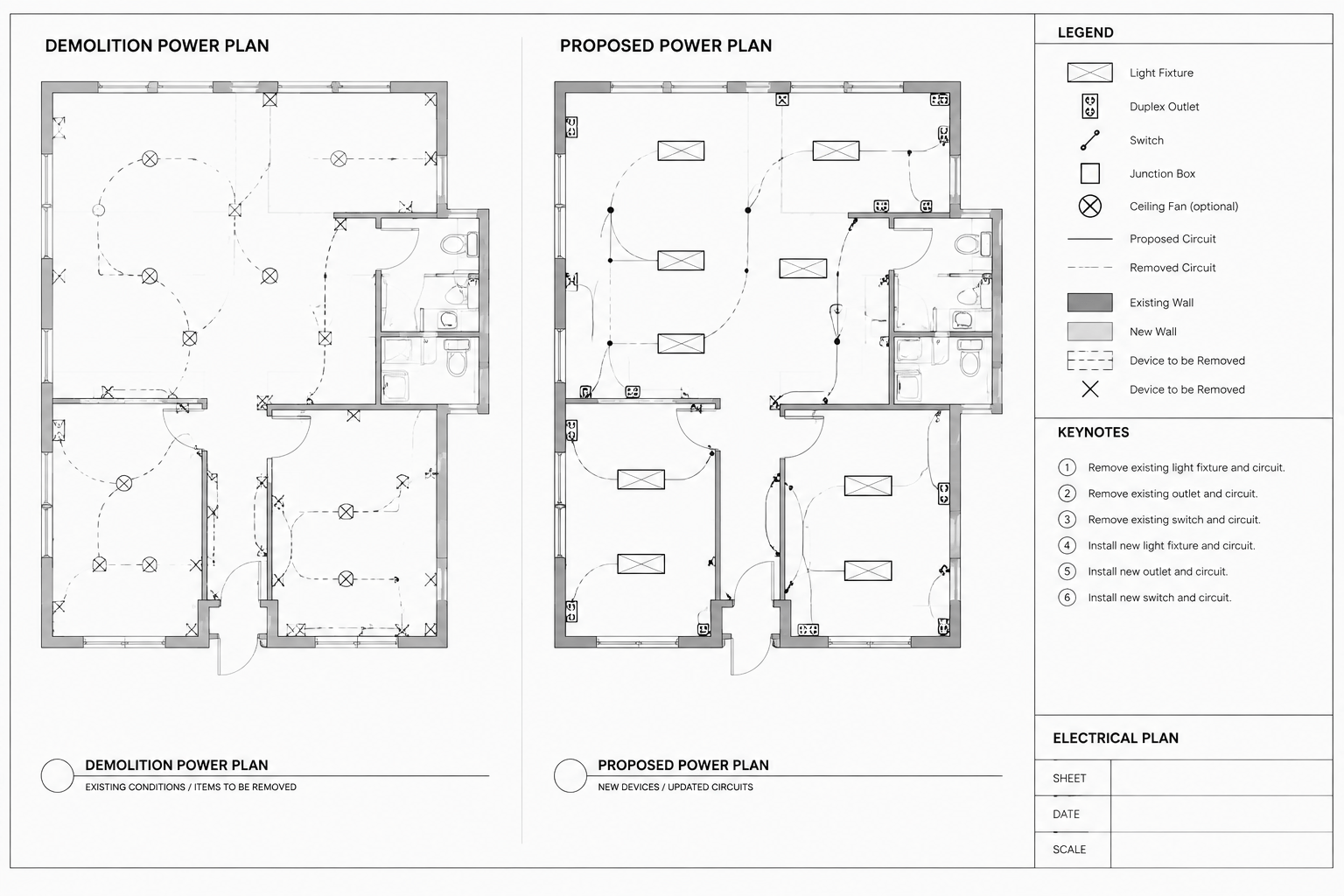
Some information is relevant only at a particular level of detail. An overall plan may show an equipment tag but omit connection-point labels that appear on an enlarged plan. This is not just a scaling issue. It is an information hierarchy decision that may require dedicated layers, scale-aware objects, or separate view-specific annotations.
A practical setup workflow
Establish the intended drawing views
List the expected plan, enlarged-plan, elevation, section, and diagram views before creating annotation styles. Identify which views may use different scales and which symbols will appear in more than one view type. This prevents a template from being built around only the first floor plan.
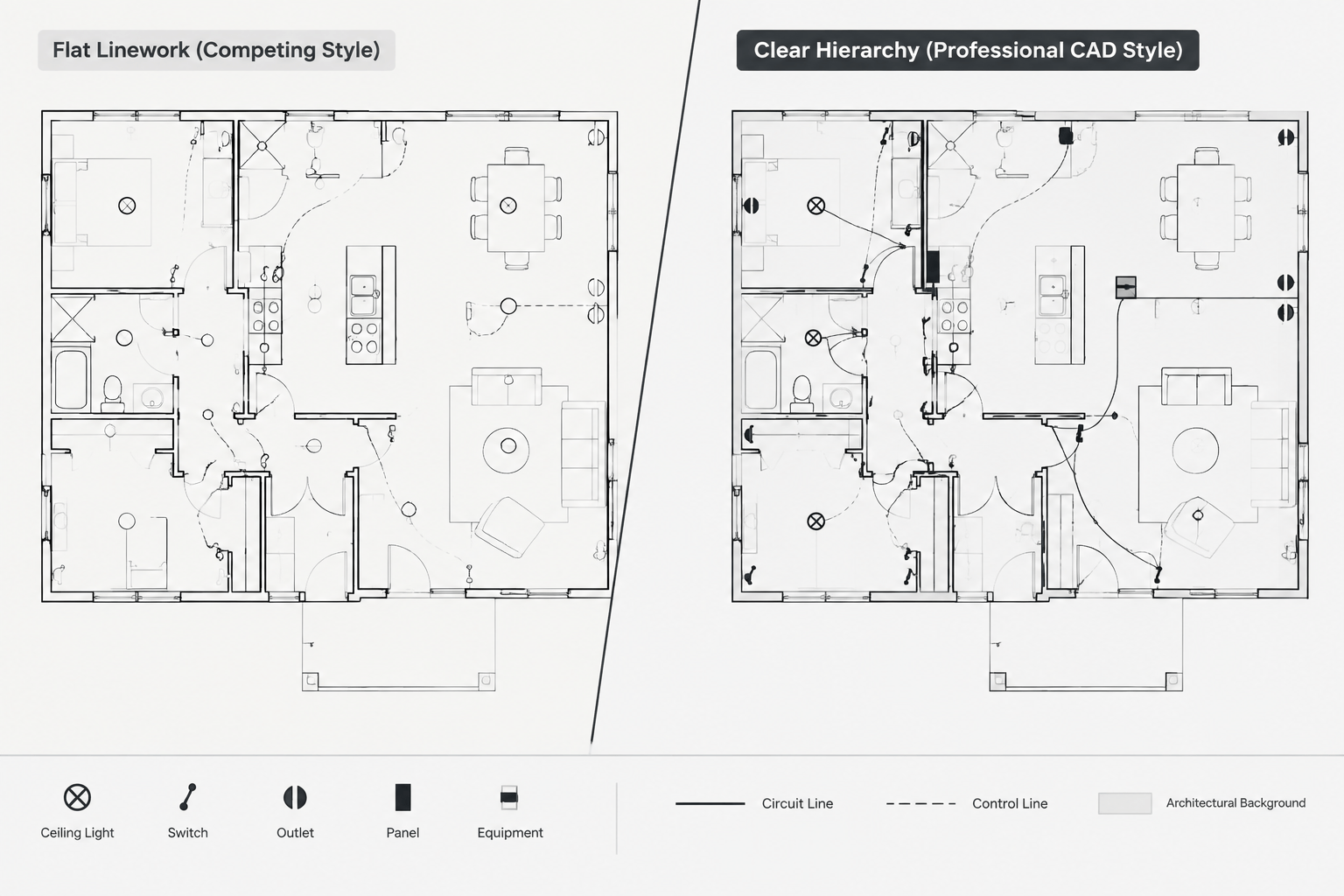
Define a plotted appearance hierarchy
Decide how primary tags, secondary labels, general notes, dimensions, and reference bubbles should relate visually. Exact text and symbol sizes should follow the project or office requirements rather than assumptions imported from an unrelated drawing.
The hierarchy should be judged in an actual sheet output, not only at a comfortable screen zoom. Text that looks balanced in model space can appear weak or crowded after plotting.
Separate graphics from attributes where necessary
A smart electrical block may contain a symbol, tag attribute, circuit attribute, wipeout or mask, and connection marker. These components do not always need the same scaling behavior. If the symbol is diagrammatic while its tag must maintain a fixed plotted size, consider a block structure or annotation method that controls them independently.
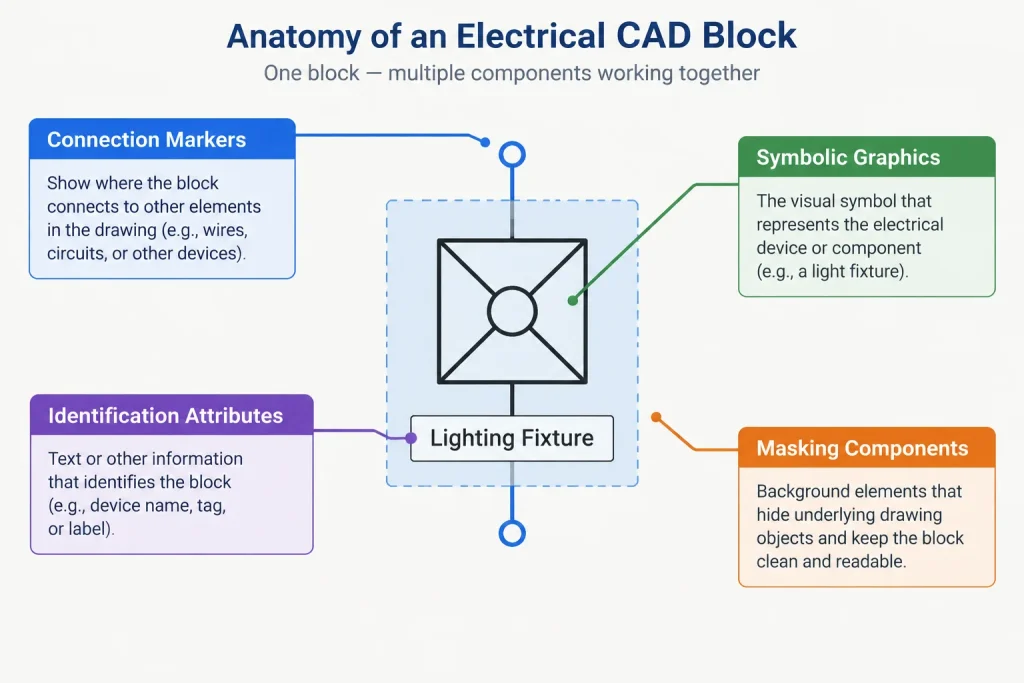
Avoid uniformly scaling a complete block merely to make its text readable. That can unintentionally enlarge the symbol, move connection points, distort spacing, or misrepresent a physical footprint.
Assign layers by function
Place annotation on layers that describe purpose, not merely appearance. Device tags, circuit text, general notes, dimensions, and view references may need separate visibility control. Functional layers make it easier to create an overall plan and an enlarged plan from the same model without displaying every label in both views.
Test representative objects
Create a small test area containing typical electrical content: a device symbol, circuit tag, equipment identifier, leader note, dimension, and reference callout. Display that area through each anticipated view type. Confirm that the objects remain legible, aligned, and appropriately detailed.
Publish a sample sheet
Review a PDF or physical print using the same plot configuration intended for the project. Check lineweight interaction, background screening, text width, masks, leaders, and overlapping attributes. Annotation scaling is successful only when the published result works.
Special considerations for electrical symbols
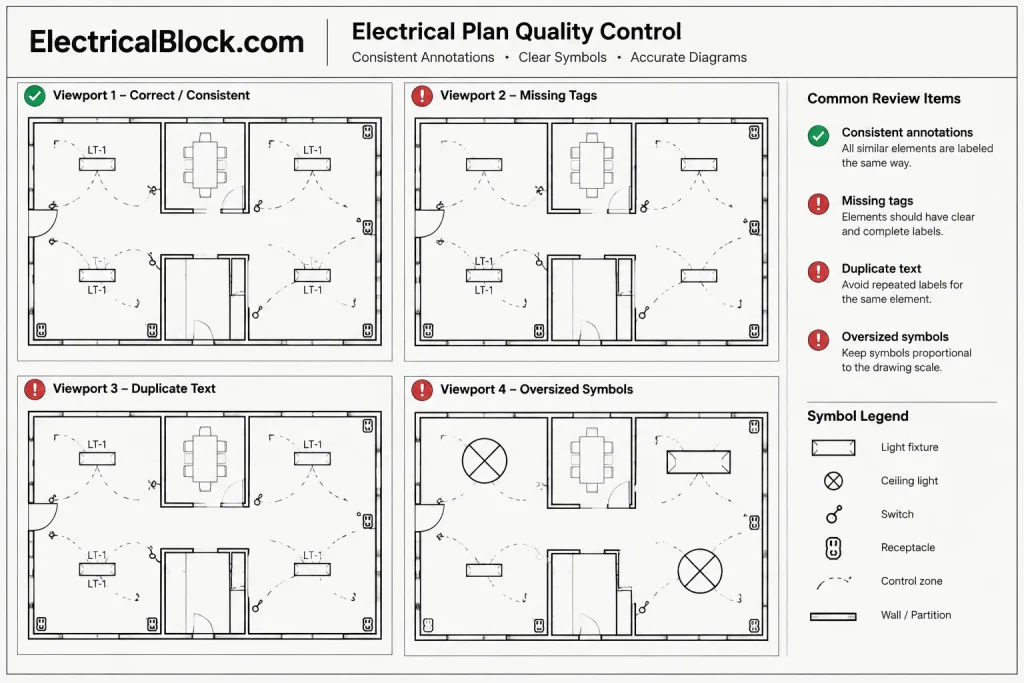
Electrical plan symbols often need to remain recognizable over dense architectural backgrounds. However, making every symbol larger is not a reliable solution. Oversized symbols can hide wall geometry, create false location impressions, and crowd nearby circuit information.
When a symbol is used across views, evaluate:
- Whether it represents a physical object or a drafting convention
- Whether its insertion point still communicates the intended installation location
- Whether rotation and mirroring affect attached text
- Whether attributes remain readable at every assigned view scale
- Whether masking hides important background or electrical linework
- Whether an enlarged view should use a more detailed block instead
Do not assume that a block downloaded from a library has the correct annotation behavior for a project. Inspect its units, nested content, attributes, layers, and scale settings before adding it to a controlled symbol library.
Typical failure modes
Duplicate-looking text
Scale-aware text may appear repeated when several representations are visible at once or when view settings are not controlled. Review the object’s assigned scales and confirm that only the intended representation is shown.
Missing tags in a viewport
A tag visible in model space may not have the required scale assignment, may be on a viewport-frozen layer, or may exist only as paper-space annotation on another layout. Diagnose visibility before copying the tag and creating a duplicate.
Different plotted sizes for equivalent information
This commonly occurs when some tags are fixed model-space blocks and others are annotative or placed in paper space. Select a standard method for each annotation category and convert exceptions deliberately.
Symbols that change location when scaled
An incorrect insertion point or nonuniform block scaling can make a device appear to move away from its intended wall, ceiling, or equipment connection. Scaling should not substitute for correct block construction and placement.
Overloaded enlarged plans
An enlarged view does not need every annotation from the overall plan plus additional detail. Use a view hierarchy to decide which information is repeated, expanded, or suppressed.
Annotation scaling quality-control checklist
- Confirm each viewport has the intended view and annotation scale.
- Check that equivalent tags have a consistent plotted appearance.
- Verify that model-dependent notes remain attached to the correct objects.
- Look for duplicate text, symbols, leaders, and dimensions.
- Review layer visibility independently in each viewport.
- Confirm masks do not cover circuiting, walls, or equipment outlines.
- Check symbol insertion points after rotation, mirroring, or scale changes.
- Compare overall plans with enlarged views for conflicting information.
- Inspect the published output rather than relying only on model-space display.
- Record the approved workflow in the project CAD standards or template notes.
Build for consistency, not automatic behavior
Annotation tools can reduce repetitive drafting, but they do not determine what information belongs in each electrical view. A reliable workflow starts with classification: physical geometry versus symbolic graphics, model-dependent versus sheet-dependent notes, and overall information versus enlarged-view detail.
Once those distinctions are established, text styles, blocks, attributes, layers, viewports, and plotting settings can support a coherent system. The result is not merely uniform text size. It is an electrical drawing set in which symbols remain recognizable, tags remain connected to their subjects, and each view communicates the appropriate level of information.
Document the annotation system for project handoff
A scaling method is easier to maintain when another drafter can identify how each annotation category is intended to behave. Template notes or project CAD guidance should distinguish model-based labels, sheet-specific notes, view-dependent callouts, and symbols containing both physical and diagrammatic components.
Block and style names should also communicate purpose. A clear naming structure helps users avoid substituting a sheet-oriented tag for a model-dependent identifier or applying a detailed enlargement symbol to an overall plan. Where similar blocks serve different views, their visual relationship and intended use should be evident in the library.
Review changes beyond the edited viewport
A local correction can create problems elsewhere in the drawing set. After changing a block definition, text style, attribute, layer assignment, or scale behavior, inspect every view in which the affected content appears. Include referenced drawings and repeated layouts in that review when they share the same source objects.
Keep annotation decisions traceable
When a project requires an exception to the normal workflow, record why it exists and where it is used. This is especially useful for sheet-specific labels, alternate view graphics, and legacy blocks that cannot immediately be rebuilt. Traceable exceptions are less likely to be mistaken for approved library standards.
Include readability in revision control
Annotation quality should be checked after background updates, viewport adjustments, symbol substitutions, and sheet reorganization. Even when annotation settings remain unchanged, revised geometry can create collisions, obscure leaders, expose masks, or separate tags from the objects they identify. A published-sheet review remains the most reliable final check.
Frequently asked questions
Should all electrical symbols use annotative scaling?
No. The appropriate behavior depends on whether the object represents physical geometry, a diagrammatic convention, or a combination of geometry and annotation. Physical footprints generally need to preserve their relationship to the model, while tags and symbolic graphics may need a controlled sheet appearance.
Why does an annotation appear in model space but not in a viewport?
Possible causes include an unavailable annotation scale, viewport-specific layer settings, layout placement, or view-dependent visibility rules. Check those conditions before copying the object, because copying can create conflicting or duplicate information.
Is paper space the best location for electrical notes?
Paper space is useful for information belonging specifically to a sheet or viewport presentation. Notes that identify or point to model objects are usually easier to coordinate when they retain a direct relationship with model geometry.
Can the same electrical block be used in overall and enlarged plans?
It can be, provided its geometry, attributes, visibility, and scaling behavior support both views. If an enlarged plan requires different graphic detail or additional labels, a controlled view-specific block or separate annotation component may communicate the information more clearly.
Why should annotation be checked in published output?
Screen zoom does not reliably represent the final relationship among text, linework, masks, backgrounds, and leaders. Reviewing the intended sheet output reveals readability and overlap problems that may not be obvious while editing the model.
Leave a Reply
You must be logged in to post a comment.