
An Industrial Power Distribution Panel DWG can provide a useful starting point for documenting panel locations, enclosure outlines, feeder relationships, and connection points in an electrical drawing set. Used properly, a CAD block helps maintain consistent graphics while reducing repetitive drafting work.
This resource is most useful when treated as a drawing component rather than a complete electrical design. Review the block’s geometry, layer structure, scale, orientation, and visible connection information before placing it in a project drawing. The surrounding design still needs to establish the actual equipment arrangement, circuit relationships, and project-specific requirements.
Download a high-quality DWG file of an Industrial Power Distribution Panel, perfect for your next electrical engineering project. This detailed CAD Block provides accurate and clear schematics, making it ideal for designing power distribution systems in factories, warehouses, and commercial buildings. The file is fully compatible with AutoCAD and other leading CAD software, ensuring seamless integration into your workflow. Use this Industrial Power Distribution Panel DWG file to streamline your electrical layouts, enhance safety, and meet industry standards in your construction or renovation projects.
Please log in or register to download this file.
What an industrial power distribution panel drawing represents
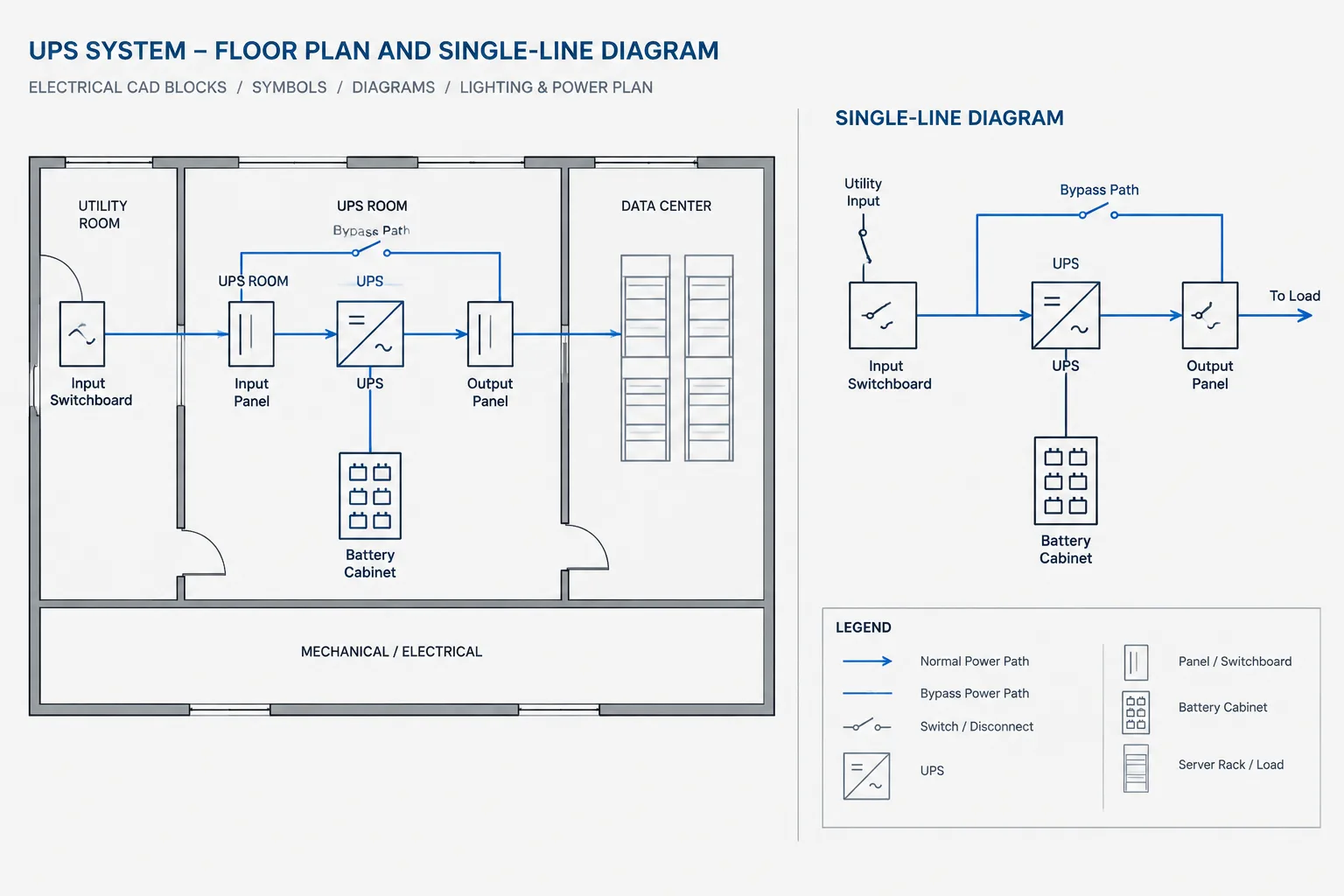
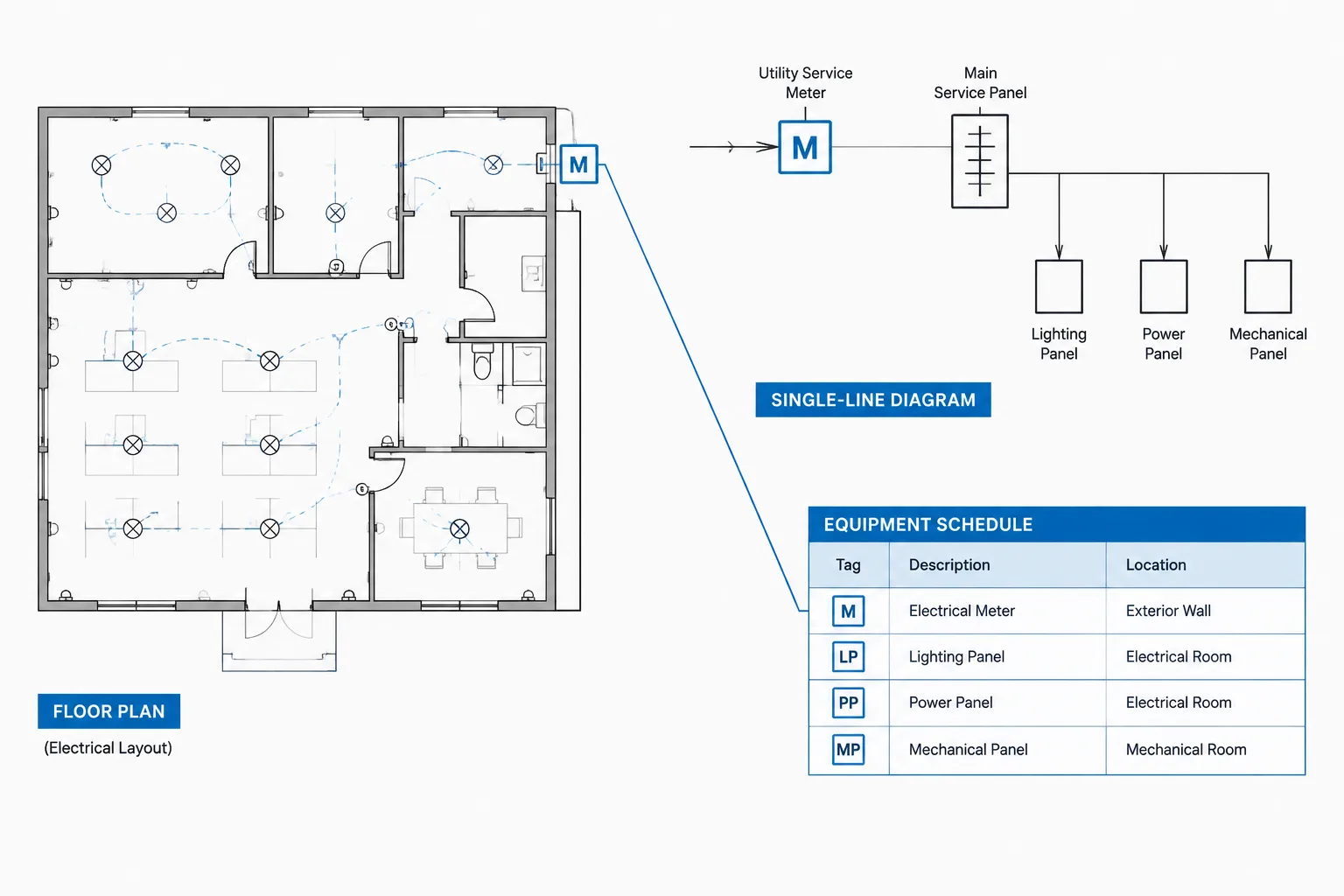
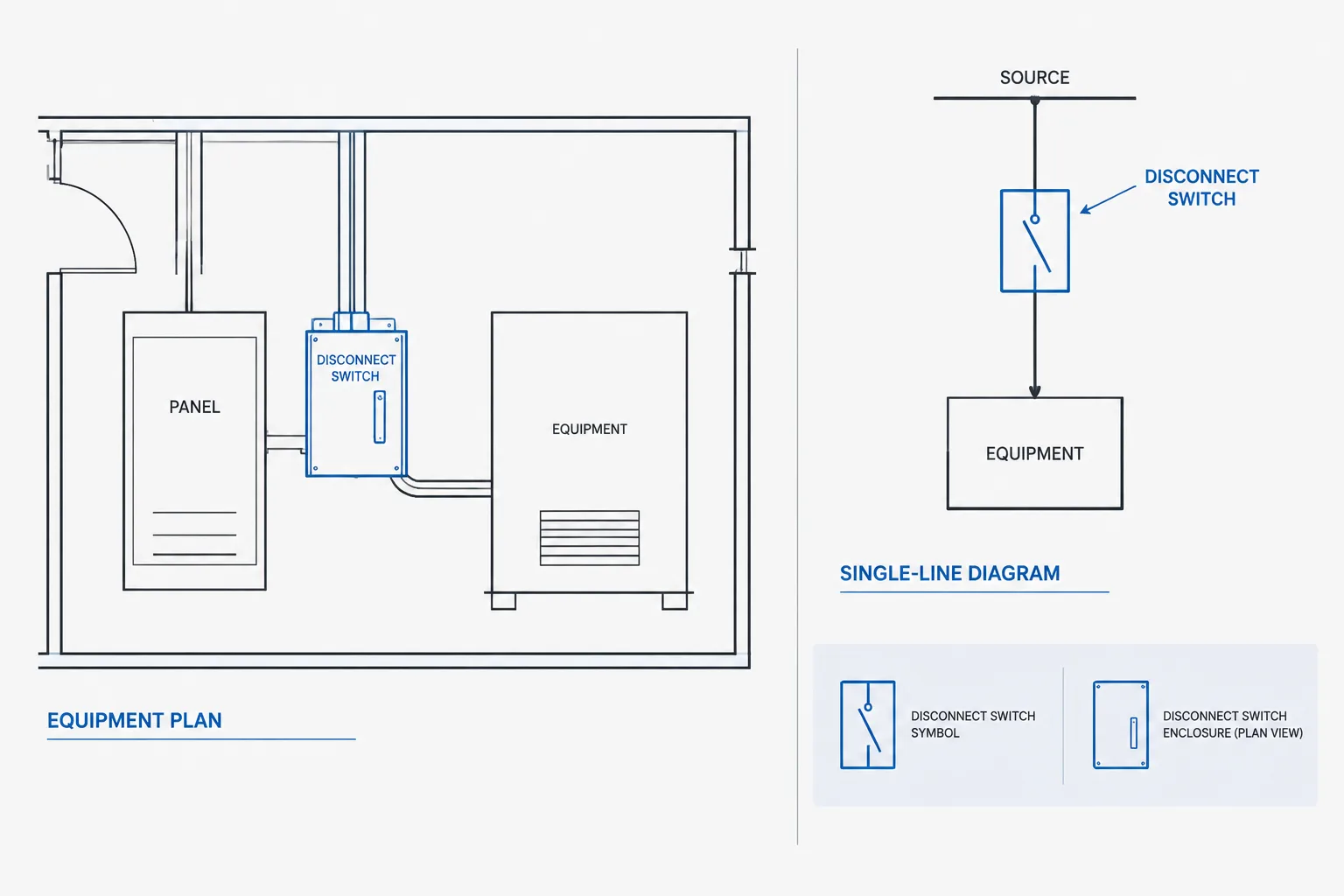
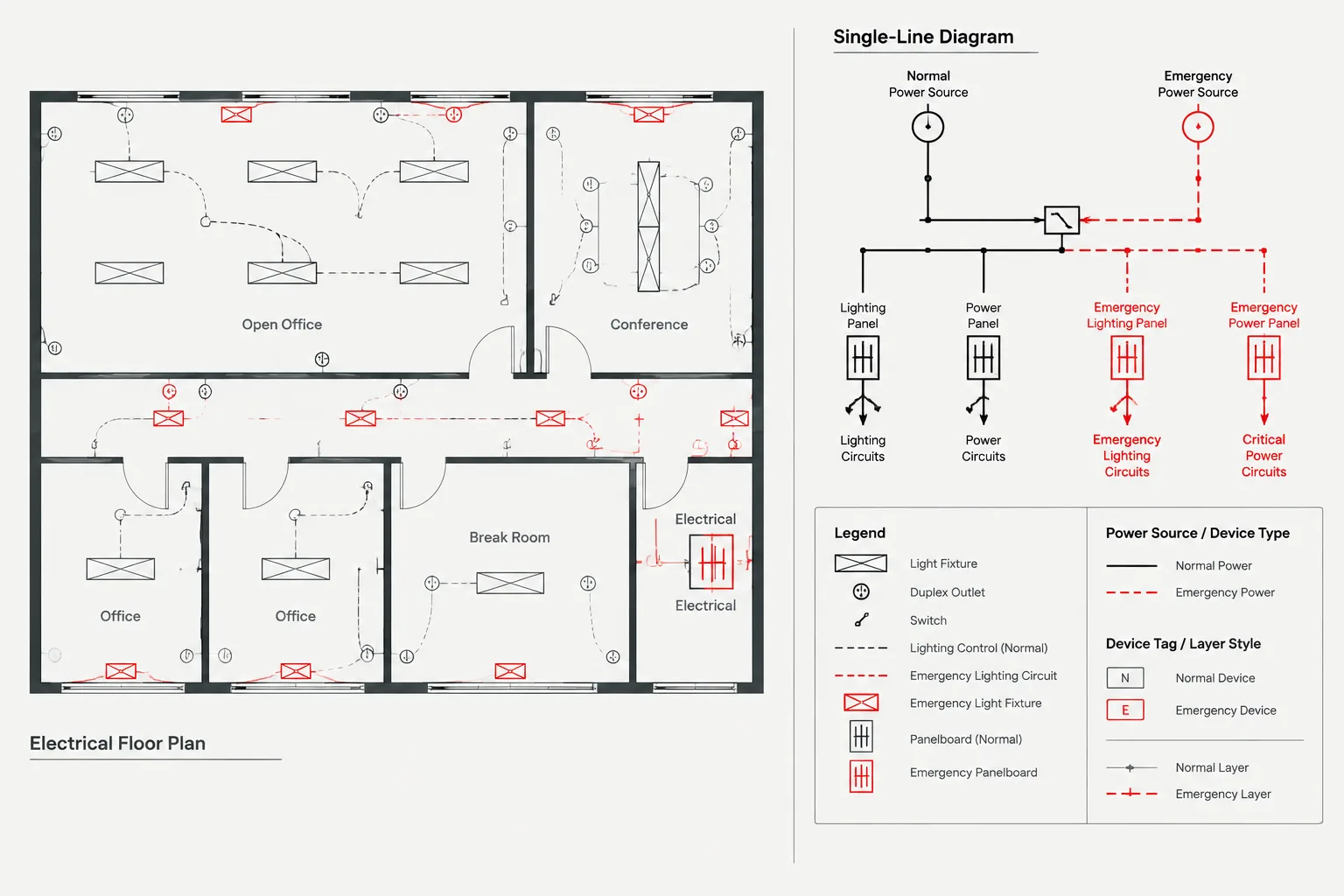
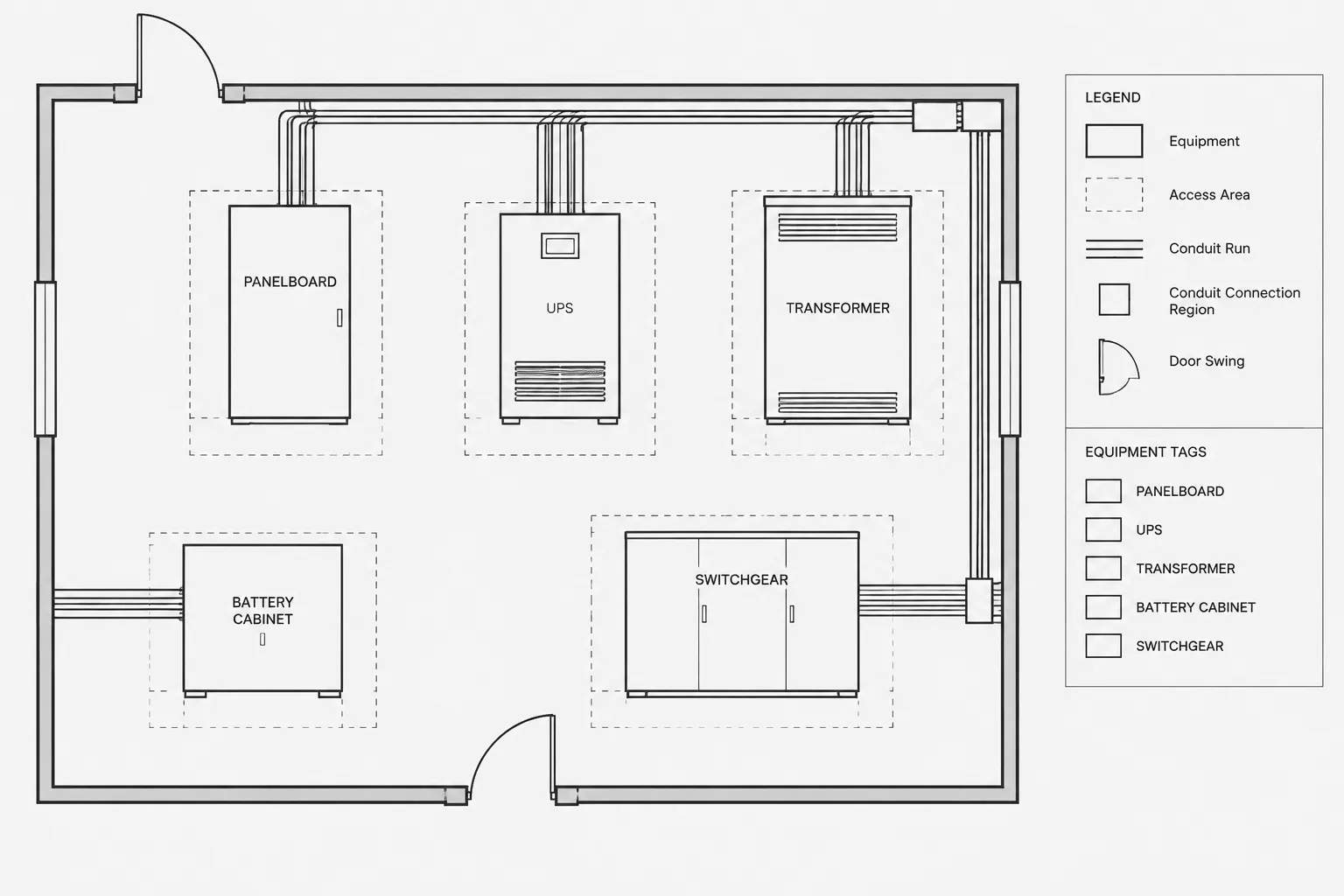
An industrial power distribution panel is commonly shown as part of the relationship between incoming power, overcurrent protection, outgoing feeders, and connected loads. In a plan view, the panel may be represented as equipment located within a room or process area. In a riser or single-line diagram, it may appear as a simplified symbol connected to upstream and downstream equipment.
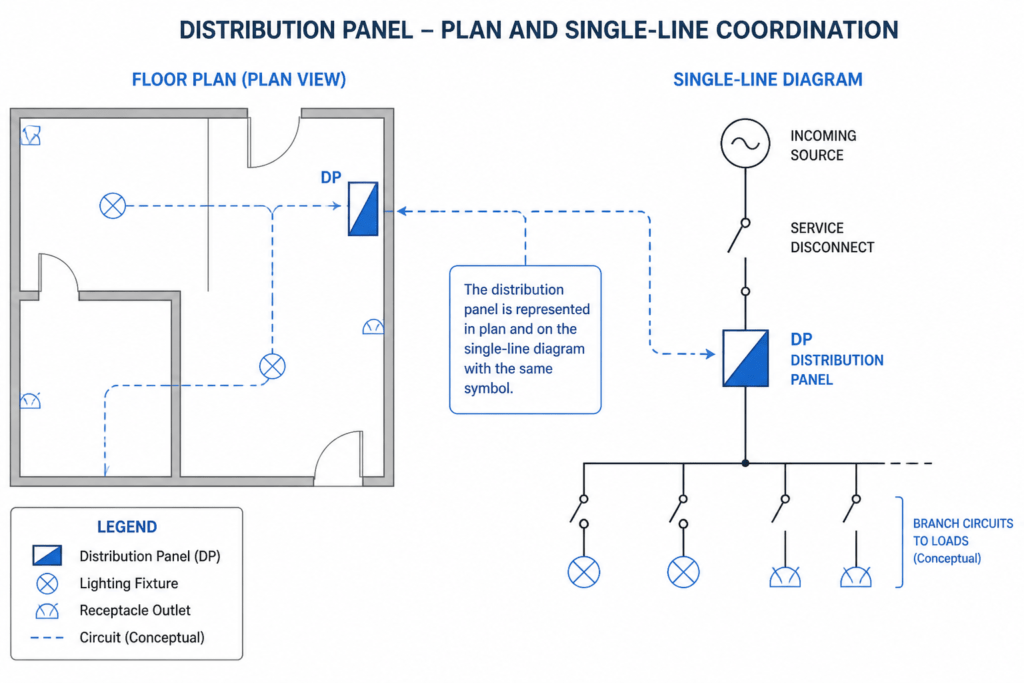
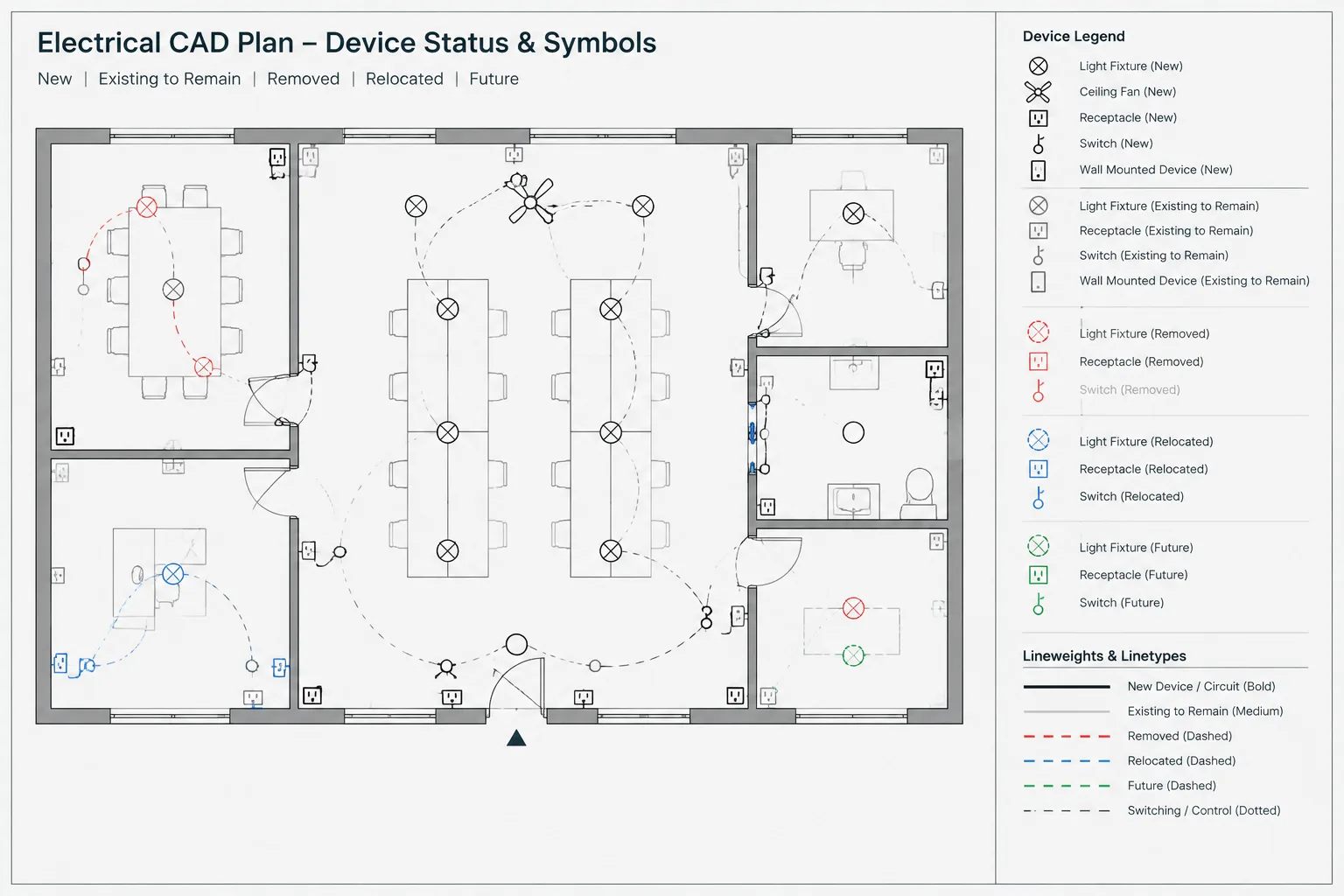
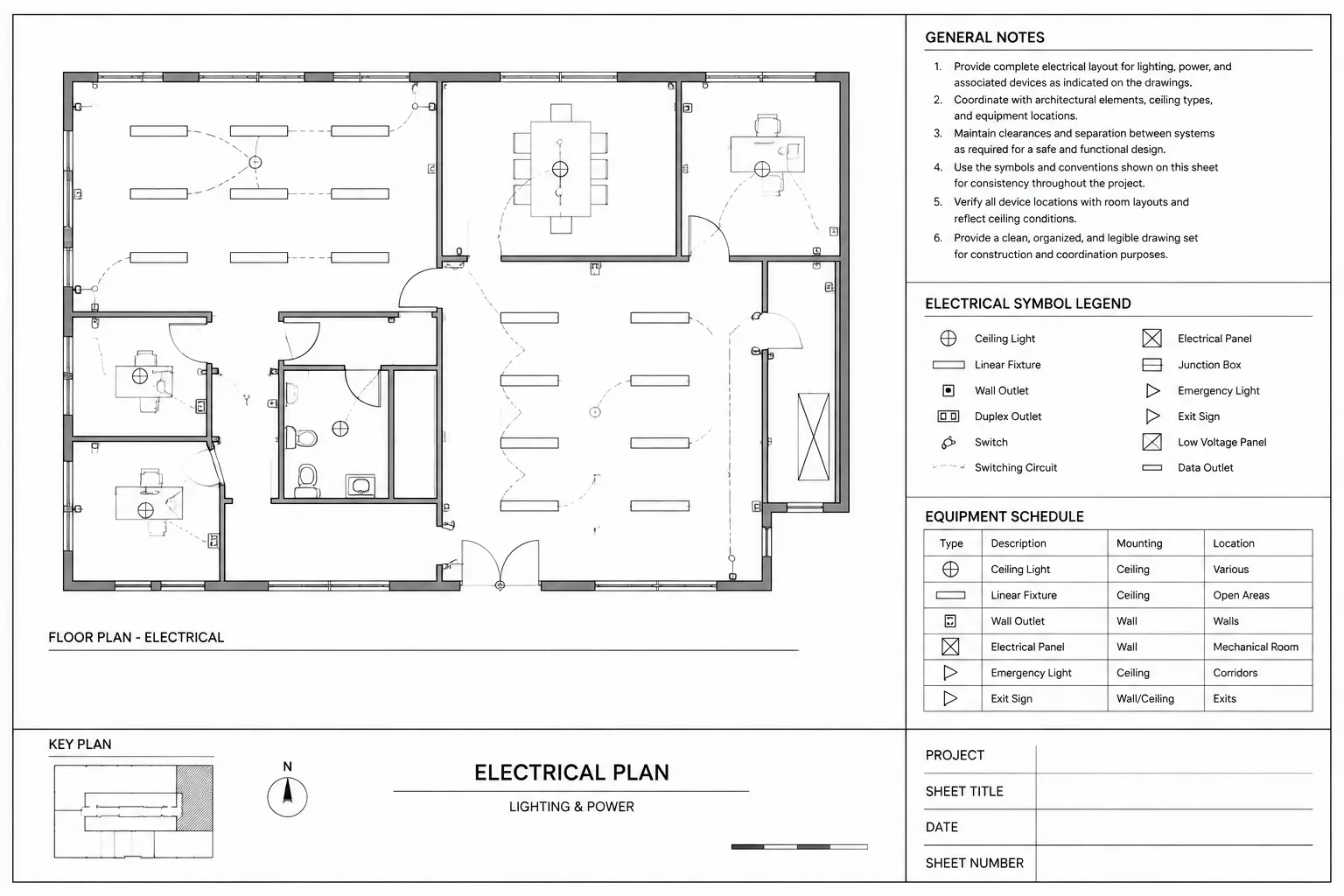
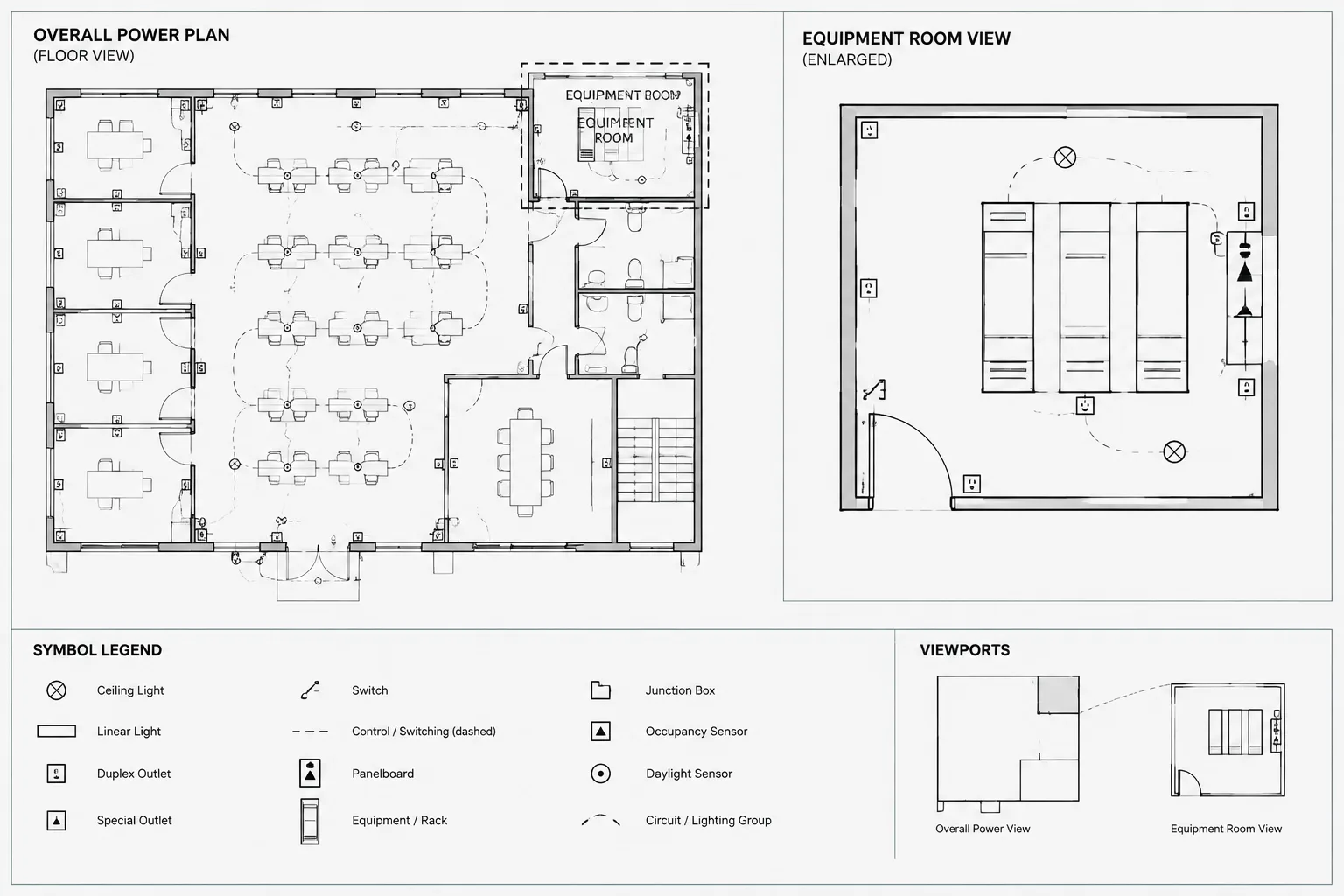
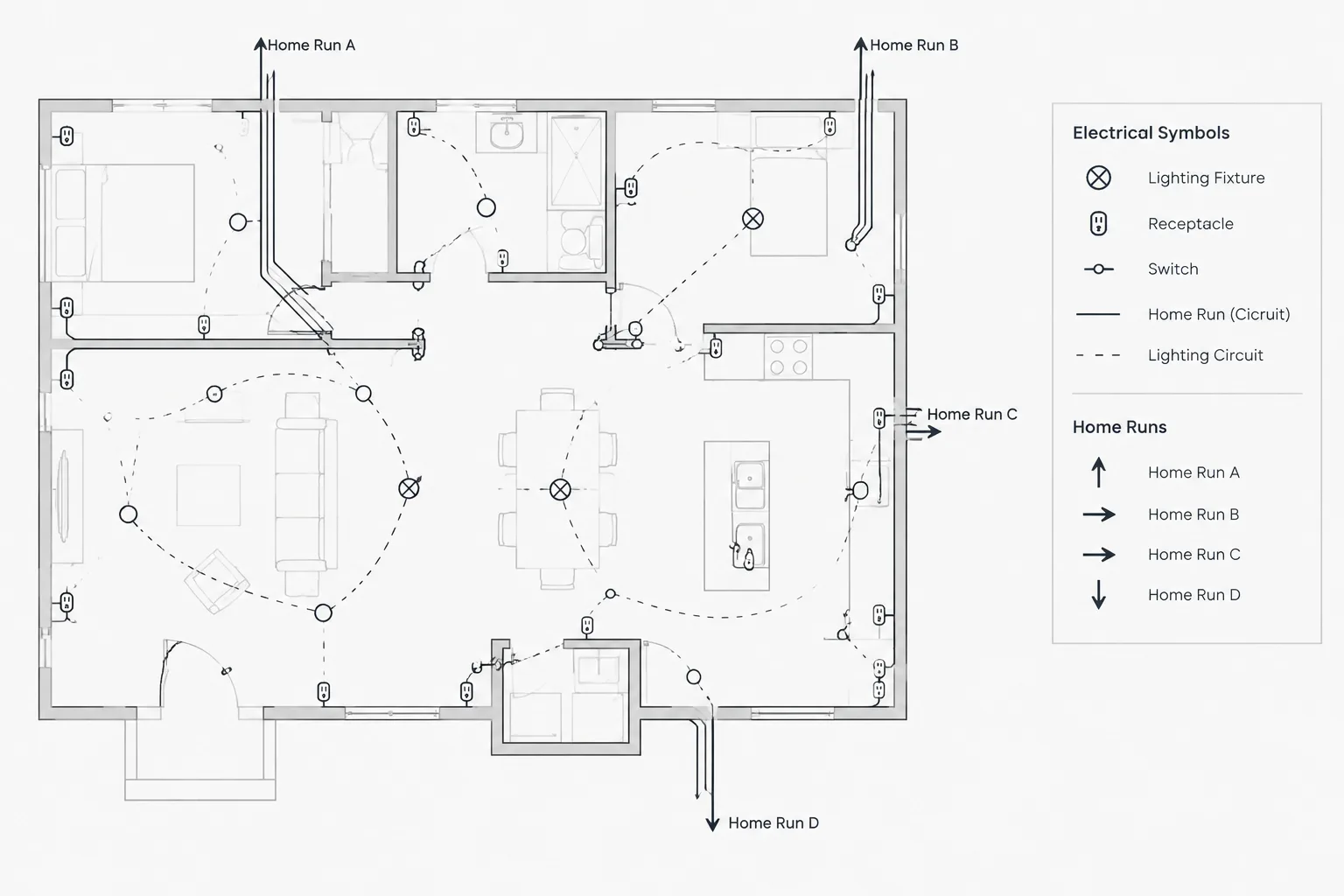
The appropriate representation depends on the drawing purpose. A floor plan emphasizes location and coordination with architectural or equipment layouts. A single-line diagram emphasizes electrical relationships. A panel schedule organizes circuit and load information. These views should be coordinated rather than treated as interchangeable.
How to review the DWG before using it
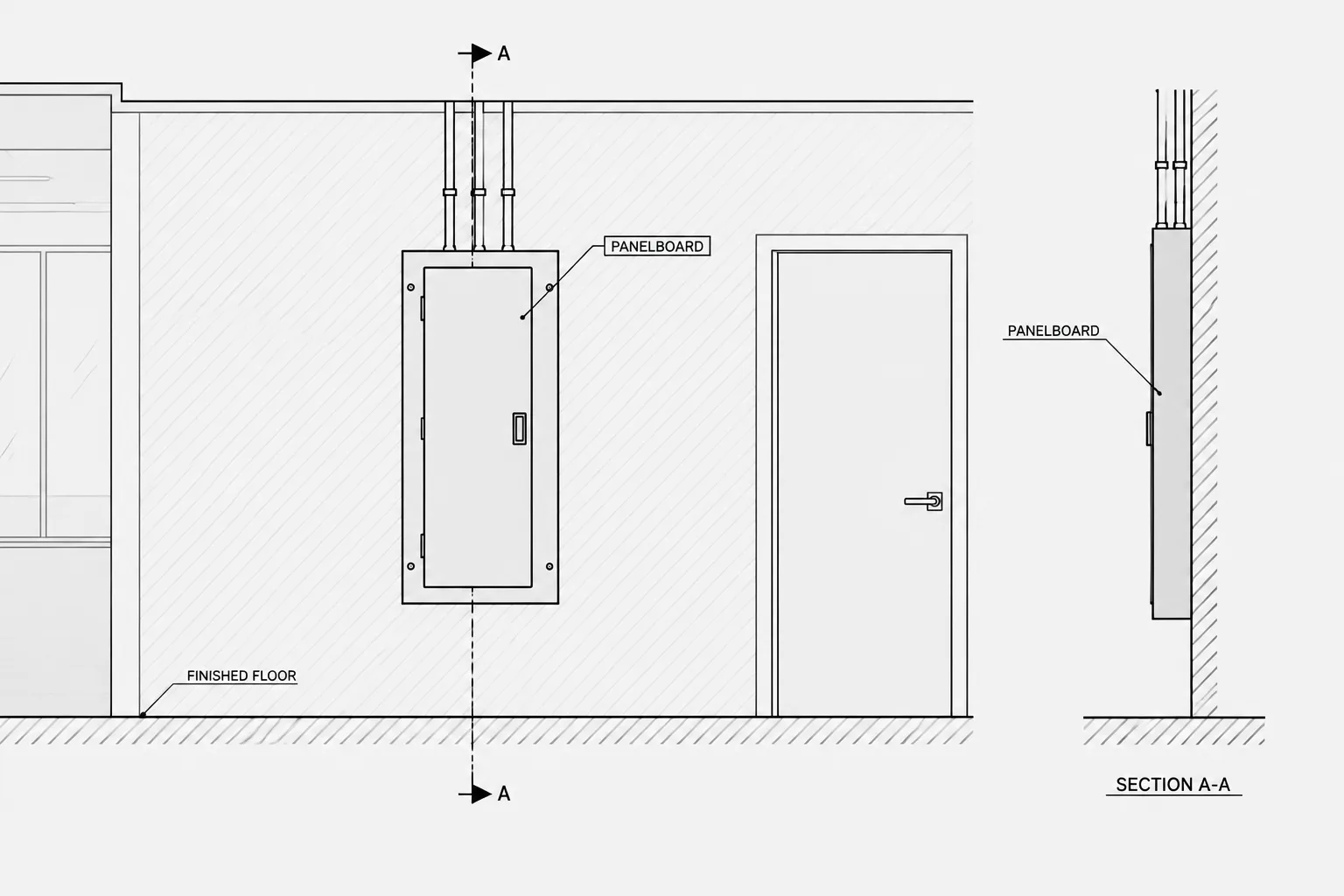
- Confirm the drawing view: Determine whether the block represents a plan symbol, elevation, schematic symbol, or a combination of views.
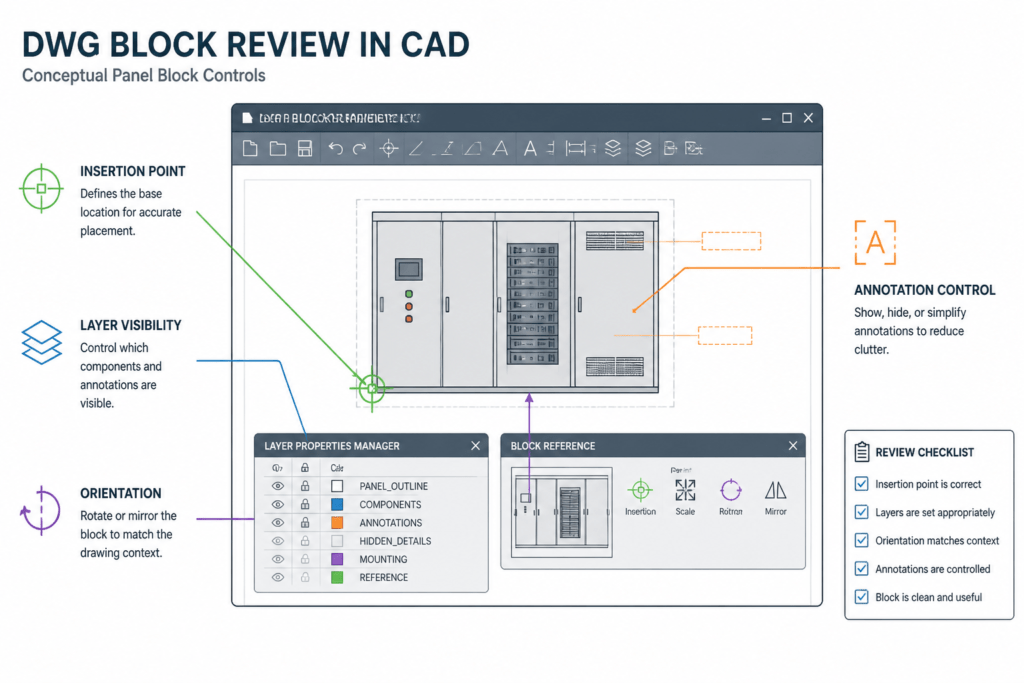
- Inspect layers: Review layer names, colors, linetypes, and visibility settings so the block can be coordinated with the project’s CAD standards.
- Check insertion behavior: Verify the base point, orientation, scale, and unit settings before placing the block in a layout.
- Separate graphics from design data: A visible panel outline or symbol does not by itself establish ratings, conductor information, protective-device settings, or code compliance.
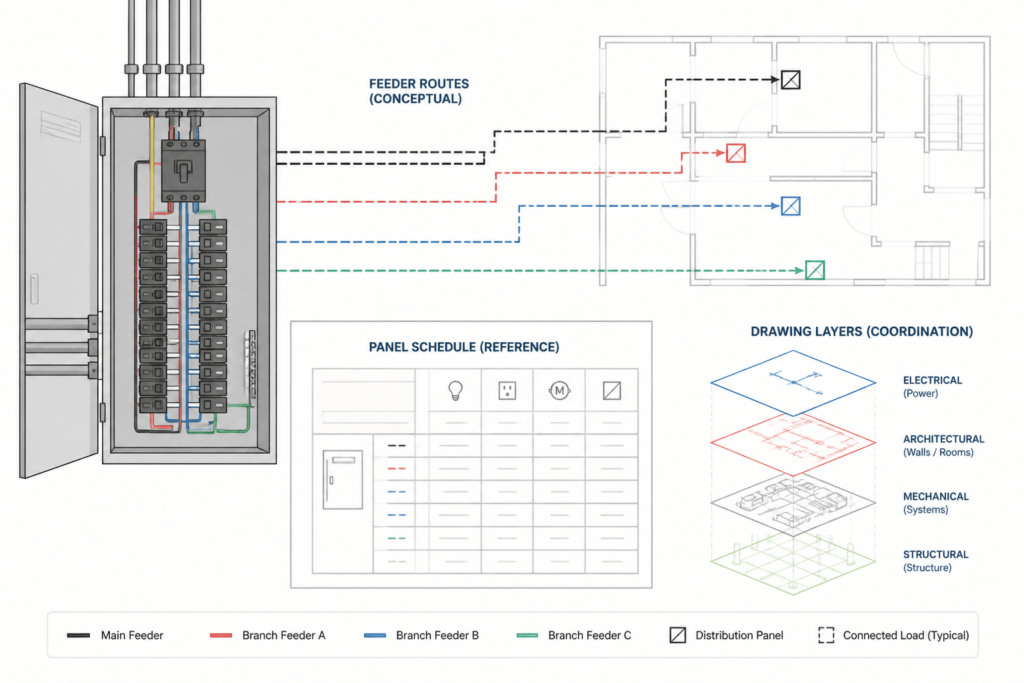
- Coordinate related drawings: Compare the panel location with the power plan, feeder routing, single-line diagram, and panel schedule used for the project.
Useful CAD coordination practices
Keep equipment symbols visually distinct from circuit lines, architectural backgrounds, and annotation. Consistent layer organization makes it easier to isolate electrical information during review and plotting. Where a project uses block attributes or annotation standards, update those elements only after confirming that they match the project template.
For reference work, this panel block can be considered alongside electrical symbol libraries, distribution equipment layouts, cable and conduit drafting conventions, and panel schedule guidance. Those related topics help explain how a graphic component fits into a broader drawing package without implying that the block alone is an installation-ready design.
Reference checklist
- Identify the intended drawing type and viewing direction.
- Review units, scale, insertion point, and rotation.
- Check layer behavior in both model space and plotted output.
- Coordinate panel graphics with feeders, circuits, and equipment tags.
- Have project-specific electrical information reviewed by the responsible design professional.
Frequently asked questions
What is an Industrial Power Distribution Panel DWG?
It is a CAD drawing resource representing an industrial power distribution panel for use in electrical documentation. The exact graphic content and suitability for a particular drawing should be reviewed in the CAD environment before project use.
Can this DWG be used in a single-line diagram?
It may be useful as a reference or starting graphic, but a single-line diagram requires symbols and connections that accurately represent the project’s electrical relationships. Confirm that the block’s representation matches the intended diagram before using it.
Should the panel block be used as a complete design?
No. A CAD block is a drafting aid. It does not independently establish equipment ratings, conductor details, protective-device settings, installation requirements, or compliance with project standards.
What should be checked before inserting the block?
Review the file’s units, scale, base point, orientation, layer assignments, linework, and annotation. Also check whether the graphic is intended for a plan, elevation, schematic, or another drawing view.
How does a panel drawing relate to a panel schedule?
The drawing shows the equipment’s graphic location or electrical relationship, while the panel schedule organizes circuit and load information. Both should be coordinated with the project’s approved electrical design.
Leave a Reply
You must be logged in to post a comment.