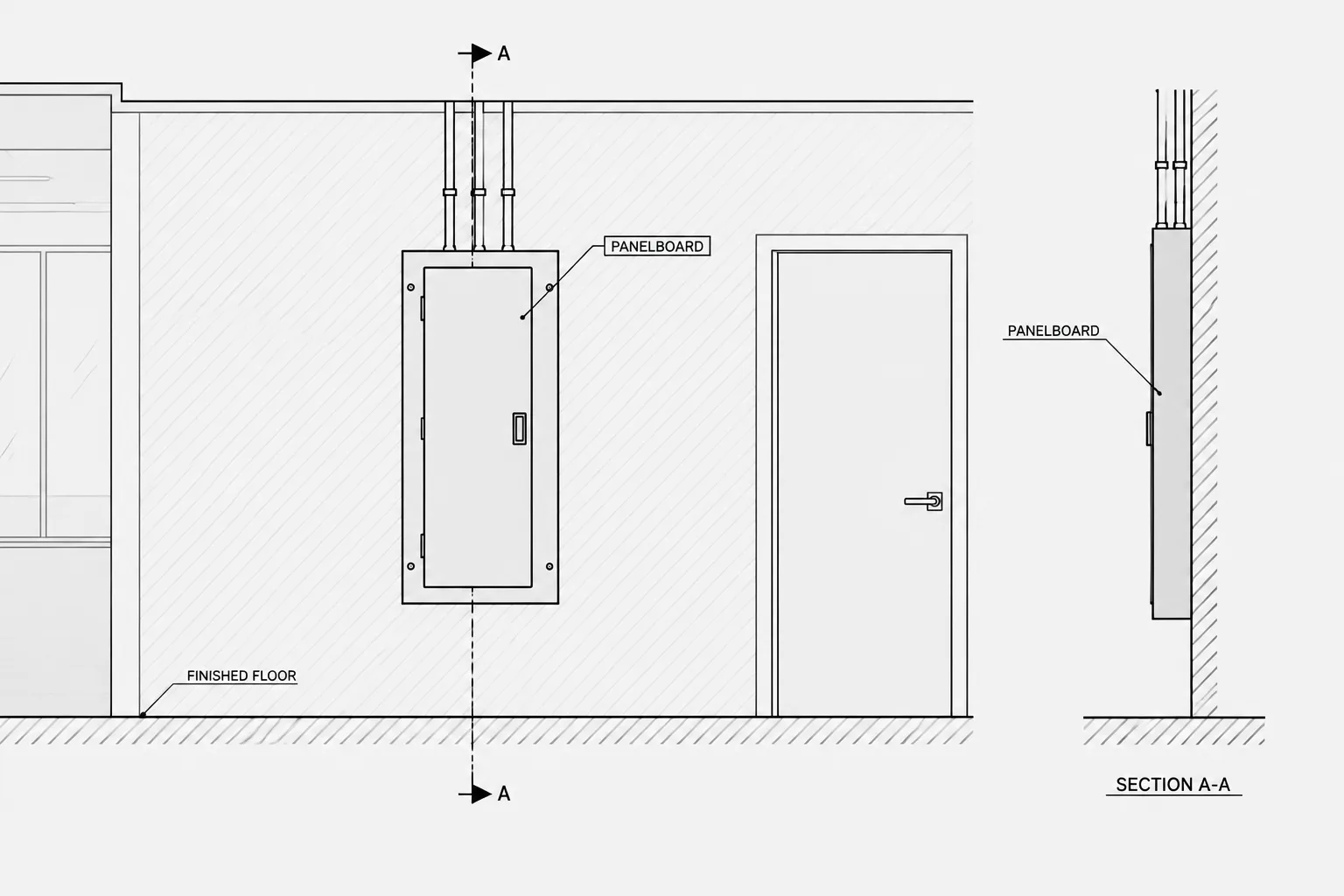
Electrical panelboard elevations in CAD bridge the gap between system diagrams and physical room coordination. They help drawing teams compare cabinet placement with wall construction, nearby equipment, architectural features, and pathway approaches while keeping equipment status and references traceable.
The guidance below focuses on drafting and documentation rather than product selection or installation. Any generic cabinet geometry, access zone, mounting condition, or raceway arrangement must be checked against current project documents and verified equipment information before issue.
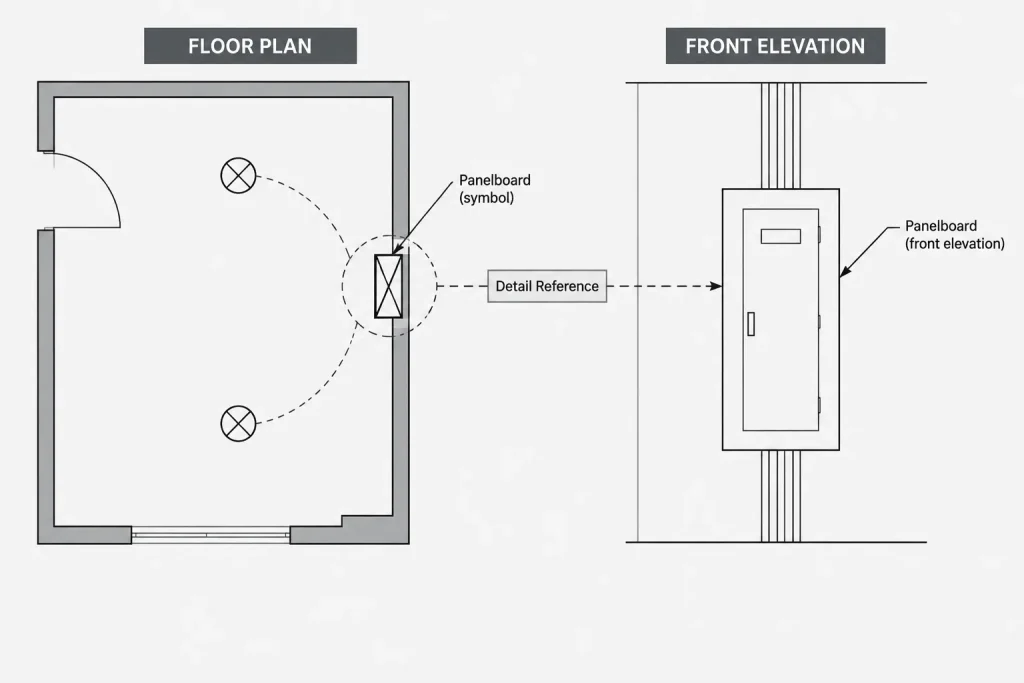
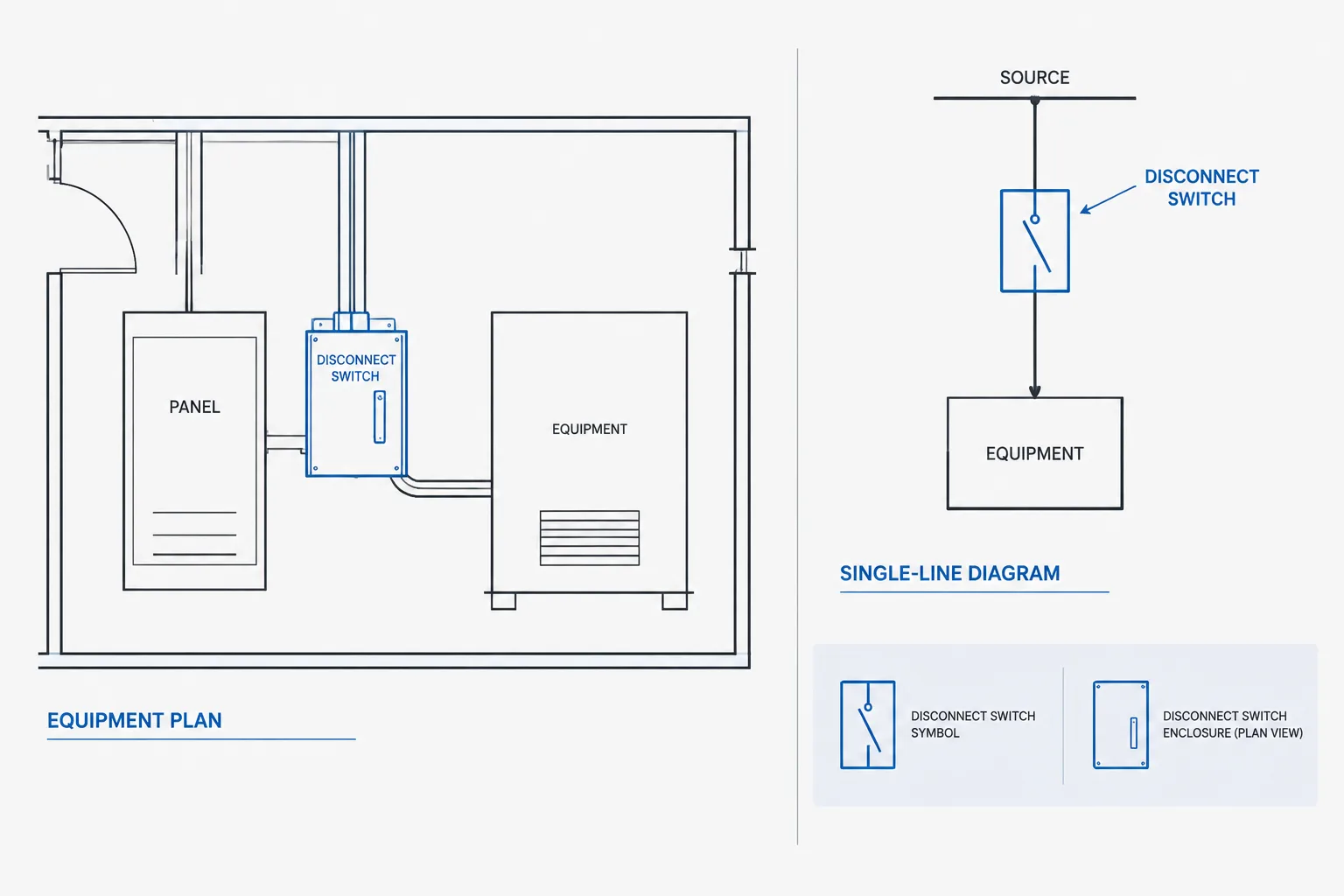
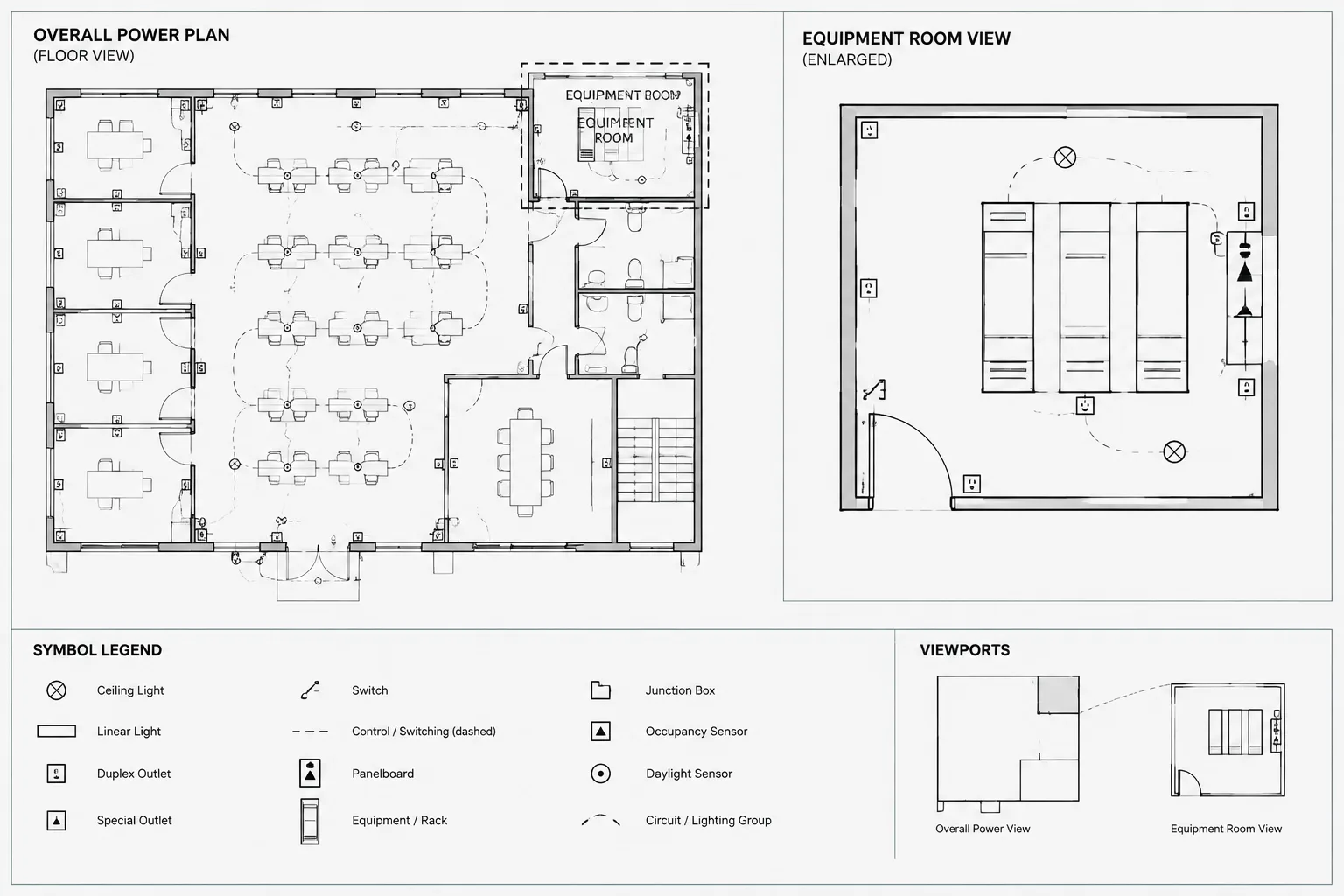
Electrical panelboard elevations in CAD provide information that a floor plan or single-line diagram cannot show clearly. A plan locates the panelboard in the room, while an elevation explains how the cabinet relates to the wall, nearby devices, architectural features, and other electrical equipment. Used together, these views help the drawing team identify conflicts and communicate installation intent without overloading the power plan.
An elevation should not be treated as a decorative front view of a generic cabinet. It is a coordination drawing whose content must be tied to verified project information. Cabinet size, mounting arrangement, access provisions, enclosure configuration, and required working space can vary. Generic CAD blocks are useful starting points, but project drawings should distinguish schematic geometry from verified equipment data.
What a Panelboard Elevation Adds to the Drawing Set
A floor plan normally represents a panelboard with a simplified footprint or wall-mounted symbol. That is appropriate for room planning, but it may not reveal vertical relationships. An elevation can show whether the panelboard conflicts with a ceiling feature, countertop, door swing, wall accessory, control station, or nearby cabinet.
A useful elevation may communicate:
- The panelboard tag and equipment designation.
- Surface-mounted, flush-mounted, or otherwise project-defined installation intent.
- Approximate cabinet outline based on verified data or a clearly marked placeholder.
- Relationship to the finished floor and surrounding wall construction.
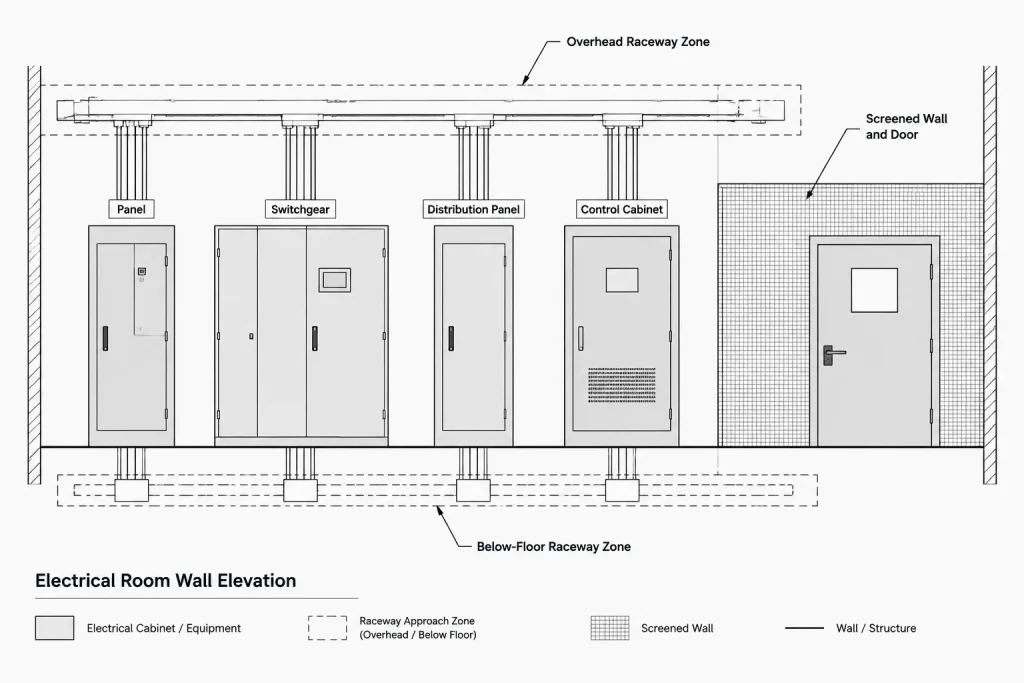
- Adjacent electrical equipment and grouped equipment arrangements.
- Incoming or outgoing raceway zones when they affect coordination.
- Access or working-space graphics when required for drawing review.
- References to schedules, one-lines, details, or enlarged plans.
The elevation does not need to repeat every item from the panel schedule. Its purpose is to coordinate the physical installation and direct the reader to the documents that contain circuit and system information.
Choose the Appropriate Level of Representation
Panelboard elevations can range from diagrammatic to product-specific. The correct level depends on the project stage and the reliability of available information.
| Representation | Typical use | Drafting caution |
|---|---|---|
| Schematic cabinet outline | Early layouts and space planning | Label the geometry as diagrammatic or subject to verification when size is not confirmed. |
| Coordinated generic elevation | Design documents with known mounting and location intent | Do not imply that generic door, trim, or conduit-entry details match the selected equipment. |
| Verified equipment elevation | Later coordination based on accepted project data | Record the source and revision of the information used to update the CAD block. |
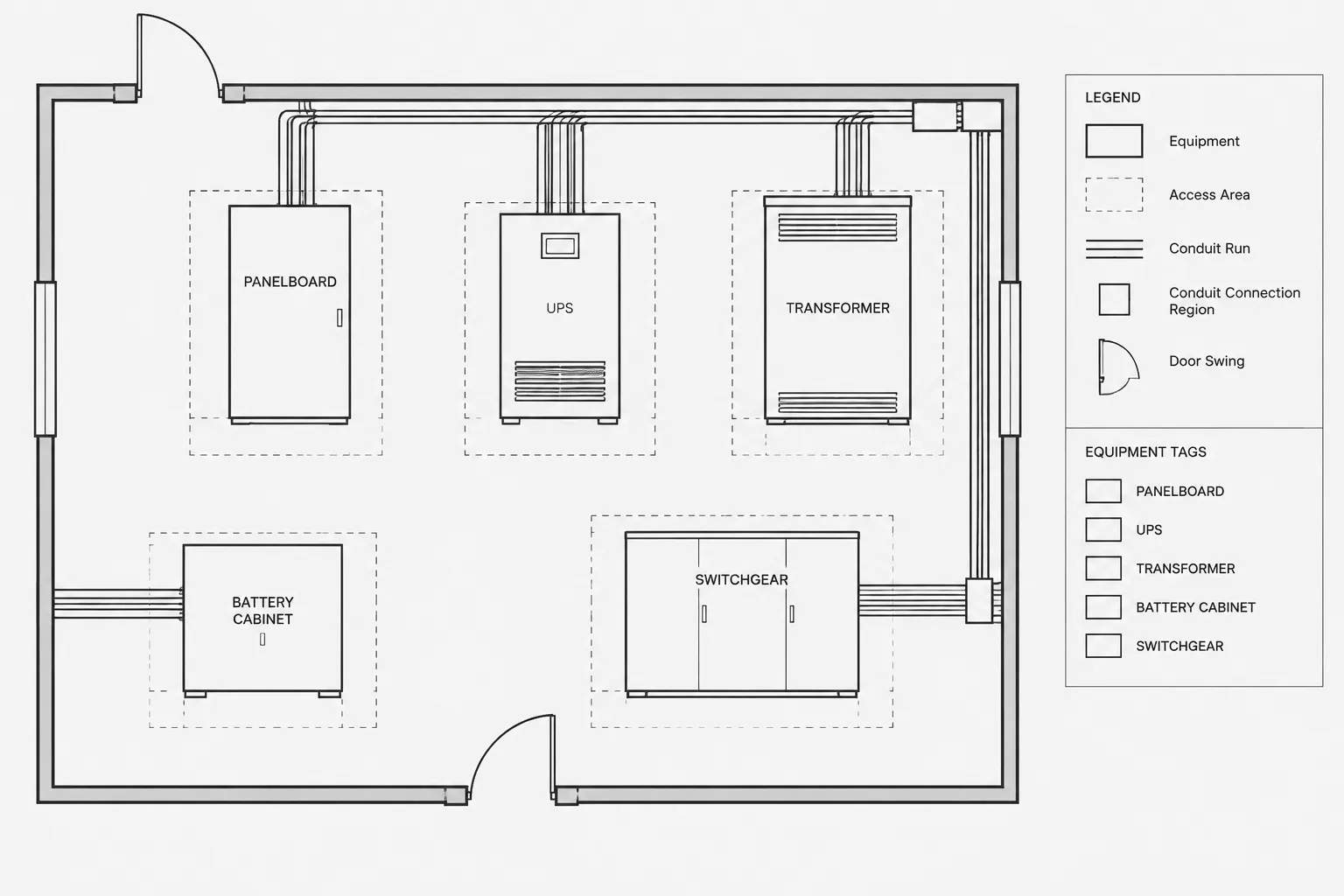
| Multi-equipment wall elevation | Electrical rooms and service areas | Coordinate all cabinets from a common wall baseline rather than assembling unrelated details. |
A common documentation problem occurs when an early generic block gradually appears to become an exact equipment representation. To avoid this, assign a status to the block or view. A CAD attribute, equipment-data field, or internal review note can identify whether the geometry is provisional, coordinated, or verified.
Build the Elevation from Reliable References
Start with the architectural background
Use the current wall elevation, section, or model-derived reference when available. Show only enough architectural information to establish context: floor line, wall limits, doors, major casework, ceiling conditions, and features that could affect equipment placement. Screen or lighten background geometry so the electrical scope remains visually dominant.
Establish a consistent baseline
Place equipment relative to a shared finished-floor line or another documented project datum. Avoid positioning cabinets by eye. If a mounting relationship has not been verified, use an explicit note or unresolved coordination marker rather than adding an assumed dimension.
Insert the cabinet representation
Select a block that matches the intended representation level. The block should have a logical insertion point, such as a cabinet corner or centerline that supports consistent placement. Preserve separate geometry for the cabinet body, trim, door swing, annotation, and optional coordination zones where practical.
Add the equipment tag
The elevation tag should match the identifier used on the power plan, panel schedule, and single-line diagram. Keep the tag independent from graphical details that may change. If the panelboard designation changes, the update should be traceable across every related view rather than corrected only on the elevation.
Show Mounting and Wall Conditions Clearly
The difference between surface and flush mounting has drawing consequences. A surface-mounted cabinet projects from the wall and may affect nearby doors, trim, equipment, or circulation. A flush-mounted cabinet interacts with wall depth, framing, finishes, and concealed services. The elevation should state the intended condition, while sections or details should carry information that cannot be explained accurately in a front view.
Do not use a front elevation to suggest hidden construction that has not been coordinated. Instead, include a section callout where wall depth, recess conditions, backing, or raceway entry requires further explanation. If another discipline owns the supporting construction, identify the coordination relationship without assigning unverified means and methods.
Coordinate Raceway Entry Without Overdrawing
An elevation may show general raceway approach zones when routing affects ceiling space, wall construction, or adjacent equipment. It usually should not depict every conduit as a product-level connection unless that information is known and useful.
Use simplified linework to distinguish among:
- Raceways approaching from above or below.
- Reserved pathway zones.
- Feeders shown elsewhere in greater detail.
- Branch-circuit distribution direction when it matters to coordination.
- Connections that continue off the elevation through a referenced view.
Keep these graphics consistent with the feeder plan, conduit schedule, and single-line diagram. If the elevation shows a bottom approach but the routing plan indicates an overhead path, the discrepancy should be resolved before issue.
Use Access Zones as Review Graphics
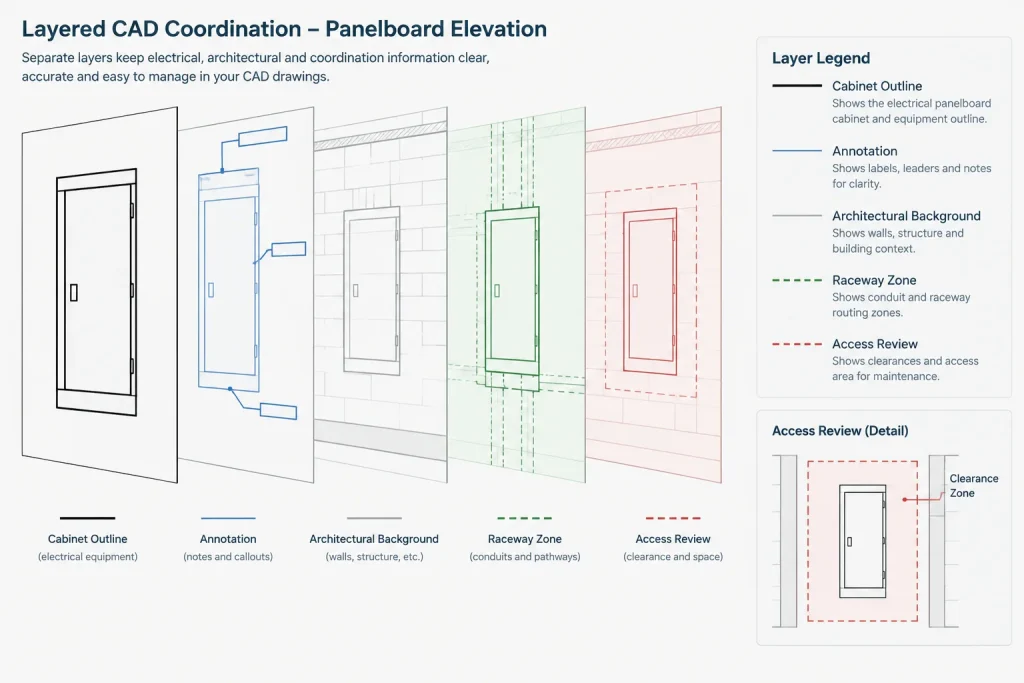
Access and working-space graphics can help reviewers detect conflicts, but they must not be presented as universal dimensions. Applicable requirements depend on the equipment, installation, project criteria, and governing rules. Draw the zone on a dedicated non-plot or selectively plotted layer, and size it only from verified project information.
These zones are most useful during coordination. They can reveal conflicts with doors, storage, casework, piping, mechanical equipment, or architectural projections. The final drawing may show the zone, replace it with dimensions and notes, or omit it if the project documentation communicates the requirement elsewhere.
Connect the Elevation to Other Electrical Documents
A panelboard elevation becomes more reliable when it is treated as one view of a shared equipment record rather than an isolated detail.
| Related document | Information to reconcile |
|---|---|
| Power plan | Room location, wall orientation, panel tag, and nearby equipment. |
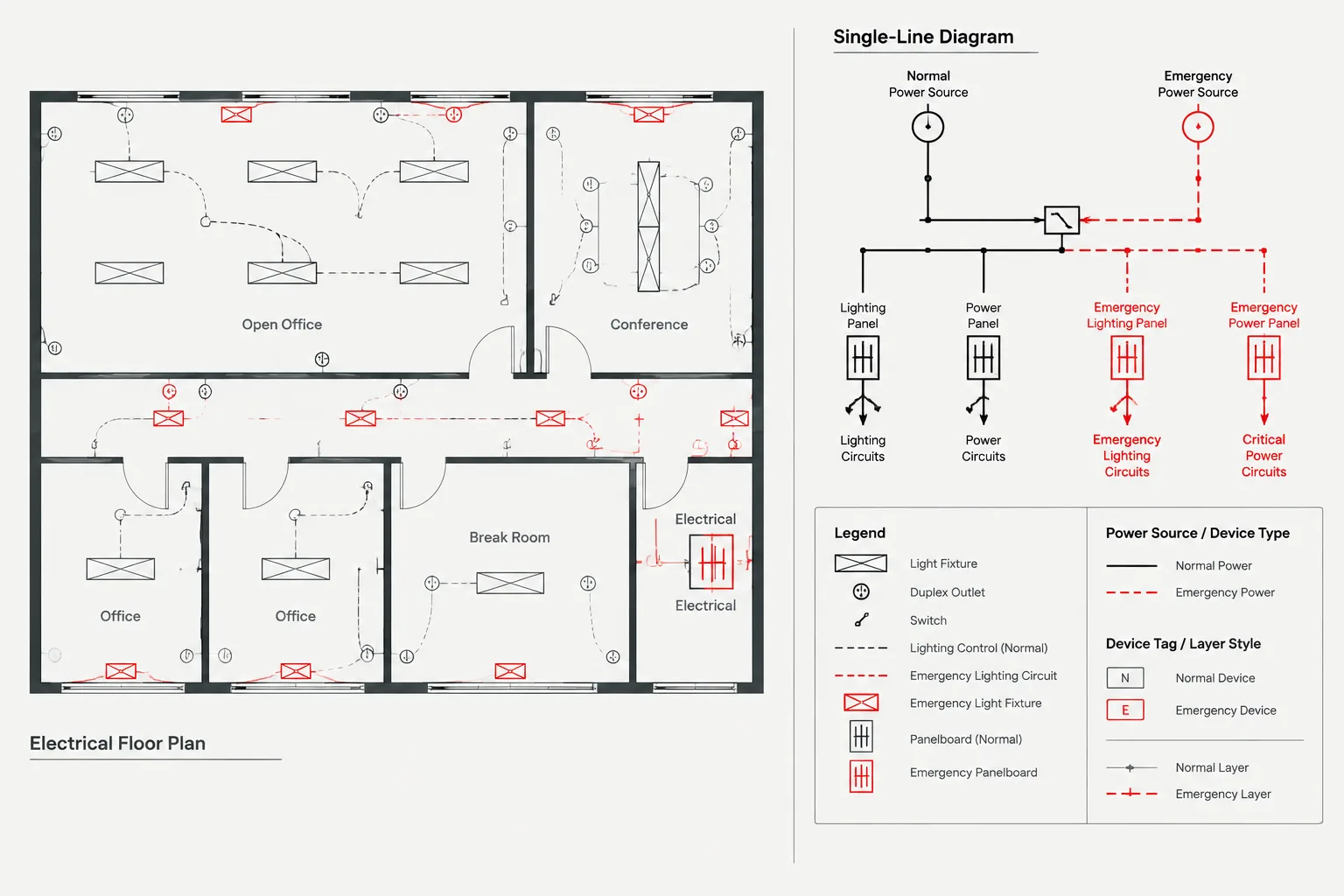
| Single-line diagram | Source relationship, feeder identification, and equipment designation. |
| Panel schedule | Panel name, circuit documentation, and project-defined electrical characteristics. |
| Equipment schedule | Mounting type, enclosure description, and verified equipment data. |
| Architectural elevation or section | Wall construction, finishes, doors, casework, and vertical constraints. |
| Conduit or feeder documentation | Pathway identifiers, routing direction, and continuation references. |
References should be deliberate. A detail callout can direct the reader from the floor plan to the elevation, while the elevation can reference a schedule or section. Avoid circular references that send the reader between sheets without identifying where the controlling information resides.
Recommended CAD Organization
Keep panelboard elevation content separated by function so it can be reviewed and reused without destructive editing. A practical layer structure may distinguish equipment outlines, hidden or overhead routing, tags, dimensions, clearance graphics, architectural backgrounds, and detail references. Follow the project layer standard rather than introducing an isolated naming system for one detail.
Attributes can improve consistency when they hold stable identifiers such as the panel tag, schedule reference, or verification status. Avoid packing large amounts of technical data into invisible attributes unless the project has a controlled extraction workflow. Important information should remain visible in the issued documents or in a clearly referenced schedule.
Quality-Control Checklist
- Confirm that the panelboard tag matches the plan, schedule, and one-line.
- Verify that the elevation faces the correct direction relative to the floor plan.
- Check mounting terminology against the equipment schedule and wall condition.
- Identify whether cabinet geometry is generic, coordinated, or verified.
- Compare raceway approach graphics with routing and feeder documents.
- Review doors, casework, ceilings, and nearby equipment for visible conflicts.
- Confirm that detail, section, and sheet references are current.
- Remove obsolete options, hidden placeholders, and duplicated annotations.
- Test the plotted view at its intended sheet scale for readable tags and lineweights.
- Retain unresolved items in the project review process rather than masking them with assumed geometry.
Make the Elevation a Coordination Tool
The strongest electrical panelboard elevations in CAD are concise, traceable, and honest about the status of their information. They show enough context to coordinate the installation while avoiding invented product detail. By linking the cabinet view to the plan, schedule, one-line, and architectural background, the drafter creates a useful bridge between system documentation and physical layout.
A well-managed elevation block can be reused, but it should never be accepted blindly. Check its units, insertion point, layers, attributes, mounting representation, and verification status for every project. The block supplies drafting efficiency; the coordinated drawing supplies project meaning.
Reading the Elevation as a Coordinated Record
A panelboard elevation should be reviewed as part of a connected drawing set. The cabinet outline communicates physical intent, the equipment tag connects that geometry to schedules and diagrams, and the architectural background establishes the wall context. None of these elements should be interpreted independently when another project document controls the information.
Separate physical geometry from circuit documentation
The elevation may identify the panelboard and reference its related records, but the panel schedule and system diagrams normally carry the detailed circuit relationships. Keeping those roles distinct prevents the elevation from becoming crowded and reduces the risk of duplicated information falling out of coordination.
Make information status visible
Reviewers should be able to determine whether the cabinet is a schematic placeholder, a coordinated generic representation, or geometry based on verified equipment data. This status can be communicated through an attribute, note, layer state, or controlled project record. A realistic-looking block should not be allowed to imply a level of certainty that the design team has not established.
Use changes to trigger cross-document review
A revised panel location, designation, mounting condition, or raceway approach can affect several drawings. When the elevation changes, review the associated power plan, panel schedule, single-line diagram, equipment schedule, and architectural reference rather than treating the edit as an isolated graphic correction.
Practical Review Priorities
- Identity: Confirm that the same panelboard designation appears in every related view and schedule.
- Orientation: Compare the elevation direction with the floor plan and wall reference.
- Context: Check doors, finishes, casework, ceiling features, controls, and adjacent cabinets.
- Representation: Verify that linework does not overstate the accuracy of generic equipment geometry.
- Routing: Reconcile pathway approach graphics with feeder and conduit documentation.
- Traceability: Keep references and verification status current when backgrounds or equipment information change.
This review approach preserves the elevation’s main purpose: communicating how an identified panelboard relates to its surroundings without replacing the documents that define the electrical system.
Frequently Asked Questions
What is the difference between a panelboard plan symbol and a panelboard elevation?
A plan symbol primarily establishes horizontal location and orientation. An elevation shows vertical and wall-related conditions, including the cabinet’s relationship to architectural features, adjacent equipment, and pathway approach areas.
Should an elevation show every branch circuit?
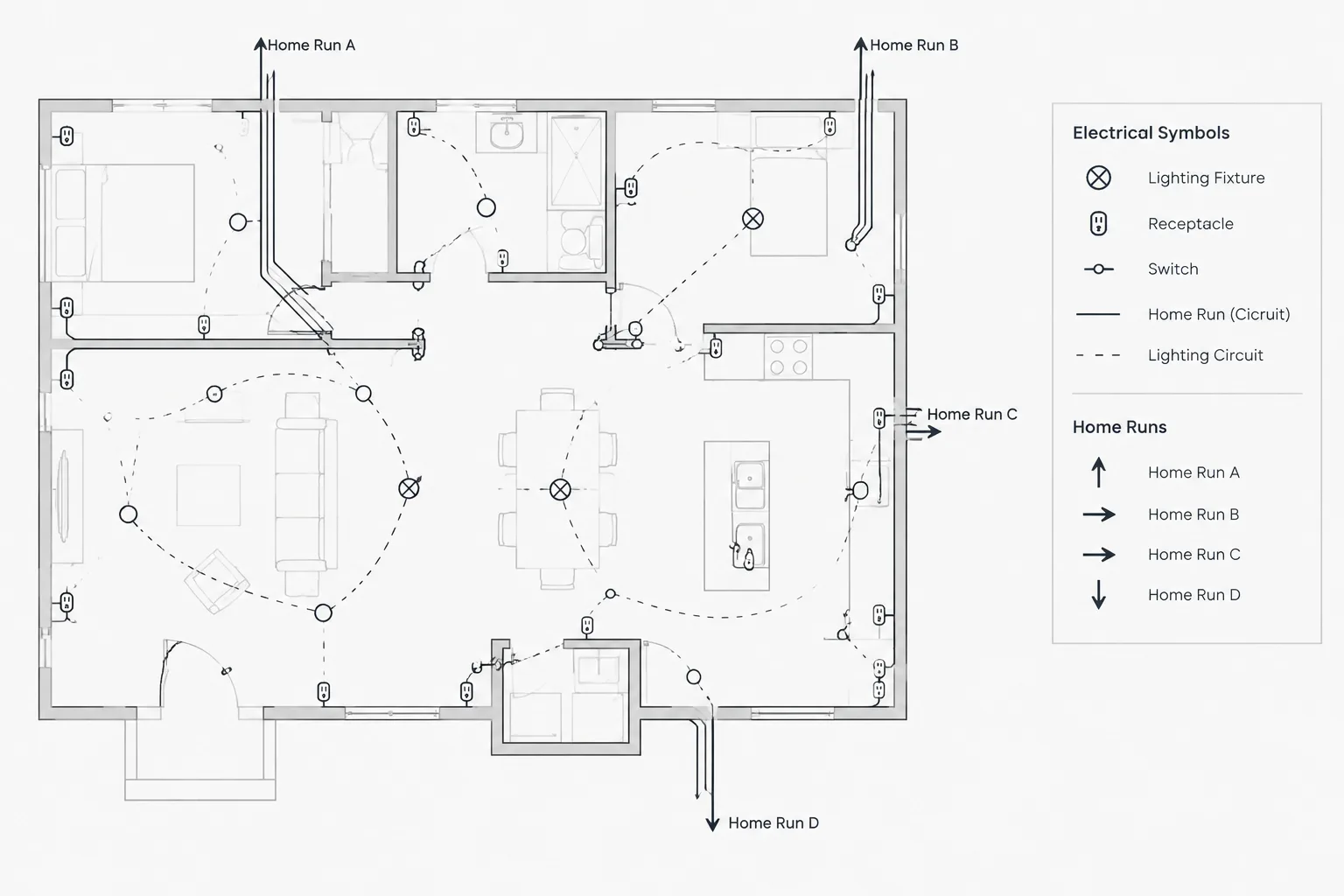
Usually not. The elevation should identify the panelboard and direct the reader to the panel schedule, power plan, or other circuit documentation. Circuit information should only be repeated when it serves a clear coordination purpose and can be maintained consistently.
Can a generic panelboard CAD block be used in construction documents?
A generic block can support drafting, but its status should be clear. It must not imply verified cabinet dimensions, trim details, entry locations, or enclosure features unless those items have been confirmed from accepted project information.
When is a section more useful than a front elevation?
A section is useful when wall depth, recess conditions, concealed routing, backing, trim relationships, or other side-view conditions cannot be explained accurately in the front elevation.
How should surface-mounted and flush-mounted conditions be documented?
Use consistent mounting terminology and show the visible wall relationship appropriate to the project information. Reference a section or detail when the front view cannot communicate the construction interface without assumptions.
Where should panelboard access graphics be placed in CAD?
Place review graphics on a controlled layer that can be displayed during coordination and plotted only when required. Their geometry must come from verified project criteria rather than a universal or assumed template.
What should be checked when a panelboard elevation is revised?
Review the equipment tag, plan location, wall orientation, schedule references, one-line designation, mounting description, pathway approach, architectural background, and verification status.
Leave a Reply
You must be logged in to post a comment.