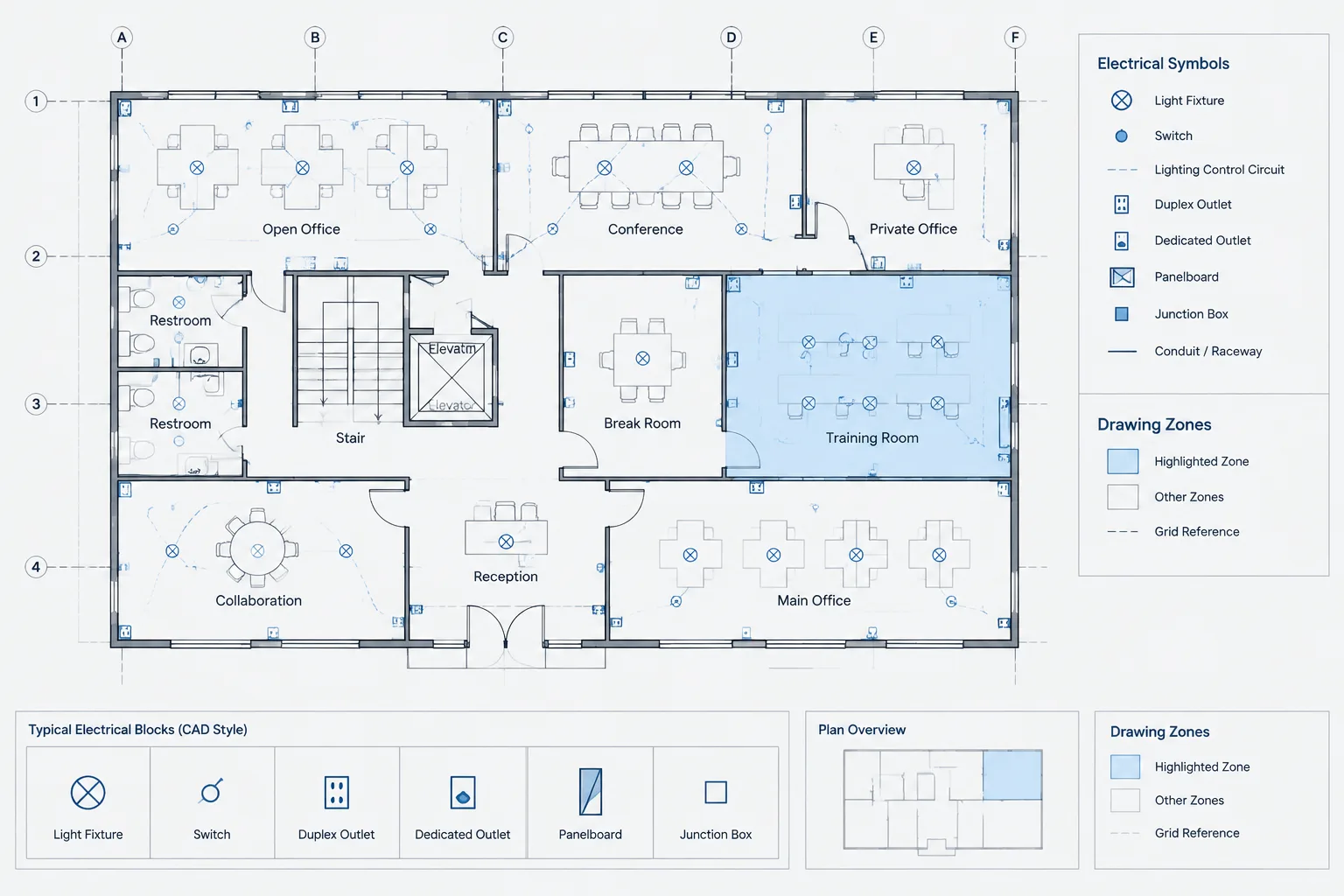
Electrical drawing zone references help reviewers move through crowded floor plans without confusing document location with physical building location. A well-managed zone framework gives CAD teams a consistent way to identify the general area containing a symbol, note, revision, or coordination issue.
The guidance below explains how to select a zone framework, represent it in CAD, coordinate it with other reference systems, and keep it reliable as sheets and viewports change.
Large electrical floor plans can be difficult to navigate even when the drafting is accurate. Repeated rooms, dense device layouts, multiple match lines, and similar equipment tags can make a reviewer spend unnecessary time searching for a location. Electrical drawing zone references provide a simple navigation layer that helps users describe where an item appears without relying only on room names or informal directions.
A drawing zone system divides a sheet, plan view, or building area into labeled regions. Those labels can then support review comments, equipment lists, revision logs, detail references, and coordination discussions. The system does not replace dimensions, architectural grids, room numbers, survey coordinates, or equipment identifiers. Its purpose is document navigation.
What Is an Electrical Drawing Zone Reference?
A drawing zone reference is an alphanumeric or otherwise structured label assigned to a defined portion of a drawing. A border grid might use letters along one edge and numbers along another, allowing a location to be described by the intersecting labels. A project may instead use named plan regions, building sectors, or area identifiers.
For example, a review note might identify a receptacle symbol by sheet, zone, and device tag. The zone narrows the search area, while the device tag identifies the actual object. This is especially useful when the same device type appears hundreds of times.
Zone references should be treated as drawing-management information rather than design data. They indicate where information is shown, not where equipment must be installed in the field.
Zone References Compared with Other Location Systems
| Reference type | Primary purpose | Typical electrical use |
|---|---|---|
| Drawing zone | Navigate a sheet or view | Locate a markup, symbol, note, or revision |
| Architectural grid | Relate construction elements to building geometry | Coordinate equipment and pathways with columns or walls |
| Room number | Identify an architectural space | Associate devices, lighting, or equipment with a room |
| Equipment tag | Identify a particular asset or equipment type | Coordinate plans, schedules, diagrams, and labels |
| CAD coordinate | Place geometry within a digital reference system | Align backgrounds, references, and project files |
| Match-line reference | Continue a plan onto another view or sheet | Trace circuits, raceways, or layouts across drawing boundaries |
These systems can work together. A useful location description might combine the electrical sheet number, drawing zone, architectural room, and equipment tag. Avoid treating one reference as a substitute for all the others.
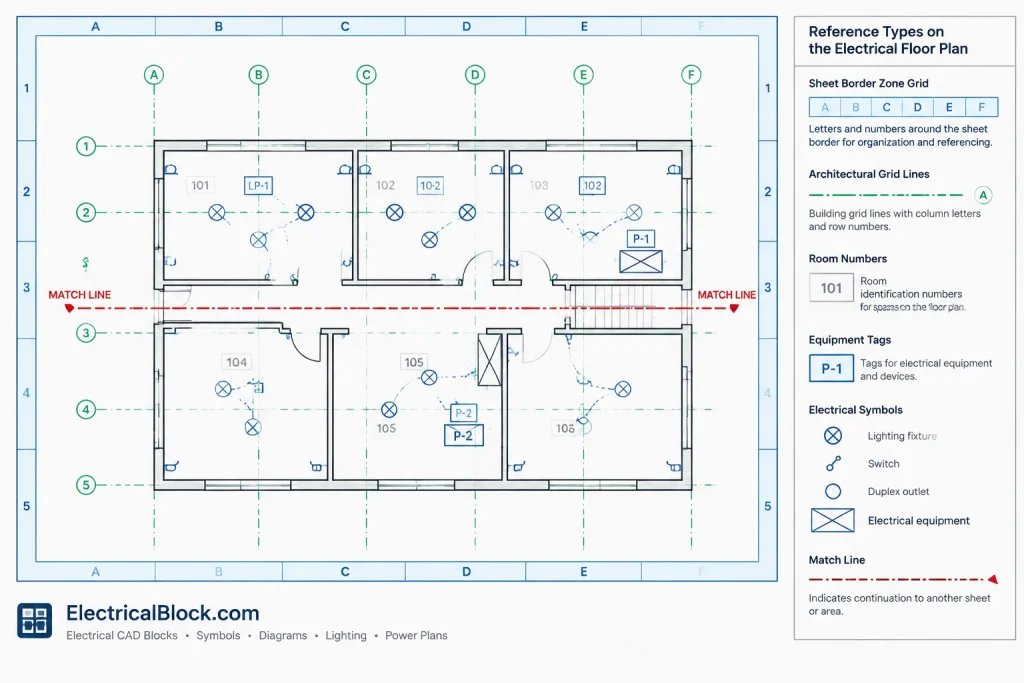
Choose the Zone Framework Before Drafting Labels
Start by deciding what the zone system covers. It may apply to the entire plotted sheet, only the primary plan viewport, or a building-wide area map. Mixing these approaches without explanation creates ambiguous references.
Sheet-border zones
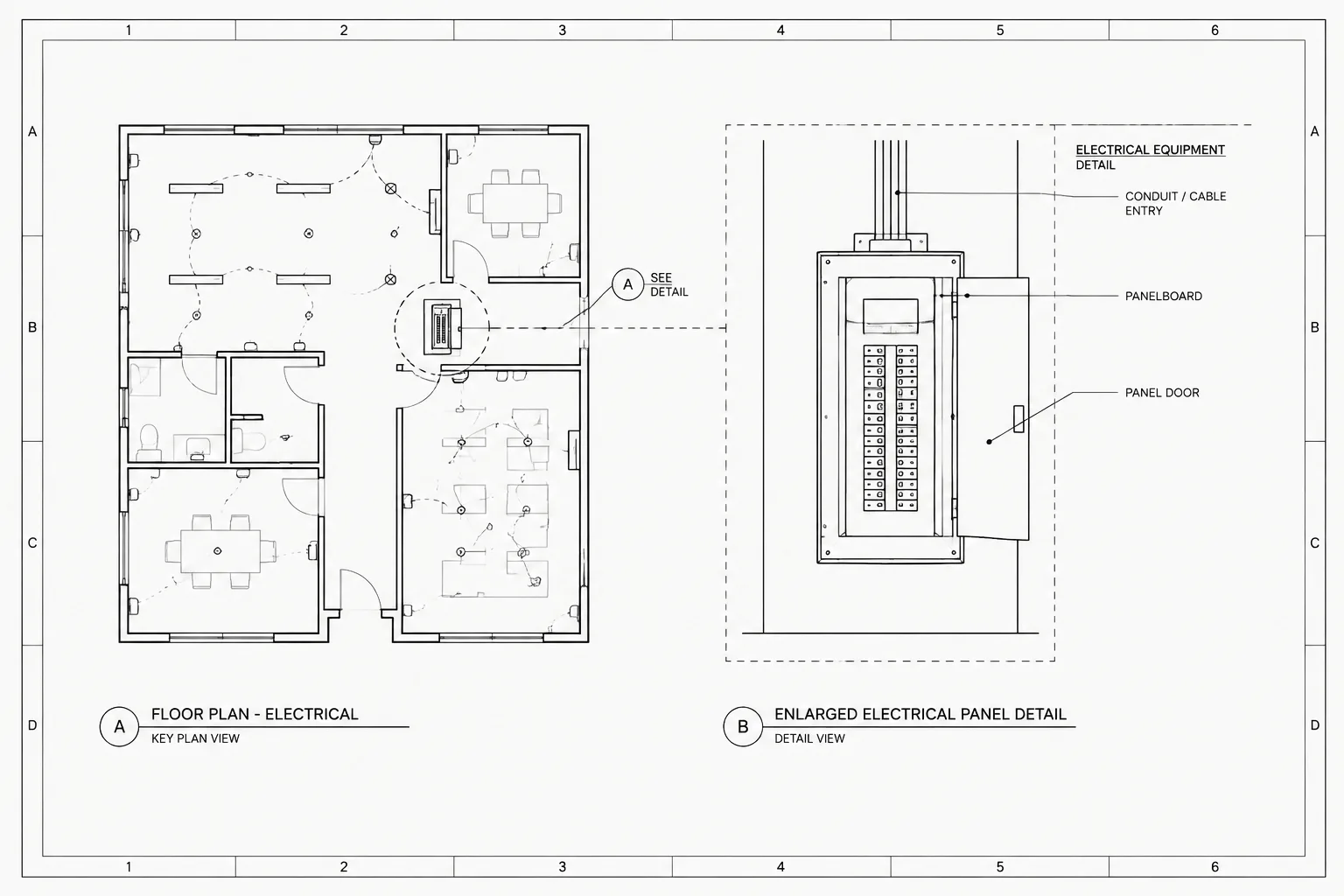
Sheet-border zones remain fixed relative to the plotted sheet. They are useful for review comments and revision records because the labels can appear consistently around the border. However, a plan moved to another viewport position may fall into different zones even though the building location has not changed.
Plan-view zones
Plan-view zones are attached to the displayed plan area. They can be more intuitive for large layouts but require careful control when viewports are resized, cropped, or rearranged.
Building areas or sectors
Named areas can follow wings, departments, levels, or project-defined sectors. They are often easier to discuss than a border grid, but their boundaries must be shown clearly. Named sectors should not be confused with fire alarm zones, lighting control zones, security zones, construction phases, or electrical distribution areas.
Build the Zone Grid in CAD
A zone framework should be stable, visually quiet, and easy to maintain. The following workflow can be adapted to the project template and CAD platform.
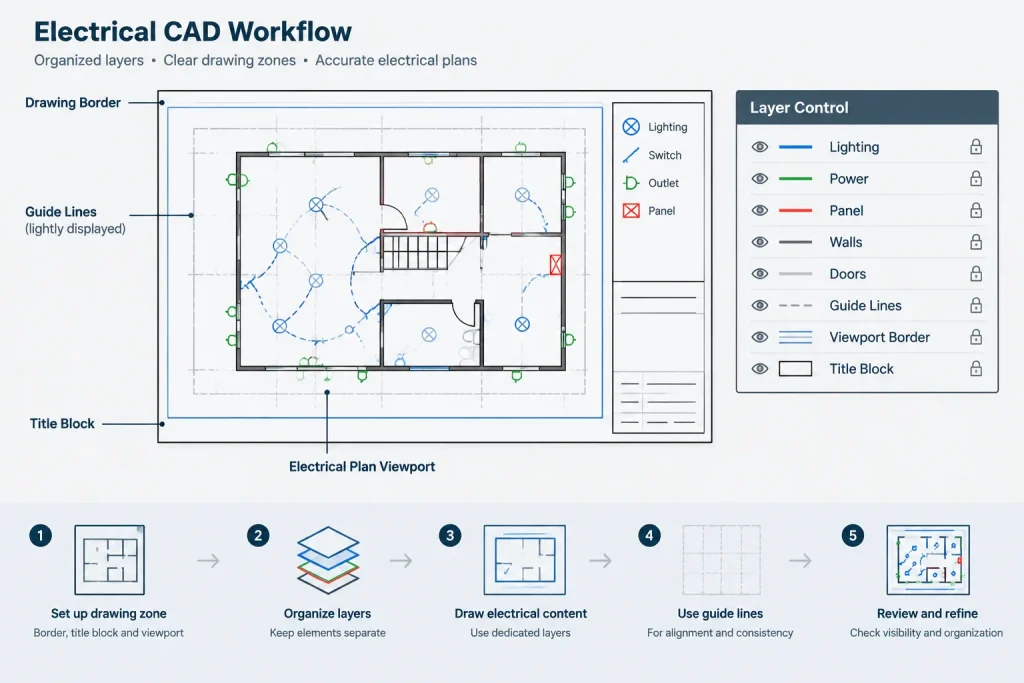
- Confirm the plotted extent. Identify the sheet border, viewport, or plan boundary that the grid will reference.
- Establish divisions. Divide the applicable extent into practical regions. The goal is useful navigation, not the maximum possible number of cells.
- Create consistent labels. Use a predictable sequence that is distinct from nearby architectural grid bubbles and electrical equipment tags.
- Place zone graphics on dedicated layers. Separate border labels, interior guide lines, and zone notes when different visibility controls may be needed.
- Control plotting. Interior lines may be nonplotting, lightly plotted, or omitted while border labels remain visible. Verify the result in the issued output rather than relying only on model-space appearance.
- Document the convention. Add a concise note or legend entry explaining whether the reference applies to the sheet, viewport, or building area.
If zone labels are built as blocks, keep their insertion points and text alignment consistent. Attributes can store the zone value, but automation should not be used unless the team can reliably maintain it after viewport and sheet changes.
Use Layers and Blocks Without Adding Visual Clutter
Zone graphics should not compete with circuiting, device symbols, equipment outlines, or architectural backgrounds. A dedicated layer structure makes it possible to show the reference system on coordination plots while suppressing unnecessary guide geometry on presentation sheets.
- Keep zone labels separate from architectural grid bubbles.
- Avoid reusing equipment-tag layers for navigation labels.
- Use a text style that remains legible after PDF creation and printing.
- Do not place important labels where they can be hidden by viewport clipping, masking, or sheet notes.
- Check whether referenced files introduce another zone grid that could be mistaken for the electrical convention.
When a project uses several plan types, reference one shared zone framework where practical. Independently redrawing the grid on lighting, power, fire alarm, and low-voltage plans can allow the labels to drift apart.
Connect Zones to Reviews, Schedules, and Revisions
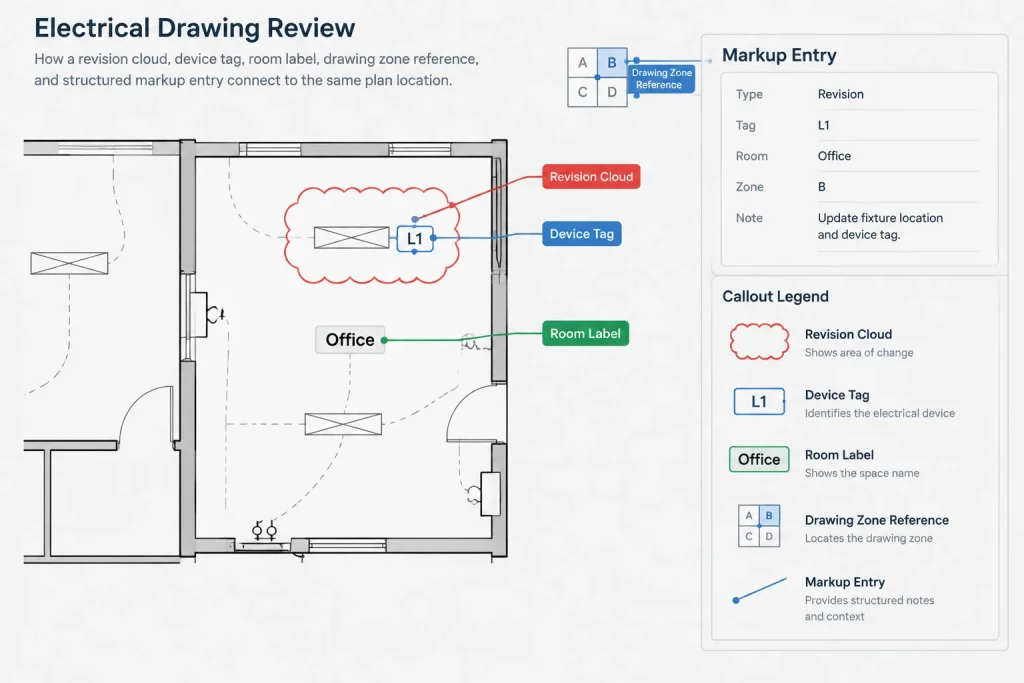
Zone references become valuable when they are used consistently beyond the drawing border. A markup log can include fields for sheet, zone, comment, responsible discipline, and status. An equipment list may include a drawing-location field when that information helps users find the plan symbol.
Revision descriptions can also use zones to distinguish several separated edits on the same sheet. The revision cloud still shows the actual changed area; the zone reference simply helps users navigate to it. A zone label should never replace a revision cloud, delta, narrative, or other required issue-control method established for the project.
For multidisciplinary coordination, a structured reference reduces vague comments such as “near the electrical room.” A clearer comment identifies the drawing, zone, room, and affected tag when those references are available.
Handle Viewports, Match Lines, and Enlarged Plans Carefully
Large plans often appear through multiple viewports or continue across several sheets. Decide whether each sheet has its own zone system or whether zones represent fixed building areas. Both methods can work, but the drawing set must make the distinction obvious.
An enlarged electrical plan may use its own border zones because it is a separate drawing view. If so, do not assume that its zone labels match those on the overall plan. Use a callout and sheet reference to connect the views, then use the local zone only for navigation within the enlarged drawing.
At match lines, confirm that nearby zone labels do not look like continuation references. Match-line text should continue to identify the destination sheet or view according to the project convention.
Common Zone-Reference Problems
- Labels change after layout edits: Moving or resizing a viewport can invalidate sheet-based references in logs and comments.
- Duplicate naming systems: Architectural grids, electrical zones, and area names may use similar labels without a differentiating prefix or note.
- Excessive subdivision: Very small cells can make labels harder to use than a broader, readable system.
- Missing references on PDFs: Nonplotting layers or viewport freezes can remove information that appeared in the working file.
- Outdated schedules: Location fields may continue to show old zones after a plan is repaginated.
- False precision: A zone identifies a general drawing region and should not be interpreted as an installation coordinate.
Quality-Control Checklist
- Confirm that every zone label is unique within its stated reference area.
- Verify the label sequence around the complete sheet or viewport.
- Check that orientation is consistent across related sheets.
- Compare zone references in review logs and schedules with the current layouts.
- Inspect enlarged plans and continuation sheets for ambiguous duplicate labels.
- Plot or export the sheet and confirm that labels remain readable.
- Check that revision clouds and callouts do not cover zone identifiers.
- Remove abandoned zone geometry from copied layouts and old viewports.
- Record any zone-system change as part of the drawing revision workflow.
A Navigation Aid, Not a Design Substitute
Electrical drawing zone references are most effective when they remain simple and stable. They help teams find symbols, discuss markups, track revisions, and coordinate information across dense plan sets. They do not replace equipment tags, room numbers, dimensions, architectural grids, or verified project coordinates.
Before issue, review the zone framework as part of the complete documentation system. The labels shown on the sheet, used in logs, and referenced during coordination should all point users to the same location. That consistency turns a modest CAD drafting feature into a practical tool for navigating complex electrical drawings.
Record the Zone-System Decision
A zone framework is easier to maintain when its governing decisions are recorded in the project drafting plan or CAD standards notes. The documentation should identify what the zones reference, where their labels are controlled, and which project records depend on them.
- Reference extent: State whether zones belong to a sheet border, viewport, plan area, or named building sector.
- Label authority: Identify the drawing file, layout, or shared reference that controls the current labels.
- Dependent records: Note whether markup logs, equipment lists, revision descriptions, or coordination reports contain zone fields.
- Change responsibility: Assign review of affected references whenever layouts, viewports, or plan divisions are revised.
- Issue verification: Check the published PDF or plotted deliverable rather than treating the editable CAD view as the final result.
Use Zones as Part of a Location Chain
The strongest drawing comments usually combine complementary references. The sheet identifies the document, the zone narrows the visible search area, and a room number, equipment tag, callout, or match-line reference provides additional context. This layered approach is more dependable than expecting a zone label to identify an exact object by itself.
Location wording should also remain understandable after the comment leaves the CAD environment. A zone value copied into a review log has little meaning unless the associated sheet or view is named. When a sheet layout changes, both the drawing and any external records should be checked together.
Plan for Handoffs and Repagination
Zone references can become stale when another team reorganizes sheets, adjusts viewport crops, or creates enlarged plans. Before a handoff, communicate whether the system is fixed to plotted layouts or attached to building areas. This distinction helps downstream users determine whether an unchanged building location may receive a different drawing-zone label.
If a layout change affects established references, update the connected documentation through the project revision process. Avoid silently preserving an obsolete label merely because it already appears in a comment log or schedule.
Frequently Asked Questions
Should electrical drawing zones be created in model space or paper space?
The placement depends on what the zones represent. Sheet-border zones generally belong with the plotted layout, while plan-based or building-area zones may be managed with the plan geometry or a coordinated reference. The chosen method should remain consistent and be documented.
Can a drawing zone be used as an installation location?
No. A zone is a document-navigation reference. Field location should rely on the applicable dimensions, grids, room information, coordinated geometry, and approved project documents.
How can zone labels be distinguished from architectural grids and equipment tags?
Use a clearly documented label format, dedicated CAD layers, and graphic treatment that does not imitate nearby grid bubbles or asset identifiers. A legend note can state the scope and purpose of the zone convention.
What should be checked after a viewport is moved or resized?
Review the displayed zone boundaries, border labels, markup logs, schedules, revision descriptions, and other records that cite the affected zones. Confirm the result in the issued output.
Should an enlarged plan use the same zones as the overall plan?
Not automatically. An enlarged view may have its own navigation framework. Callouts and sheet references should connect the views, while the drawing notes should make the scope of each zone system clear.
Are drawing zones the same as fire alarm or lighting control zones?
No. Drawing zones help users navigate documents. Fire alarm, lighting control, security, and distribution zones describe system organization or operational areas and should be labeled so that the meanings cannot be confused.
Leave a Reply
You must be logged in to post a comment.